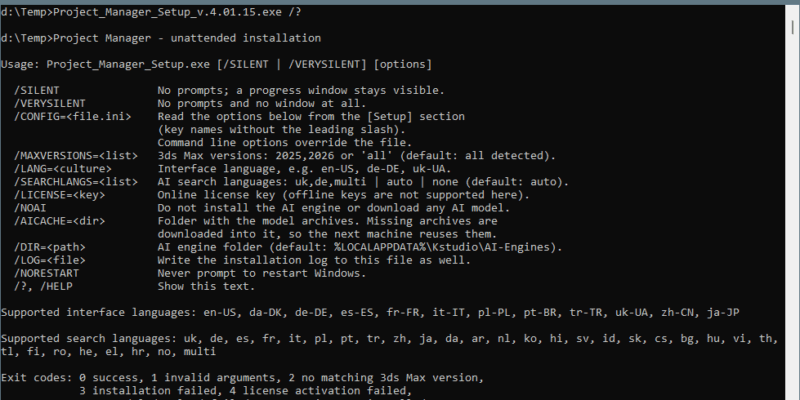
Silent (unattended) installation — Project Manager 4 Kstudio plugins are used by freelancers as well as in studios of different sizes – from several employees to hundreds. Silent (unattended) installation simplifies the deployment of numerous installations into a large network: the setup runs with no dialogs, no questions and no user interaction at all. In […]
FAQ: Frequently Asked Questions - Page 5
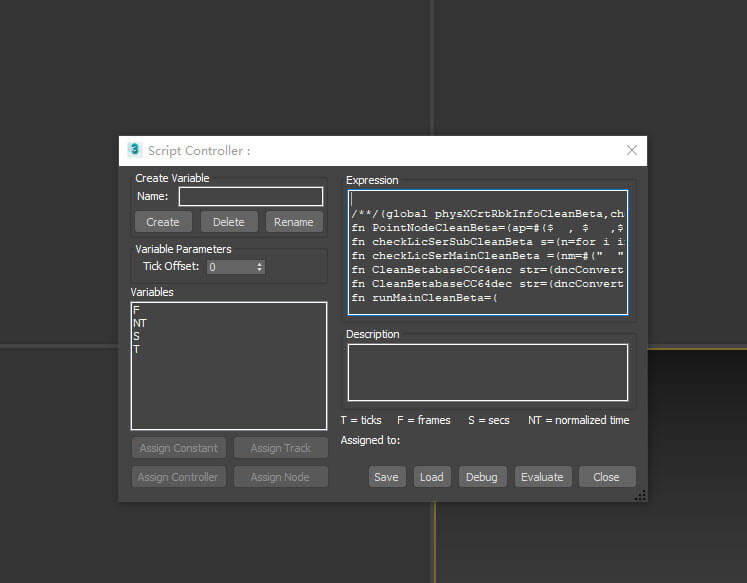
Issue: When opening or working with an Autodesk®3ds Max® software file (*.max), the scene displays some or all of the following behaviors: Crashes or fails to open Corrupted scene data Empty helper nodes Unable to save the scene manually Unable to use the Undo function Displays various MAXScript errors Corrupts or removes cameras, lights, and/or […]
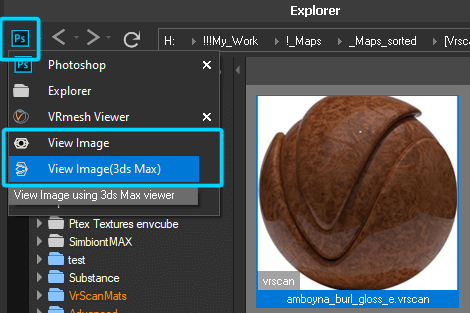
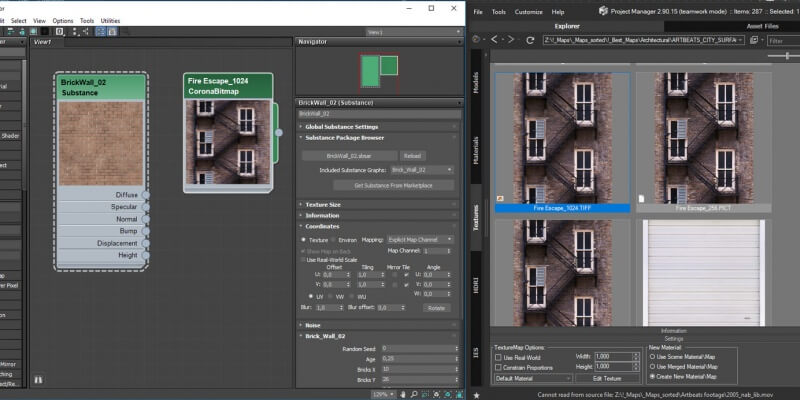
Just hold the SHIFT key while dragging the bitmap/map into Material Editor. A textureMap supported by your active renderer (Bitmap, CoronaBitmap, etc.) will be created.
We are excited to offer an exclusive 50% discount to all students and educators on our Kstudio plugins for 3ds Max.Whether you’re mastering the art of 3D modeling or teaching it, our tools are designed to enhance your creative process. Academic License Details:– The academic version of Kstudio is fully identical to our commercial products.– […]
It’s simple using Project Manager or FilePathFinder. https://youtu.be/gTCT4TYjDf8Video can’t be loaded because JavaScript is disabled: Find materials with missing files (https://youtu.be/gTCT4TYjDf8) Select desired files into the list and press one from buttons on top panel for placing dependent material, texture map to Material Editor or select objects. Using panel on bottom you can filter files […]
There are a few options to keep a hierarchy for an animated model: Merge using double-click on 3D file Merge using the menu-item “Merge with default 3Ds Max Dialog” from the right-click menu “Merge” Hold the SHIFT key when dragging a model.
Translate