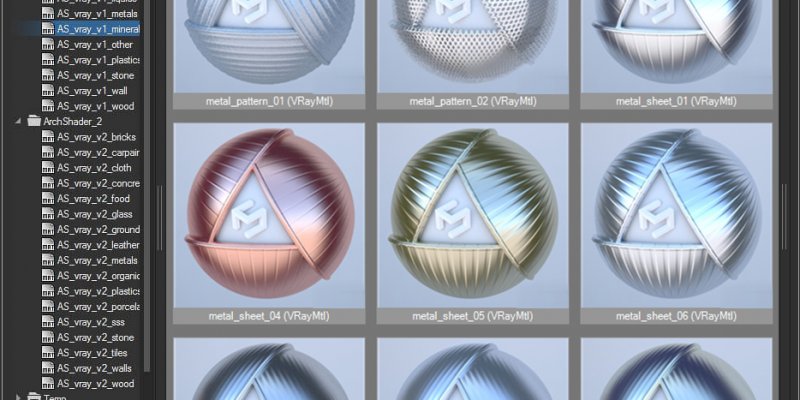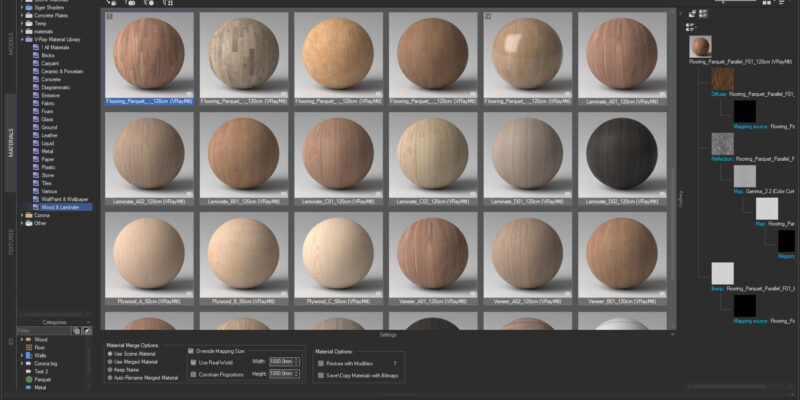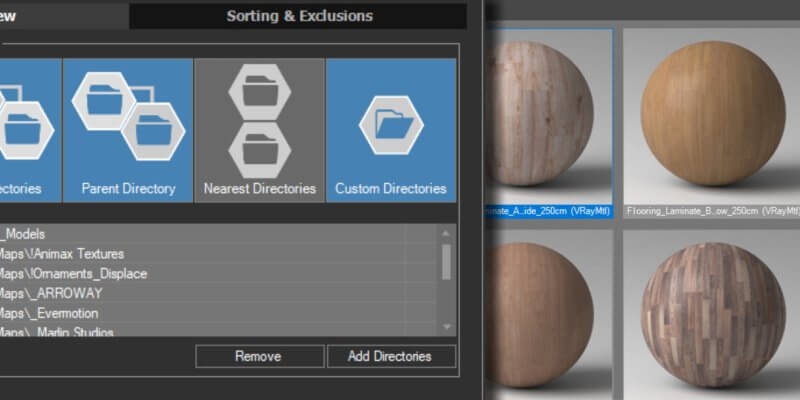
If you are experiencing issues with material previews not showing up in Project/Materials Manager, there are a few steps you can take to troubleshoot and resolve the issue. Step 2: Check Compatibility With Active Renderer Another crucial step is to ensure that the active renderer you are using is compatible with the materials. Different renderers […]
FAQ: Materials Manager
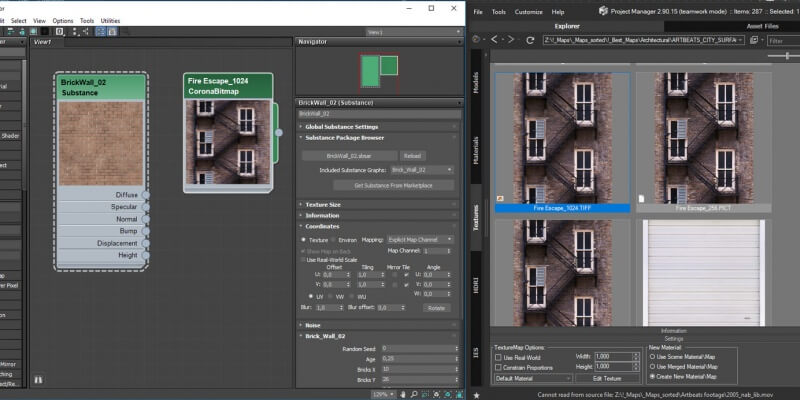
Just hold the SHIFT key while dragging the bitmap/map into Material Editor. A textureMap supported by your active renderer (Bitmap, CoronaBitmap, etc.) will be created.
The “Project Manager” unlike “Materials Manager” supports to 3d models, bitmaps and IES files. The “Project Manager” contain the tool “Batch Render&Relink”. The “Project Manager” contain all abilities of the “FilePathFinder PRO” See Comparison for Kstudio asset management tools on this page.
Reinstalling Windows or 3ds Max, or moving to a new computer?
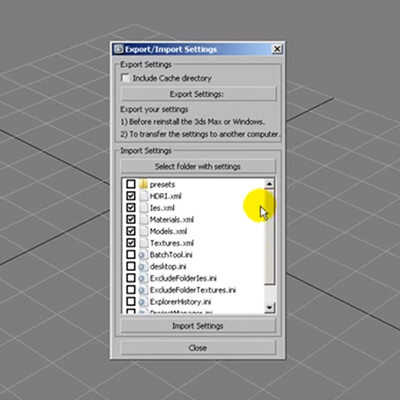
Use Export/Import Settings to save your preferences into a file and restore them in a fresh installation.
Close Project Manager first (File → Exit) and tick every setting you want to import — the database is skipped by default and is moved separately, together with your libraries, categories and tags.
Choose a material with which you wish to replace a scene material. Copy it (CTRL + C) or from the context menu item “Copy”. Go to the catalog “Scene Materials” and select the material you want to replace. (To quickly find the material in the scene, you can use a >>filter) Choose in the context […]
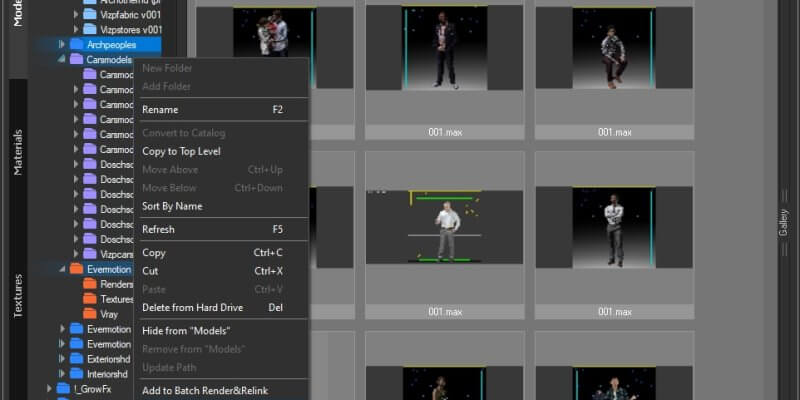
It is simple! Select multiple folders in Windows Explorer and drag them on “Project Manager” treeview panel. https://www.youtube.com/watch?v=XDgY_iznG0s&t=49sVideo can’t be loaded because JavaScript is disabled: 3Ds Max with Project Manager: Review (https://www.youtube.com/watch?v=XDgY_iznG0s&t=49s)
- 1
- 2
Translate