Translate



- November 26, 2026 at 03:58 #48295
Project Manager 4.02 cuts the manual work of looking after your libraries, speeds up work in complex scenes and automates more of your workflow locally.
Place & Paint now places models and paints them onto scene objects hundreds of times faster, even in scenes with tens of millions of polygons.
Drop a model into the viewport and a menu opens right by the cursor.
You can place the model, paint it across a surface, replace the object under the cursor or choose individual objects from the source file first.Your library gets tidier with very little effort, too. Files like
8f3a93f7a2.maxand folders likeCollection_0047can get meaningful names based on their contents.
You can translate those names between languages, and Project Manager can find previews even in manufacturers’ PDF catalogues.Every AI feature runs on your machine without subscriptions, credits or cloud processing.
What’s new in 4.02
- Place & Paint is hundreds of times faster on scene objects, even in scenes with millions of polygons.
- Drop Menu lets you choose how to import a model as you drop it.
- AI Name suggests meaningful file and folder names. The renamer can also translate names.
- Auto-Assign Previews finds previews in PDF catalogues and in folders it previously missed. In our test, it found at least one preview for over 96% of models.
- Convert Images runs significantly faster and handles gamma correctly for 16-bit and EXR images.
- Material previews can be rendered interactively at up to 512 px.
- Large libraries are quicker to browse. A folder with 46,000 subfolders opens in 3–5 seconds, down from about 11.
Merging with Drag&Drop and Place&Paint
The new Drop Menu gives you more options in a single drag
Drag and drop has always been one of the quickest ways to import models with Project Manager. Drag a model from your library into the 3ds Max viewport and it’s in the scene.
Different jobs call for different actions. You might place one model at the cursor, keep another at its original coordinates, swap a chair already in the scene, or scatter copies across a surface with Place & Paint. Previously, that meant changing your import settings or selecting objects in the scene first.
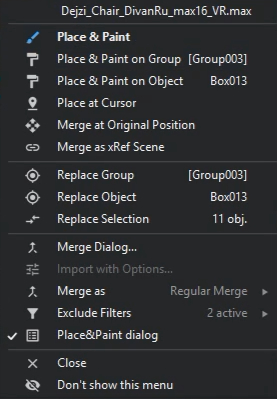
In Project Manager 4.02, the new context-sensitive Drop Menu appears beside the cursor as soon as you drop a model into the viewport. You choose how to use the model at the point of import.
Drop the model directly onto an object in the scene, then choose whether to replace that object or use it as a surface for Place & Paint. Project Manager picks up the object under the cursor, so you can skip selecting the target beforehand.
For most operations, you can also choose which objects to import from the file first. Open the standard 3ds Max Merge dialog, select just the objects you need, then place them, paint with Place & Paint or use them to replace existing objects. It all starts with one drag, with fewer tools to switch between and fewer settings to change beforehand.
The Drop Menu includes these commands.
- Place at Cursor places the model where you dropped it.
- Place & Paint starts interactive placement or lets you paint copies onto a surface.
- Place & Paint on Object places or paints models on the object under the cursor.
- Merge at Original Position imports the model at the coordinates saved in the file.
- Merge Dialog… opens the standard 3ds Max Merge dialog so you can choose the objects you want.
- Replace Under Cursor replaces the object under the cursor.
- Replace Selection replaces the selected scene objects.
- Merge as xRef Scene links the file as an external xRef scene.
Placement and replacement offer separate options for single objects and groups. Hover over a replacement or painting command and the target object or group highlights in the viewport, so you can see exactly what you’ll replace or paint on.
Merge Dialog… is especially handy with a complex file. Pick the objects you need, then immediately paint with them in the viewport or place them at the cursor. Import and painting are available together from the menu beside the cursor.
Import settings and when the Drop Menu appearsThe Drop Menu gives you direct access to Merge as, Exclude Filters, Materials, Place Mode, Place on, Clone, Align Mode and Display as Box. The current value appears to the right of each item. Changes apply globally, just as they do in the panel. The menu picks up your existing Project Manager settings.
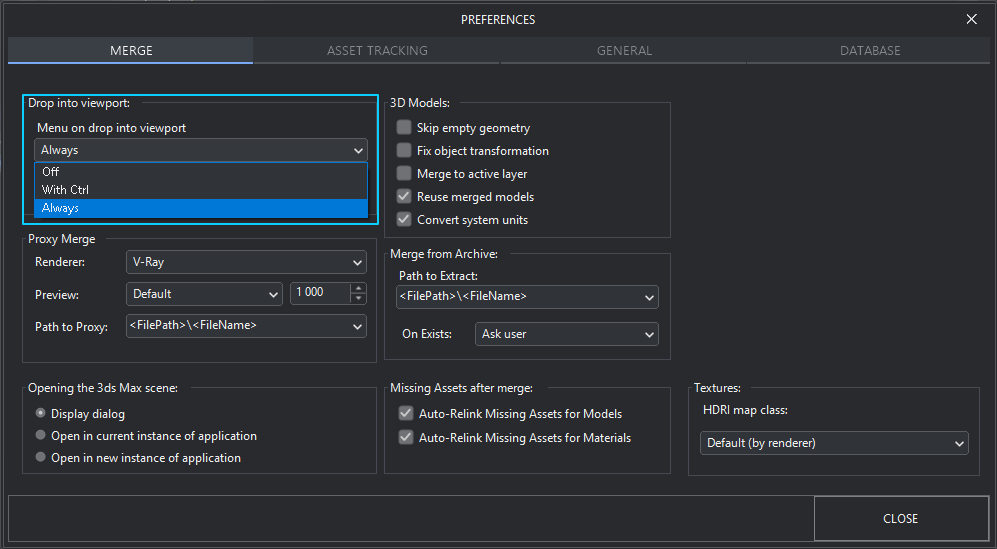
Choose Don’t show this menu to return to classic drag and drop. To restore the menu or change when it appears, go to Preferences → Merge → Menu on drop into viewport.
- Always opens the menu every time you drop a model. This is the default.
- With Ctrl opens the menu when you hold Ctrl while dragging.
- Off restores classic drag and drop.
Holding Shift while dragging still opens the standard 3ds Max Merge menu.
 Project Manager 4.02 - Preferences. Drop Menu
 Project Manager - collapsed Drop Menu
Place & Paint is hundreds of times faster, even in complex scenes
Place & Paint lets you place and paint models interactively on surfaces, from chairs around a table and vases on shelves to plants and small decorative details.
In large scenes, placing objects on top of existing geometry could previously mean a noticeable pause after every click.With the optimisation in Project Manager 4.02, placement and painting on scene objects run hundreds of times faster and respond without noticeable delay, even in scenes with tens of millions of polygons.
The difference is most apparent in scenes with thousands of objects when you use the most demanding Place on modes, Selected Objects and Scene Objects.SmartRefs support, faster replacement and working without the dialog- SmartRefs support. SmartRefs by SingularByte is an external reference plugin for 3ds Max that offers more flexibility than standard XRefs.
You can edit and animate objects from other files in the main scene, and references update when the source file changes.
Place & Paint now supports SmartRefs. Paint SmartRef models into a scene and their referenced content is placed as instances. - Faster bulk replacement. Replacing many objects at once is significantly faster and works correctly with groups and hierarchies.
- Work without the Place & Paint dialog. To hide the window automatically after import, turn off Use Place & Paint dialog in the tool’s settings or Options → Place & Paint dialog in the Drop Menu. The tool itself remains active.
Organise your library with Advanced File Renamer
Model libraries are full of filenames like
8f3a93f7a2.max,Object_00235.maxand2414125_5cada2fcb54b5.max. Those names come from exports, downloads from different catalogues or automatic naming.
Project Manager’s AI search can find a model by how it looks even with a name like that. Yet filenames still matter in Windows Explorer, Asset Tracking, third-party tools and libraries you share with colleagues.In 4.02, Advanced File Renamer gains two tabs, AI Name and Translate.
AI Name gives files meaningful names
AI Name looks at the model’s preview and suggests a filename. You can choose how it generates the suggestion.
- CLIP + synonyms identifies the object and builds a name from Style, Color, Material and Object. You can turn each part off individually. Turn off Style, for example, and
Industrial Gray Fabric Hammock.maxbecomesGray Fabric Hammock.max. CLIP is the quickest option and often suggests better names than the more advanced Florence-2 model. - Florence-2 describes the image in a phrase. It can suggest a full name such as
Pair of Blue Glass Table Lamps with Black Shades.maxor a shorter one such asBlue Glass Table Lamps.max. Its suggestions tend to be more descriptive, and they take considerably longer to generate than CLIP’s.
Smart Rename limits suggestions to files whose current names tell you little. Suggestions appear in a table alongside the previews, where you can edit any of them before applying the changes. AI does the first pass and you make the final call.
AI Name for folders
Project Manager can also suggest folder names based on the models inside. Select several folders in the tree, press F2 and choose AI Name.
Project Manager analyses their contents and suggests names such as Outdoor Furniture, Sofas or Houseplants. Review the suggestions, tweak them as needed and apply them to the whole selection. The result is a library anyone in the studio can navigate straight from Windows Explorer, even without Project Manager.Translate model, material and texture names
Supplier libraries from different countries rarely speak the same language, and neither do all studio teams. With Translate, you can translate the names of models, materials and textures between more than 30 languages. Select the source and target languages and Project Manager suggests new names. For some languages, the plugin can detect the source language automatically when you don’t know it.
AI Name step by step- Select models in the file list and open Advanced File Renamer.
- On the AI Name tab, use Name source to choose CLIP + synonyms, Florence-2: full description or Florence-2: short name. Florence-2 takes longer than CLIP because it generates a description of the image. Project Manager offers a one-off download of the model, about 175 MB, the first time you select it.
- To limit suggestions to names made up of numbers, random characters or generic names such as
Object001andUntitled, switch on Smart Rename: only meaningless names. - Click Suggest names. Suggestions appear in the New Name column. Double-click an entry or press F2 to edit it.
- Click Apply to rename the files on disk. If a name is already taken, Project Manager adds a number and renames the file.
The AI Name tab is available for models and requires the AI Classifier to be running.
Batch renaming folders and categoriesSelect several folders in the tree with Ctrl or Shift, then press F2 or choose Rename from the context menu to open Advanced Folder Renamer. You can still rename a single folder directly in the tree. The same batch workflow now works for categories too.
On the AI Name tab, Project Manager suggests a name for each folder based on the AI categories of the models inside. Click a row to see which categories were used in the status bar. Max categories sets how many categories can appear in the name. Files to analyze sets how many files are analysed, and Min. share, % sets the minimum share of files that must belong to a category. Suggestions are available for folders whose models have already been classified. A folder of floor lamps might come back as “Floor”, for example. Double-click the suggestion to change it to “Floor lamps”.
Using Translate- Choose languages in From and To. The button between the fields swaps the languages. If the translation model for a language is missing, you can download it in one click.
- Click Suggest translation. The translations appear in the New Name column, where you can edit them.
- Choose any options you need.
- Keep numbers and codes
- Keep renderer name keeps names such as V-Ray as they are.
- Split CamelCase words
- Review the translations, adjust them if needed and click Apply to rename the files on disk.
Undo the last batch file rename
Even a carefully reviewed batch rename sometimes needs reversing. Project Manager 4.02 adds Undo Last Rename to restore the previous filenames after the most recent batch operation. It’s particularly handy when you’ve renamed hundreds or thousands of files. The feature supports one level of undo for file renaming.
Auto-Assign Previews finds images in more places
Good previews make a library much easier to browse, but manufacturers organise theirs in different ways.
Some put images beside their models under different filenames, others keep them in separate folders several levels up, and some supply only a PDF catalogue.In Project Manager 4.02, preview matching goes beyond filenames. It analyses images and files, filters out textures, checks parent folders and extracts images from PDF catalogues.
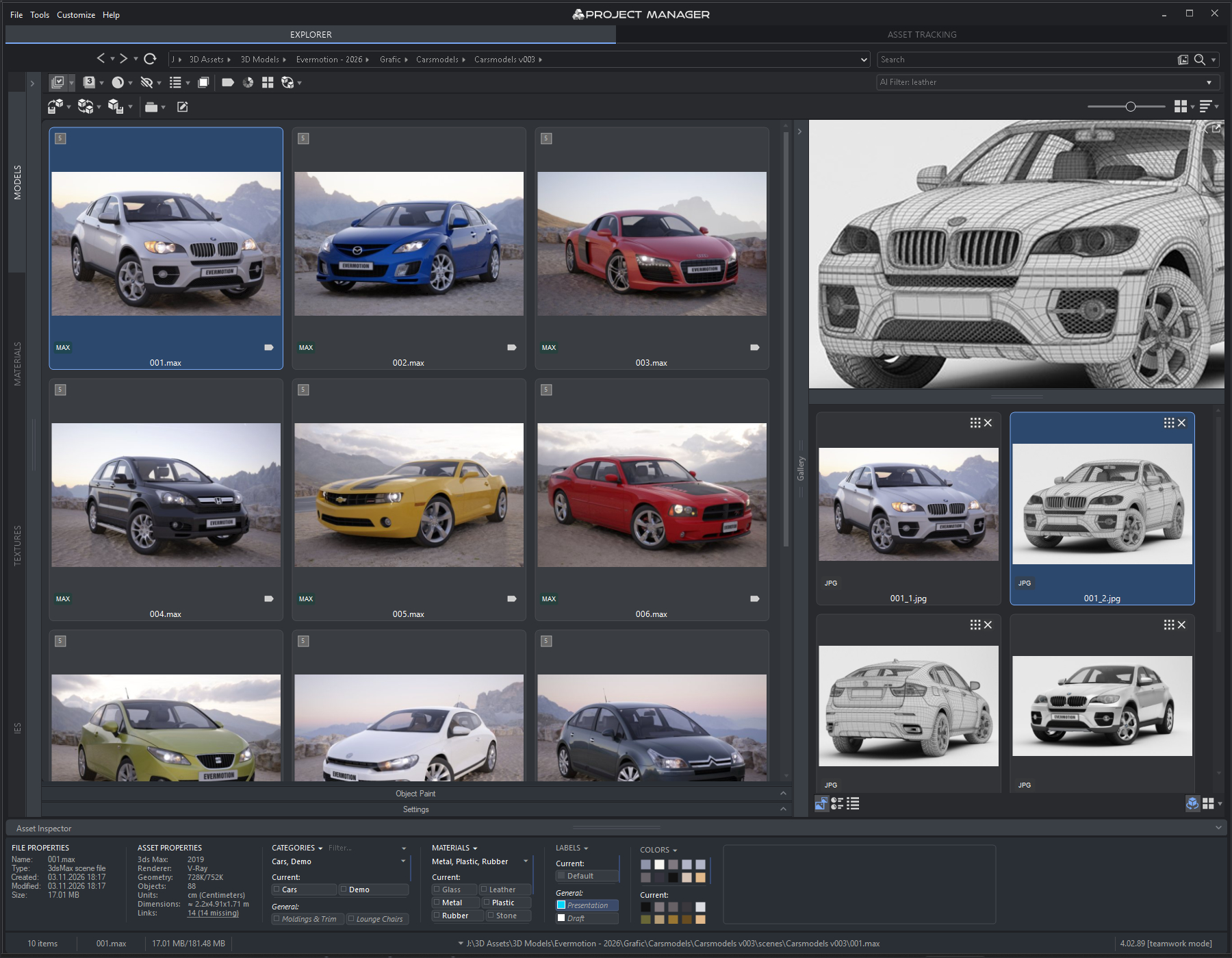
In our test on a large, real-world library, Project Manager automatically assigned 99,003 previews to 52,502 of 54,189 models. Over 96% of the models received at least one preview automatically.Previews straight from PDF catalogues
This is particularly useful for purchased libraries that include a manufacturer’s catalogue as the only source of preview images.
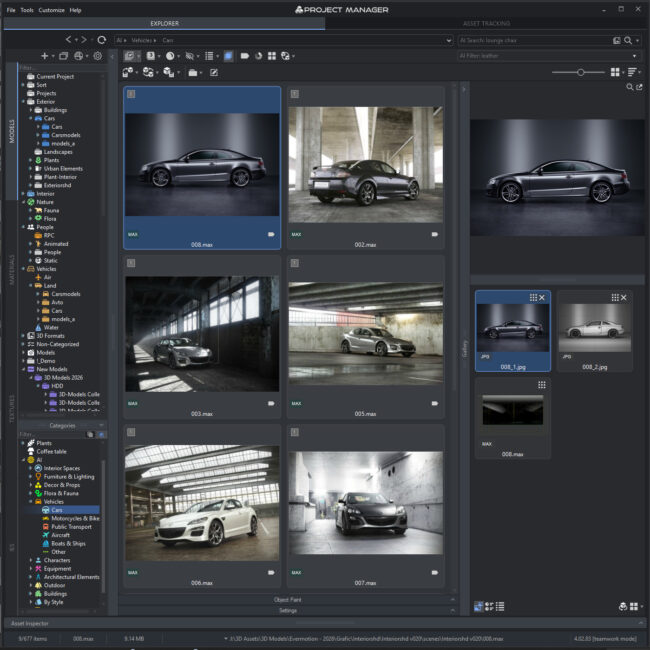
Project Manager finds the nearest PDF catalogue, extracts its images and matches them to models using names, numbers and captions. Project Manager 4.02 - Previews from PDF Catalogue. Model Gallery
 PDF catalogue previews
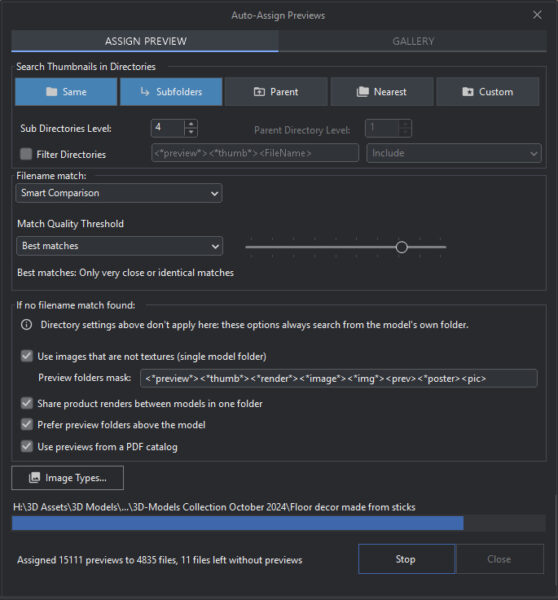
When the job finishes, the results window tells you how many files it processed and how many previews it assigned.
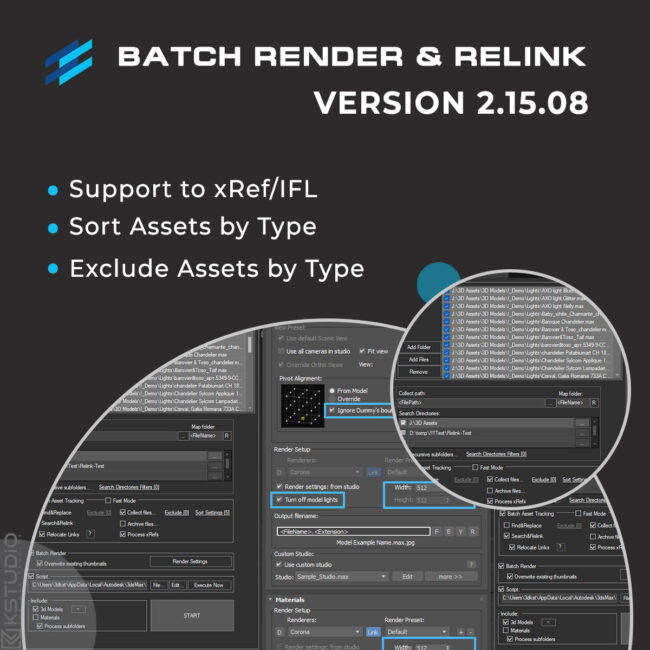
If some models still lack images, click N files left without previews to see those files immediately and decide what to do next.You can generate the remaining previews in one batch. Choose Thumbnail → Render Thumbnail(s), or use the Batch Render&Relink utility included with Project Manager.
Preview search options and Reassign PreviewsFallback options are grouped under If no filename match found.
- Use images that are not textures (single model folder) picks images that aren’t textures for the model in a single-model folder.
- Use previews from a PDF catalog takes previews from the nearest PDF catalogue.
- Share product renders between models in one folder assigns renders from a nearby render folder to all models in a product folder containing up to three models, such as variants of the same sofa.
- Prefer preview folders above the model checks parent folders for preview folders even when images are already available alongside the model.
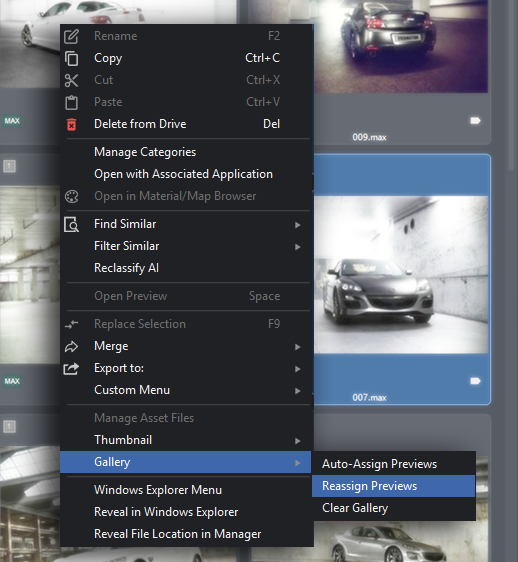
The reworked Auto-Assign Previews tool is much faster and more accurate in large folder trees. The redesigned dialog provides guidance for each search mode. If you’ve changed your settings or folder structure and want to refresh previews for selected files, choose Reassign Previews from the Gallery menu. It clears the old images and assigns new ones using the current rules.
 Project Manager 4.02 - Auto Assign Previews
 Reassign Previews
Convert Images is faster, more accurate and more reliable
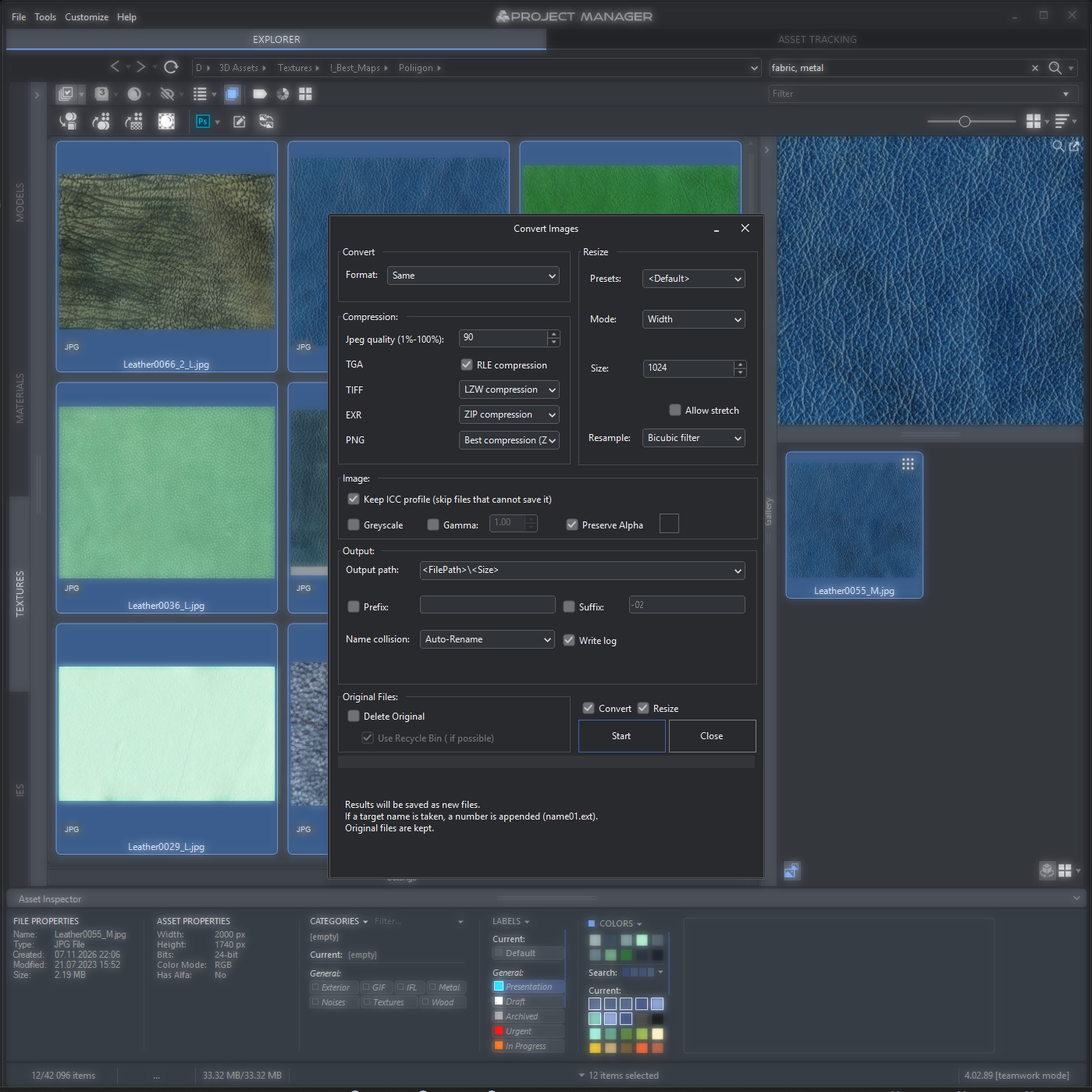
The image converter now processes files in parallel, which is especially noticeable when converting large batches of textures. The dialog spells out what will happen before you run a conversion. You can see whether it will update files in place, create copies alongside them, skip or overwrite duplicates, and keep the originals, move them to the Recycle Bin or delete them.
Accuracy matters when you’re working with materials and textures. This release fixes gamma handling for 16-bit and floating-point images, corrects brightness when converting 16-bit images to greyscale and preserves DPI correctly. These fixes are particularly important for HDR images, height maps and masks, where even small changes in brightness or gamma can affect the final render.
Project Manager 4.02 - Convert ImagesNew format options, safer overwriting and logs- Format options. Choose a background colour with Back color when removing transparency, including when saving as JPEG. TGA supports RLE compression, EXR has compression settings and the JPEG quality range of 1–100% is shown more clearly.
- Safer overwriting. Project Manager writes the result to a temporary file first. It displays elapsed time and an estimate of the time remaining as it works.
- Summary and logs. When the job finishes, you can see how many files were processed, updated or skipped and how many errors occurred. Write log and Open the log folder give you access to a log with the reasons for any failures.
INTERACTIVE MATERIAL PREVIEWS UP TO 512 PX
Classic 88 px material previews look small on modern monitors and blur when enlarged. Interactive rendering can now generate larger previews at their actual resolution, so you can make out the texture of fabric, wood, stone or ceramics.
Higher resolutions take longer to render, so 88 px remains the default. The AI upscaling option has been retired.
Project Manager renders the preview at the selected resolution and caches it after the first pass, so it appears immediately on subsequent visits.Interactive material previews up to 512px
Available sizes and settingsChoose a size on the General tab under Preferences → Interactive Rendering.
- 88 px (classic, fastest) is the default for the quickest response.
- 128 px (fast) adds a little more detail with minimal extra render time.
- 256 px (recommended) strikes a balance for everyday use.
- 512 px (sharpest, slow) gives you the most detail for complex textures and large preview cards.
- Disabled turns off interactive rendering of material previews.
New interface filters and tools
The search bar now has a Find Similar by Image(s) button. Click it to open the Find Similar by Image dialog, or drop one or more reference images straight onto the button and Project Manager will find visually similar models in your library.
It’s handy when you have a photo of an object and no idea what the matching model is called. Like Find Similar, it searches models that have already been classified by AI.Drop a reference image onto the button “Find Similar by Image(s)” to find visually similar 3D models in your library
Date and size filters and other interface changesThe file-list filter menu now includes Date modified (Today, Yesterday, This week, This month, This year, Later than… and Earlier than…) and Size (from Empty to Gigantic, plus Larger than… and Smaller than…). Combine these conditions with standard or AI search to find every chair modified this week, for example, or isolate the largest files.

- Folder tree filter. Find the folders you need straight away in large hierarchies. The filter supports
*and?wildcards, including in parts of a path. - Drag-and-drop confirmation. When moving folders or files between folders, the confirmation shows what’s moving and where it’s going. Click a path to open that folder in Windows Explorer.
- Categories. Assign to Selection in the category tree’s context menu assigns the selected categories to the selected files. Manage Categories in the file list’s context menu opens the categories dialog directly.
- Image viewer. Right-click for the new zoom menu. Commands and shortcuts include Zoom in (+), Zoom out (−), Fit image to window (/), Fit image to window width, Fit image to window height and Real size (*).
- Updated theme and redesigned Preferences. Related settings are grouped more logically, so they’re easier to find.
- Folder tree layout. Project Manager remembers the width of the tree and whether it’s open or hidden for each tab separately.
Speed and responsiveness in large libraries and scenes
Much of the work on Project Manager 4.02 went into performance, especially for studio libraries with hundreds of thousands of files and deeply nested folders. Browsing the folder tree and using Show Files in Subfolders are several times faster. In our test, a directory with more than 46,000 subfolders opened in 3–5 seconds, down from around 11 seconds.
The interface also stays responsive as Project Manager scans subfolders, so you can carry on browsing while it works.
The speed gains carry over to other everyday jobs involving large amounts of data.
- Image conversion. Parallel processing significantly speeds up batch conversion of large texture sets.
- Finding and assigning previews. Optimisations for large folder trees speed up automatic preview matching and reassignment, even across tens of thousands of files.
- Bulk replacement and interactive model placement. Replacing large numbers of objects is faster, and Place & Paint runs hundreds of times faster on scene objects.
MAXScript API: New methodsPMStructureInfo.MergeFilesmerges files through the standard 3ds Max Merge dialog, with options to launch Place & Paint and bypass Exclude Filters.PMStructureInfo.StartPlacePaintstarts Place & Paint for objects already in the scene.
A ready-to-use example is included,
Merge With Dialog And Place.ms.
How to update
Project Manager 4.02 is a free update for all Project Manager 4 owners.
If you own an earlier version, use the upgrade link in My Account on 3d-kstudio.com to upgrade to Project Manager 4.
The release supports 3ds Max 2016–2027.Want to try it first? The demo has no time limit and requires no registration.
Every other file in a folder is locked, and all AI features are fully available. Learn more about Project Manager for 3ds Max
$60.00Original price was: $60.00.$42.00Current price is: $42.00.Add to CartBelow, you can find the full list of changes and enhancements for this version
New Features for Project ManagerView Product
Merging: Drag&Drop and Place&Paint
- Added a convenient Drop menu for importing, placing, painting and replacing models
- The Drop menu can be shown always, only with Ctrl held, or turned off (Preferences → Merge → Menu on drop into viewport)
- Added SmartRefs support in Place&Paint: referenced content is painted as instances
- Place&Paint: greatly improved click-placement speed when painting on selected objects or on all scene objects, even in complex scenes
- Place&Paint: added an option to hide the Place&Paint dialog after import (in Settings and in the import menu)
- Improved performance when replacing multiple objects in a scene
Advanced File Renamer
- New “AI Name” tab: suggests file names, based on previews, for models and folders. You can edit the proposed names in place
- New “Translate” tab: translates file names between languages. You can edit the proposed names in place
- AI Name now suggests folder names based on the files inside
- Added batch renaming for folders and categories. Select several folders in the tree using Ctrl or Shift, then press F2 or choose Rename to open Advanced Folder Renamer
- One-level Undo for files lets you instantly revert the last rename batch
Convert Images
- Images are now converted much faster
- Added background colour selection when removing transparency
- Added compression options for TGA and EXR
- Overwriting files is now safer
- Added a hint explaining what the current settings will produce, and JPEG quality limits
- Added a processing log with information about the process and conversion errors
- Fixed gamma for 16-bit and floating-point images
- Fixed brightness when converting 16-bit images to greyscale
- Fixed DPI preservation during conversion
Material Previews
- Interactive rendering can now generate higher-resolution material previews directly. The classic 88 px mode remains the fastest option and is still the default
- Choose from 88 px (classic), 128 px, 256 px or 512 px
- Removed the AI upscaling option
Automatic Preview Assignment
- Smarter preview assignment matches models to files more accurately and extracts previews from PDF catalogues
- Redesigned the interface with a clearer layout and hints for each search mode
- Added “Reassign Previews” to the Gallery menu
- The results window now shows how many files were processed, how many previews were assigned and how many files still need a preview
- Click the “N files left without previews” link in the summary to list those files
- Assigns previews faster across large folder trees
Interface
- Refreshed the theme
- Improved folder filtering
- Added file filters for modification date and size
- Added a zoom context menu and hotkeys to the image viewer, including fit to width and fit to height
- Added a Search by Image button. Click it to open the search dialog or drag and drop reference images onto it
- Added “Assign to Selection” to the category tree context menu to assign the selected categories to the selected files
- Added “Manage Categories” to the file list context menu to open the categories dialog directly
- The folder tree width and open state are now remembered separately for each tab
- List view sorting is applied immediately when you click a sort option
- Drag-and-drop confirmation now shows the affected items and destination, with clickable links to open folders in Explorer
- Redesigned the Preferences window with a clearer layout and grouping of settings
Performance
- Dramatically faster navigation and “Show Files in Subfolders” on large folder trees. In one test, a folder with 46,000+ subfolders opened in about 3–5 seconds, down from about 11 seconds
- The folder tree stays responsive while subfolders are being scanned
- Faster, safer database clean-up. Records are deleted atomically, so a failed clean-up leaves records and links intact
Other Improvements
- Added support for LDT files with interactive rendering and on-the-fly conversion when merging
- Added ZIP, RAR and 7z to the standard file types for the 3D Models tab
- Copied files inherit the original file’s assigned previews
- Added the “Keep PC awake while classifying” option to the AI Classifier. It is on by default and available in Settings and the tray menu
- Improved PBR texture channel detection and handling of texture sets containing different image formats
- Added a “Remove orphaned records” command in database settings
- When importing a Connecter database, you can keep your current folder structure or replace it
- Improved silent installation and uninstallation, including database configuration and selective plugin removal for specific 3ds Max versions
- Minor localisation and interface fixes
MAXScript API
PMStructureInfo.MergeFilesmerges files using the standard 3ds Max Merge dialog, with optional Place&Paint and an option to ignore Exclude FiltersPMStructureInfo.StartPlacePaintstarts Place&Paint for objects already in the scene- New API example:
Merge With Dialog And Place.ms
Fixes
- Fixed crashes when rendering corrupted IES files
- Fixed freezes when opening a folder containing a very large number of files
- Fixed a crash in 3ds Max 2027 when renaming folders and files while an accessibility or UI Automation client is running
- Fixed “Overwrite if Newer” when merging archives. Files of the same size with different modification times are now compared by content, preventing unnecessary overwrite prompts
- Fixed material libraries disappearing from the tree or failing to update when their folder was temporarily unavailable
- Fixed missing previews for some SVG icons
- Fixed existing groups losing their original name or pivot when used for placement
- Fixed a painted group being placed on top of itself when “Paint on Painted Objects” is enabled
- Fixed repeated FBX imports updating existing objects with matching names instead of adding new ones, which could cause the “Can not Merge” error
- Fixed “Merge as Proxy” crashing 3ds Max with some third-party plugins installed, including RailClone Lite
- Fixed the gallery and main preview failing to refresh correctly when deleting or reordering previews with multiple files selected
- Fixed issues that could prevent AI features from working on older CPUs and some virtual machines
- AI category search results now respect file exclusions
- Fixed a conflict with Smart App Control in Windows 11
- Fixed the default material studio path. Material previews now use the default studio when no custom studio is set
Other
- Various other fixes and improvements
Related to "Project Manager 4.02 for 3ds Max — Faster Place&Paint, Drop Menu and Smart Naming"



You must be logged in to reply to this topic.