Translate
Tagged: License, Project Manager version 3
- November 21, 2019 at 09:38 #22615
- November 21, 2019 at 09:40 #22919
 Oleksandr KramerModeratorPosts: 269Threads: 1411Joined: Aug 2009
Hi!
This feature currently in development.
- January 10, 2023 at 17:23 #37944Dobromir KraychevParticipantPosts: 1Threads: 2Joined: Apr 2019
Hi Oleksandr,
That is such a great news! Will save us so much time to administrate the licenses.
Any ETA :) ?
Best,
Dobromir
- January 1, 2020 at 08:28 #24849ilhamfpParticipantPosts: 0Threads: 1Joined: Dec 2019
My wishlist also for Project Manager.
Cheers
- September 8, 2025 at 16:12 #45567Oleksandr KramerModeratorPosts: 269Threads: 1411Joined: Aug 2009
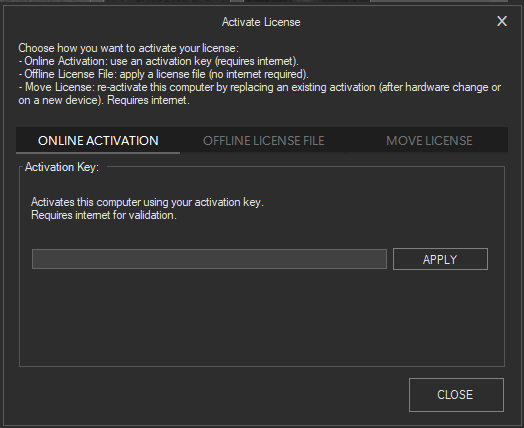
- Open the Activate License form in 3ds Max:
go to → Activation from the main menu. - Paste your activation key into the input field.
- Confirm to activate the license on this computer.
Hi to all!
I’m glad to share some good news: a new version of Project Manager is now available with support for online licensing.
Public testing has just started, and if you’d like, you can already switch to using online licenses directly from your account dashboard.👉 Public testing has just started. For some users, the option to switch to online licenses is already visible in the account dashboard.
If you don’t see this option yet and would like to try it, just reply here and let us know — we can enable it for your account.For users who own multiple licenses, there’s now also a handy option to generate additional activation keys.
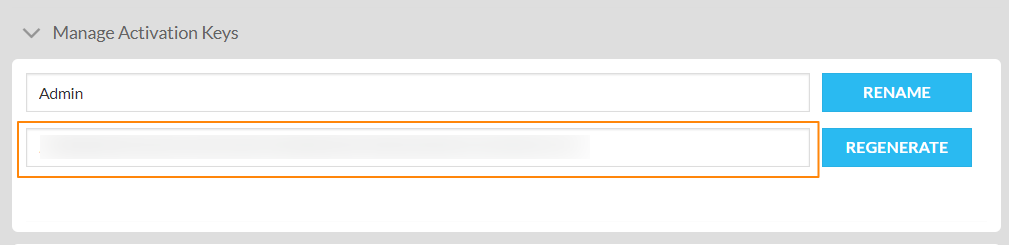
These can be shared with freelancers or teammates, and you always retain full control — you can revoke a key at any time, and the seats linked to that key will be released.How to get started:
Download and install Project Manager v3.41.00 (this version supports both online and offline licenses) on all your computers:
https://3d-kstudio.com/my-account/downloads/
Log in to your account and click “Switch to Online License”:
https://3d-kstudio.com/my-account/
Activate Project Manager using the activation key shown in your dashboard (see screenshot).How to apply an activation key:
From now on, you won’t need to worry about extra steps when upgrading or reinstalling your PCs.


- Open the Activate License form in 3ds Max:


You must be logged in to reply to this topic.