Translate
-
×
 Project Manager 1 × $60.00


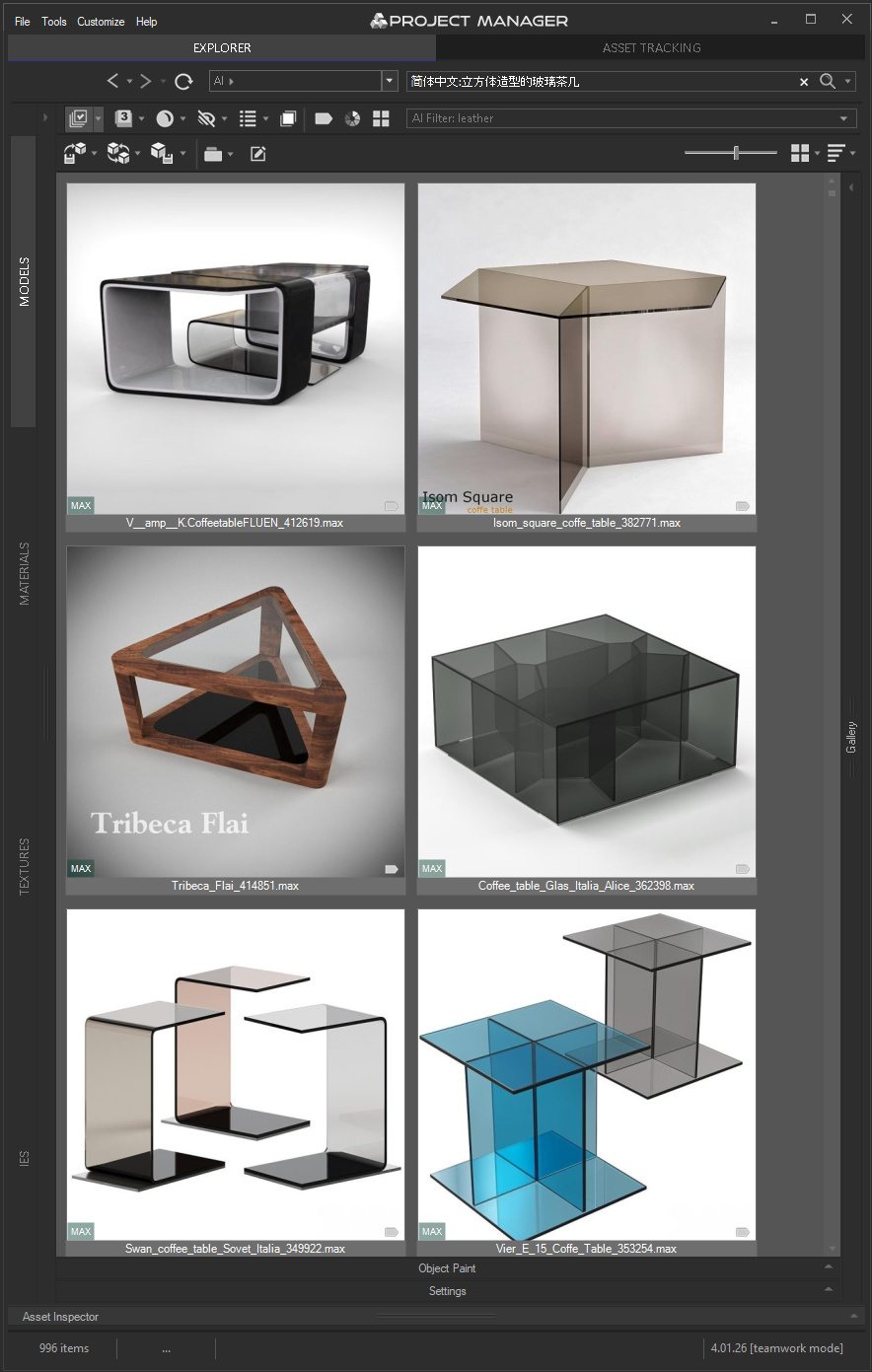
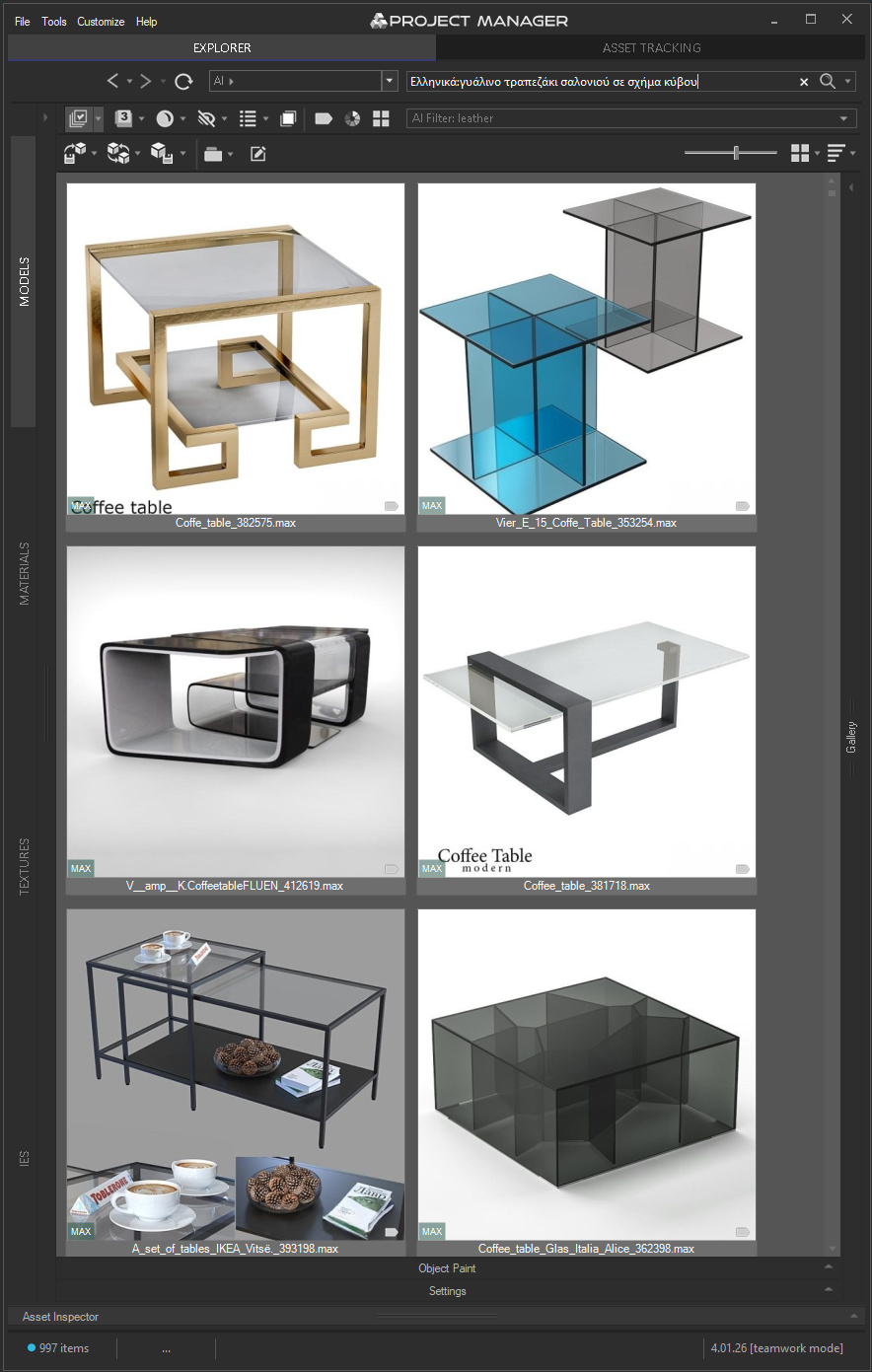
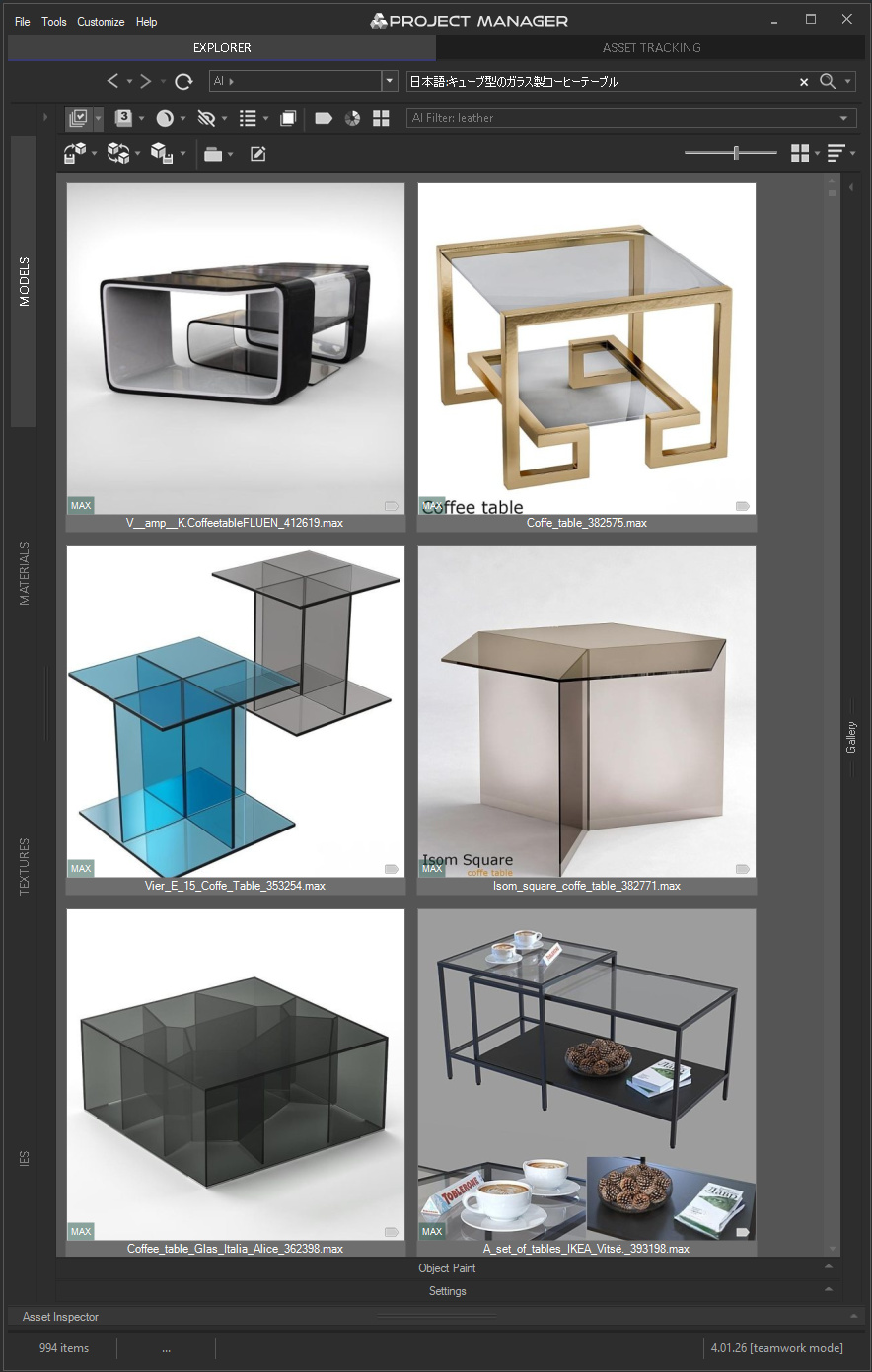
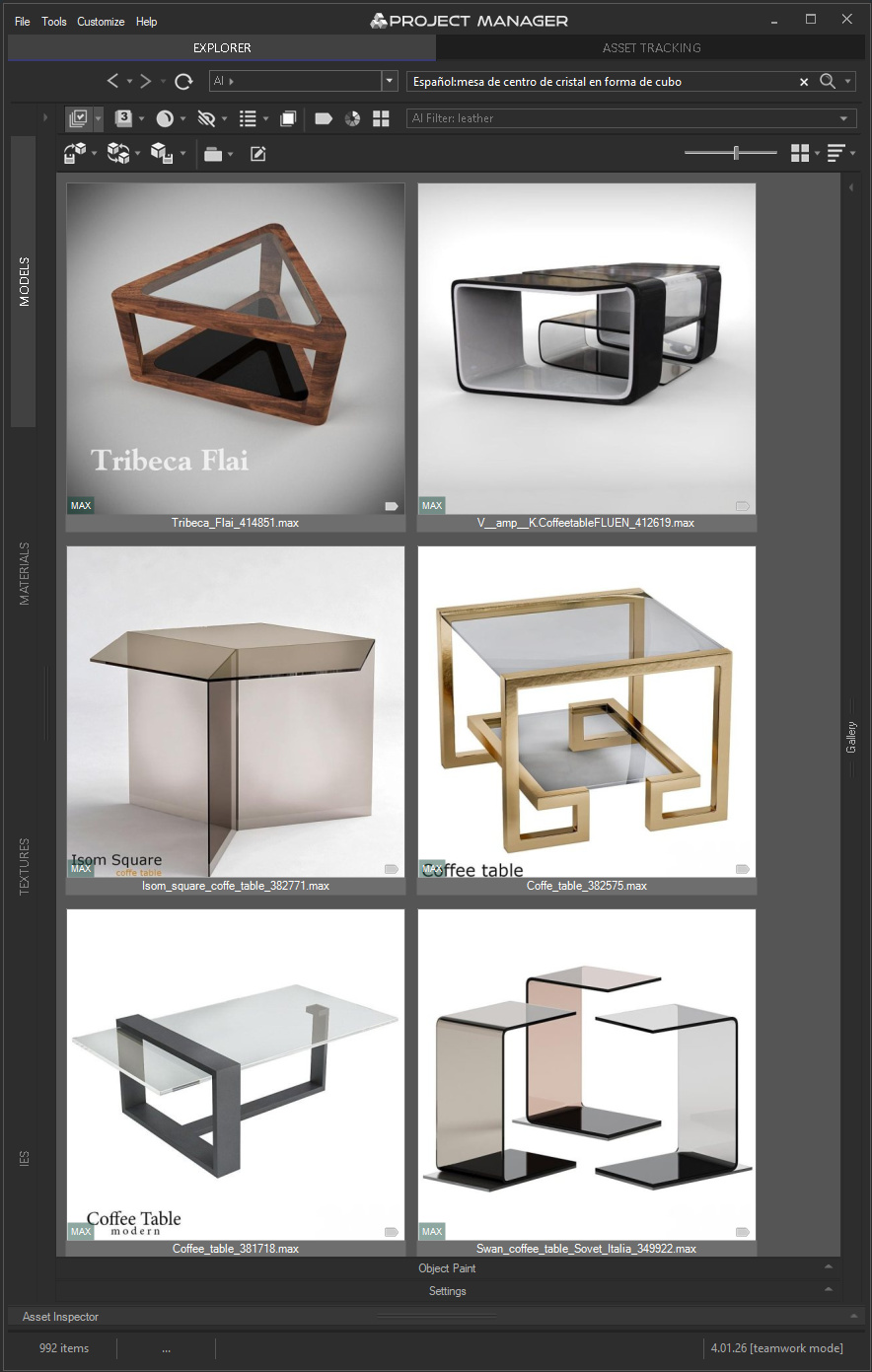
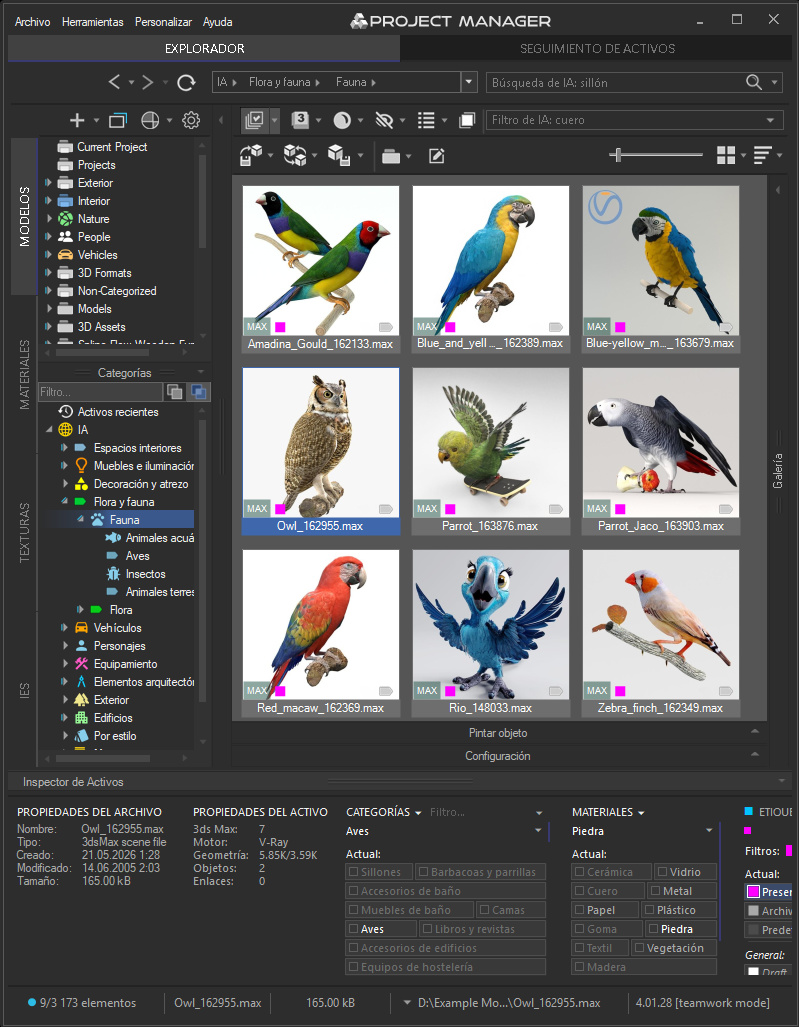
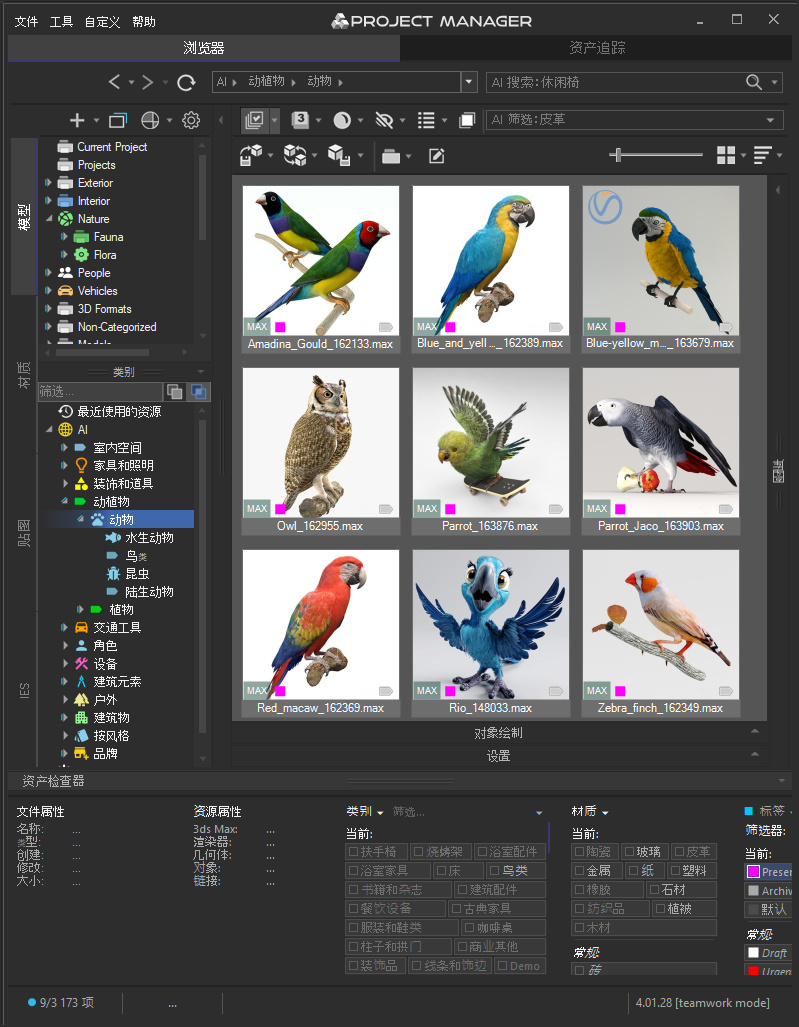
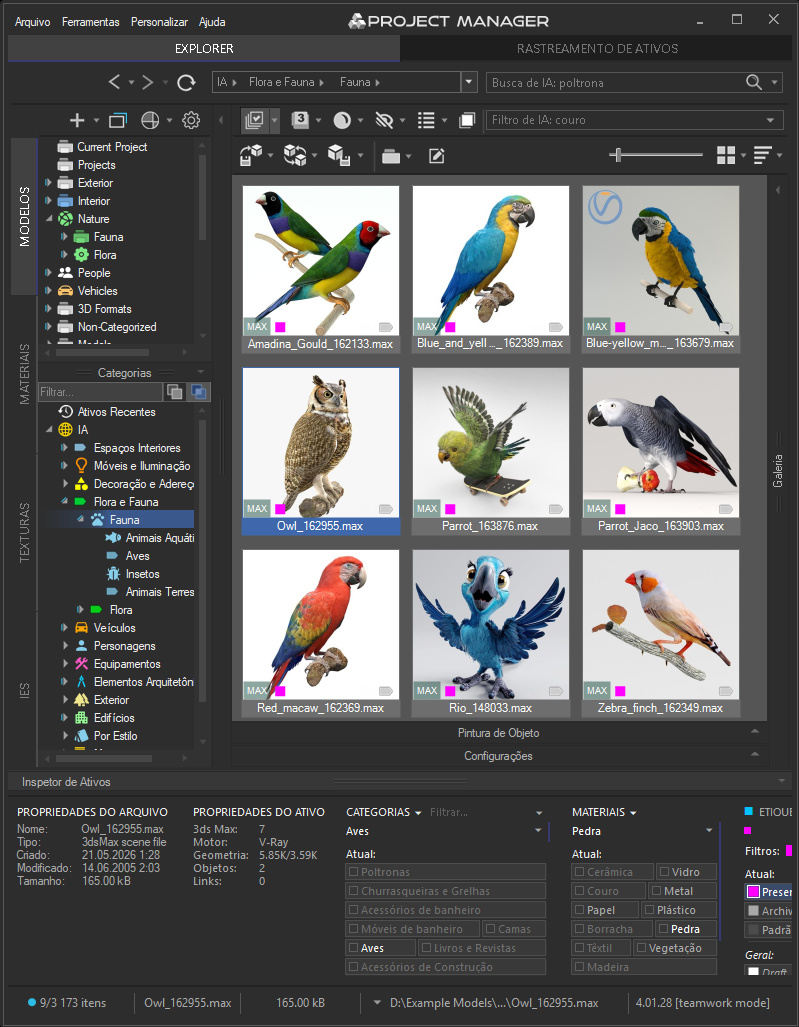
The same search in English, Chinese, Greek, Japanese and Spanish.
The same tables come back — the order shifts a little, because a phrase in one language is never a word-for-word match for another.
 Project Manager
 Total: $60.00
Project Manager Total: $60.00
You remember what the model looks like. The shape, the material, the way it sat in that render last spring.
What you don’t remember is what the file was called, or which folder it went into three projects ago.
Project Manager 4.01 closes that gap between what you hold in your head and what you have to type into the search box:
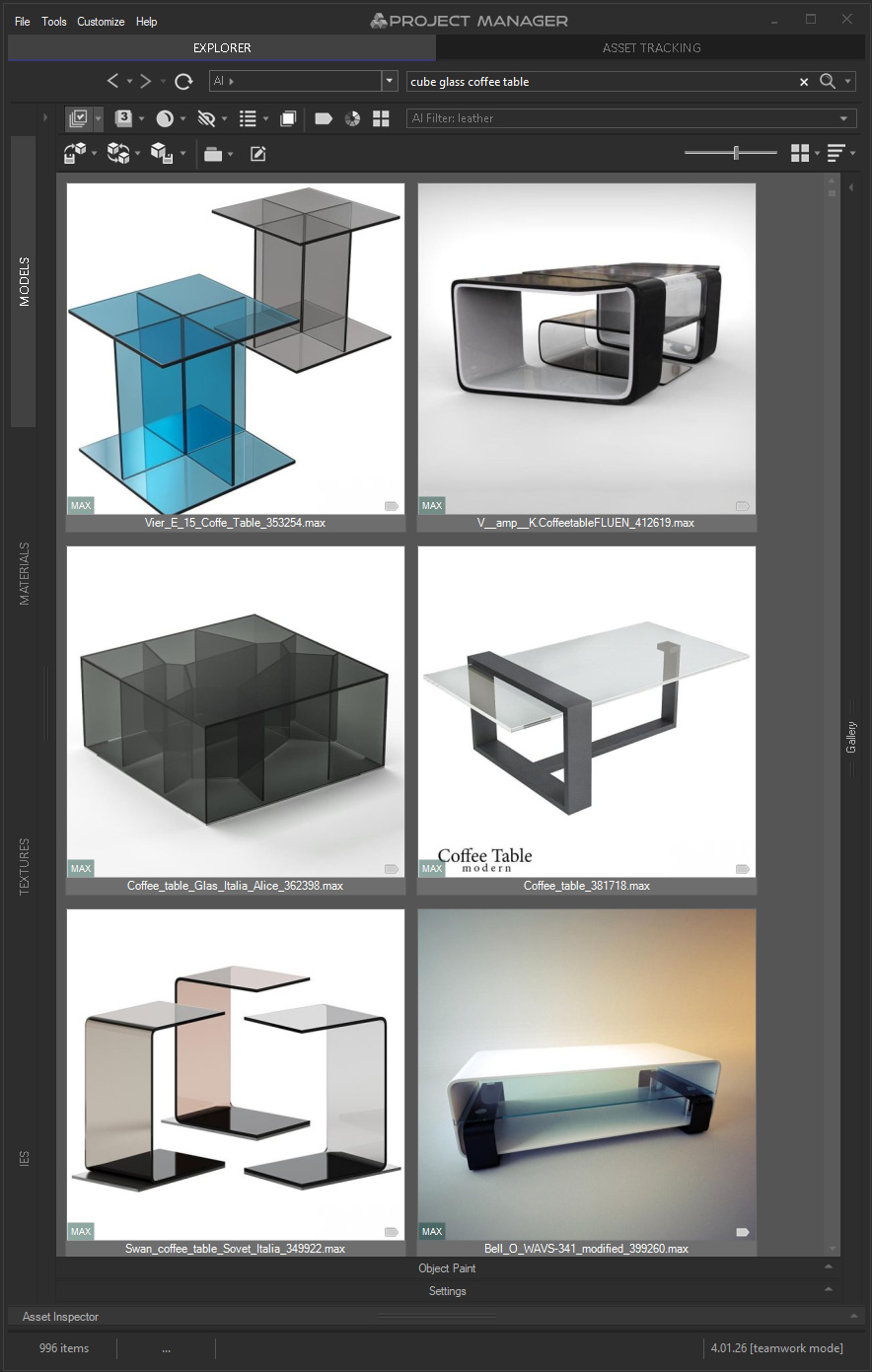
cube glass coffee table — not a filename, not a category name, just a description of what you need.Important: everything runs locally. The language models are downloaded once, and after that, neither your files nor the words you type into the search box leave your computer.
No cloud processing. No AI credits. No extra subscription.
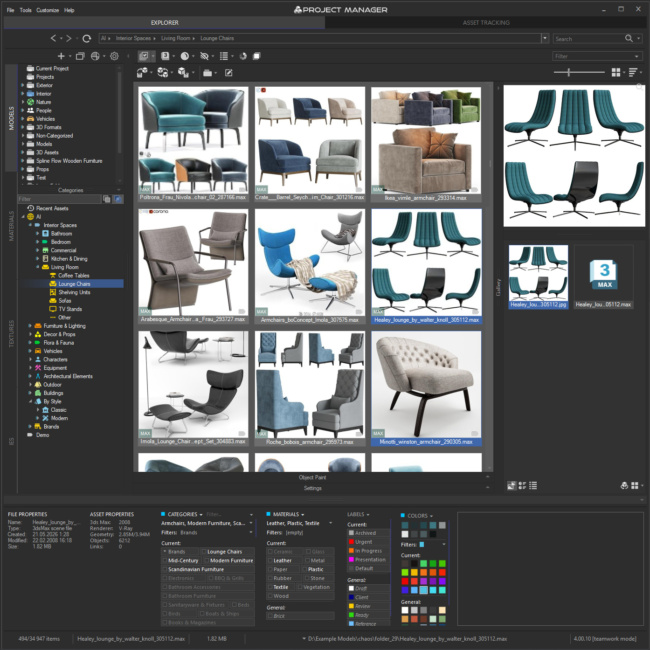
Search in Project Manager has always handled text — filenames, descriptions, category names. The trouble is that this searches how an asset is labelled, not what it actually shows.
Now there’s a second route. You describe what you’re after in an ordinary phrase, and Project Manager matches that description directly against the images of your models — the same AI vectors the classifier builds:
dancing human — finds figures in motion, whether the word “dancing” appears anywhere in the namecube glass coffee table — rules out the round and the classical, keeps the faceted and the glassdark leather armchair with metal legs — three attributes at once, and not one of them had to be tagged by handBoth mechanisms run side by side, neither replacing the other. Text search across metadata stays exactly where it was and remains useful when you remember the collection or the supplier. AI search takes over when all you remember is what the thing looked like.
Search covers the models the AI Classifier has already processed. It’s the same analysis that builds your categories — there’s nothing separate to switch on, but a freshly added folder needs time. While classification is still running, results from that folder will be incomplete.
Preview quality feeds straight through. The AI sees precisely what you see on the thumbnail. Dark, empty, or “technical” previews are recognised less reliably — for those models it’s worth generating proper thumbnails and sending them for reclassification.
Describe how it looks, not what it’s called. AI visual search is built for descriptions of appearance, not exact product names. Rather than Ikea Poäng, describe what you can actually see: Ikea wooden lounge chair with a bent frame and a soft cushion. The rule is simple — the more visual detail your query carries (shape, material, colour, object type), the sharper the result. The more proper nouns it carries, the more likely the search is to ignore them.
Work from general to specific. Start with wooden chair, look at what comes back, then tighten to classic wooden chair with carved legs. That’s quicker than trying to guess the perfect query first time.
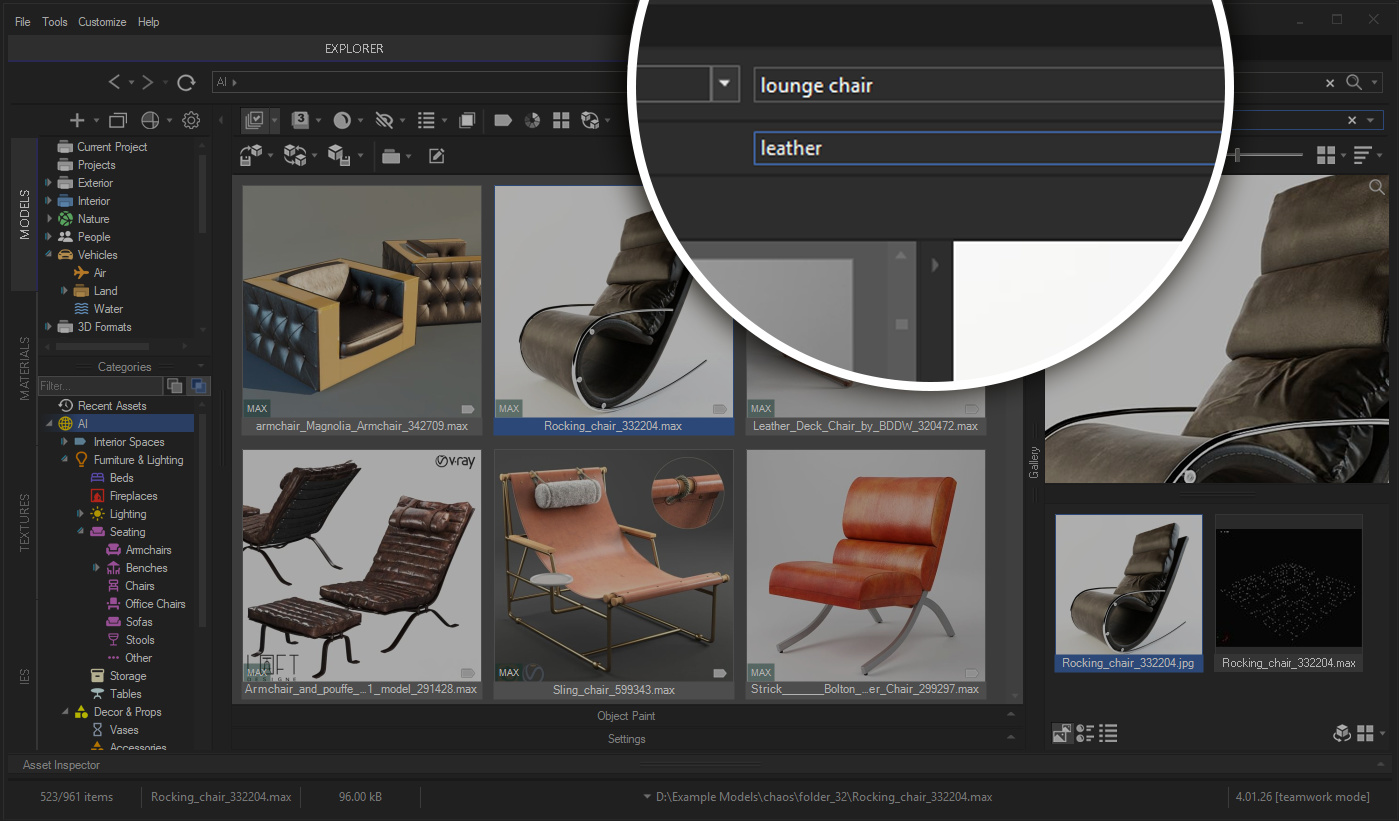
Search for the object, filter for the attributes. The Search and Filter fields sit one above the other and both understand plain descriptions — so you don’t have to load everything into a single phrase. Search for lounge chair, then narrow what comes back from the Filter field: soft, or leather, or red. Each filter word reshapes the same set of results, so you can try leather, then velvet, then dark green without running the search again. It’s quicker than rewriting a long query every time, and it keeps the search itself broad enough that nothing gets excluded too early.
Picture a studio with four people on the same project, all of them after the same thing: a wooden dining table.
The architect in Kyiv searches for a дерев’яний обідній стіл.
The visualiser in Madrid types mesa de comedor de madera.
The outsourcer in Shanghai writes 木质餐桌.
The client asks for a طاولة طعام خشبية.
Four queries, four scripts — and the same models come back.
There’s one library. The files are named however the supplier named them — mostly English, sometimes Chinese, sometimes transliterated into something nobody can quite place.
Until now, that meant the team had to agree on a shared vocabulary: what do we call this category, which tag do we file armchairs under, is it sofa or couch.
Not any more. Everyone types in their own language, and everyone lands on the same models.
The library neither knows nor cares which language it was addressed in: the search runs as you type, results narrow with each word, and there’s nothing to press.
This isn’t cosmetic convenience. Phrasing a query in your own language is faster and more precise than reaching for it in English: you write what you’re picturing, rather than the nearest word you can summon.
And for a team it removes an entire layer of agreements that previously had to be maintained by hand.
Over 30 languages are ready out of the box.
Thirty-one of them each have a dedicated language model, which is what makes their results the most accurate: Arabic, Bulgarian, Chinese, Croatian, Czech, Danish, Dutch, English, Filipino, Finnish, French, German, Greek, Hebrew, Hindi, Hungarian, Indonesian, Italian, Japanese, Korean, Norwegian, Polish, Portuguese, Romanian, Slovak, Spanish, Swedish, Thai, Turkish, Ukrainian and Vietnamese.
Beyond those, around a hundred further languages are covered by a single compact model — a little less precise, but perfectly serviceable for short search queries. Both sets are offered as an optional download while you install.
By default, search reads your queries in your interface language. Work in German and your queries are taken as German. The search menu lets you pick any other supported language instead, or switch to Auto Detect and let Project Manager work it out from the query itself.
The menu setting holds until you change it, which is what you want most of the time. For a one-off query in another language, a prefix is quicker — the language, a colon, then the query:
en: cube glass coffee tableuk: скляний журнальний столик у формі кубаукраїнська: скляний журнальний столик у формі кубаThe parser is deliberately forgiving here. The two-letter ISO code is the main form — it’s shown next to each language in the search menu, and in the table further down — but the three-letter code (ukr:, jpn:), the English name (ukrainian:, japanese:) and the name written in that language (日本語:, Deutsch:) all work just as well. So do the country codes people type out of habit, ua:, jp:, cz:, cn:, gb:, even though those aren’t language codes at all. Capitals are ignored: UK:, Uk: and uk: are the same thing.
The prefix applies to that one query and nothing else. Your default language in the menu stays exactly as you set it.
If your network has no internet access, or you need to roll the models out across several machines at once, they can be installed manually.
| Language | Query |
|---|---|
| English (EN) | cube glass coffee table |
| Arabic (AR) / العربية | طاولة قهوة زجاجية على شكل مكعب |
| Bulgarian (BG) / Български | стъклена холна маса във формата на куб |
| Chinese, Simplified (ZH) / 简体中文 | 立方体造型的玻璃茶几 |
| Croatian (HR) / Hrvatski | stakleni stolić u obliku kocke |
| Czech (CS) / Čeština | skleněný konferenční stolek ve tvaru krychle |
| Danish (DA) / Dansk | sofabord i glas med kubeform |
| Dutch (NL) / Nederlands | kubusvormige glazen salontafel |
| Finnish (FI) / Suomi | kuutionmuotoinen lasinen sohvapöytä |
| French (FR) / Français | table basse en verre en forme de cube |
| German (DE) / Deutsch | würfelförmiger Couchtisch aus Glas |
| Greek (EL) / Ελληνικά | γυάλινο τραπεζάκι σαλονιού σε σχήμα κύβου |
| Hebrew (HE) / עברית | שולחן קפה מזכוכית בצורת קובייה |
| Hindi (HI) / हिन्दी | घन आकार की कांच की कॉफी टेबल |
| Hungarian (HU) / Magyar | kocka formájú üveg dohányzóasztal |
| Indonesian (ID) / Bahasa Indonesia | meja kopi kaca berbentuk kubus |
| Italian (IT) / Italiano | tavolino da caffè in vetro a forma di cubo |
| Japanese (JA) / 日本語 | キューブ型のガラス製コーヒーテーブル |
| Korean (KO) / 한국어 | 큐브 형태의 유리 커피 테이블 |
| Norwegian (NO) / Norsk | kubeformet salongbord i glass |
| Polish (PL) / Polski | szklany stolik kawowy w kształcie sześcianu |
| Portuguese (PT) / Português | mesa de centro de vidro em forma de cubo |
| Romanian (RO) / Română | măsuță de cafea din sticlă în formă de cub |
| Slovak (SK) / Slovenčina | sklenený konferenčný stolík v tvare kocky |
| Spanish (ES) / Español | mesa de centro de cristal en forma de cubo |
| Swedish (SV) / Svenska | soffbord i glas med kubform |
| Thai (TH) / ไทย | โต๊ะกาแฟกระจกทรงลูกบาศก์ |
| Turkish (TR) / Türkçe | küp şeklinde cam sehpa |
| Ukrainian (UK) / Українська | скляний журнальний столик у формі куба |
| Vietnamese (VI) / Tiếng Việt | bàn cà phê kính hình lập phương |
The same search in English, Chinese, Greek, Japanese and Spanish.
The same tables come back — the order shifts a little, because a phrase in one language is never a word-for-word match for another.
The plugin itself changes language alongside the search.
Project Manager is fully localised in 12 languages: English, German, Spanish, French, Japanese, Simplified Chinese, Turkish, Ukrainian, Portuguese (Brazil), Italian, Polish and Danish.
More significant than the menus and dialogs, though, is that the category and material names generated by the AI are now shown in your interface language. Previously the classifier labelled everything in English regardless of how you worked. Now the whole category tree, the material filter and the status bar panels read in your own language.
The difference tells in daily work: categories are what you look at constantly, in every filter and every row. Reading them in your own language is simply quicker.
And nothing breaks in the process. The category filter search matches both the localised name and the original English one. A library built up over years under English names carries on working exactly as before.
Your own manually created categories stay precisely as you named them — localisation applies only to what the AI generated. And if a colleague switches the interface to another language, they’ll see the same library labelled in theirs, with no change to the database at all.
Describing in words works well when the thing can be named. Sometimes it can’t: the client has sent a photograph of an interior and what you need is “an armchair like that one”. Or you’ve already found a good model in your library and want to see what else is in the same spirit. There are no words here at all — there’s a picture.
Find Similar has been rebuilt from scratch. In earlier versions, similarity was worked out through tags and categories: the system compared not the objects themselves but the way they’d been labelled. Now it compares the images — using the same AI vectors that sit behind classification and text search. The results are markedly more accurate: you find models that genuinely look alike, even when they’re labelled differently, or not labelled at all.
There are three routes into it, and they answer three different questions.
Filter Similar Objects works within the current folder. Select one model or several, and the list instantly contracts to what resembles them. A similarity slider governs how strict the selection is: push it right and you’ll be left with near-duplicates; push it left and you’ll get everything even loosely in the same territory.
Results are sorted by similarity score, so the closest matches sit at the top. You don’t have to work through the whole selection to know whether it holds anything usable — the answer is visible in the first row.
Alongside it sits Filter By Similar Colour — the same narrowing, but by colour profile. Useful when the form doesn’t much matter but the palette has to sit with the rest of the scene.
Find Similar by Object asks the same question more broadly: not “what’s similar in this folder” but “what’s similar anywhere”.
Select a model and Project Manager works through the entire library.
Where there are several sources, results are grouped under each one separately.
That matters more than it sounds: select five chairs from a mood board and you get five distinct sets rather than one shuffled heap, so you can see immediately which reference your library serves well and which it has nothing decent for.
Find Similar by Image is the significant addition. The source becomes any image from outside your library: drag in a file, paste from the clipboard, or browse for one. Up to five images at a time.
It might be a photograph from Pinterest, somebody else’s render, a page from a catalogue — even a pencil sketch will serve as a starting point, since the search rests on visual resemblance rather than filenames or tags.
Crop selection is what makes this genuinely practical. A real reference photo isn’t one object, it’s a whole interior: sofa, floor lamp, rug, coffee table. Draw a box around the part you want and you search for the armchair alone. Then move the box onto the floor lamp and search for that. A single photograph from a client turns into a series of queries, and the scene is assembled from it piece by piece.
Reference Sets preserve that work. A set of reference images can be named and saved — together with the analysis already performed. The next day, or the next week, or halfway through revisions, you simply pick the set from the list and it’s ready instantly, with nothing to re-analyse. Across several parallel projects it means each mood board sits on its own, and switching between them is one click rather than a hunt for the right JPEGs.
Text search and Find Similar are built on one foundation — the same visual analysis the classifier has already carried out. Describe what you want, or show Project Manager what you mean.
The only difference is the form the query takes: words or an image. Which is why they combine so naturally — find roughly the right thing with text, take the best result and ask for more like it; or narrow by reference first, then add words to refine.
A small thing that stops being small at twenty workstations.
Project Manager 4.01 supports unattended installation.
Run the setup with /SILENT and it will go through with nothing but a progress bar and no questions at all. Or /VERYSILENT, if you’d rather not have even that.
From there it fits any standard deployment approach: a logon script, group policy, SCCM, Intune, whatever you already use. Updating every workstation no longer means visiting each machine in turn — it’s one command.
The full deployment guide, with every available switch: Silent mode installation
With thanks to everyone who asked for this on the forum — that’s exactly where it came from.
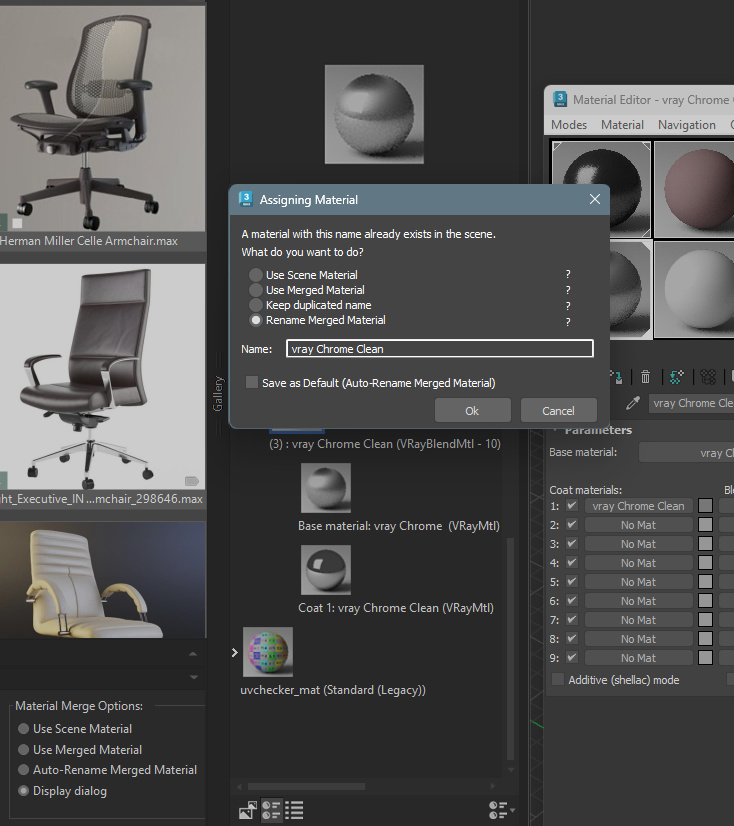
A familiar situation: you drag a material out of the gallery into your scene, and one just like it is already there.
Project Manager has always had options for handling duplicates, but they had to be chosen in advance, in the settings — before you’d started dragging anything.
Now the choice appears when you need it. Importing or assigning materials opens a dialogue: keep the existing duplicates as they are, replace them, or rename them so both versions can coexist.
You decide at the moment of action, looking at the actual scene, rather than trying to anticipate every future case in a settings panel.
Think back over this month: how many times you scrolled a folder to the end because the filename wouldn’t come to you. How many times you opened the wrong model. How many times somebody asked in chat, “what do we call these armchairs again?”
Version 4.0 took the drudgery out of organising: the classifier sorted your library into place without a single tag applied by hand. Version 4.01 takes the drudgery out of asking it for things. Describe in words. Show with an image. Type in your own language.
Project Manager 4.0 taught your library to organise itself. Project Manager 4.01 taught it to understand you.
The update is free for every Project Manager 4 licence holder — just download the latest version from your account.
$60.00Add to Cart
Below, you can find the full list of changes and enhancements for this version
You must be logged in to reply to this topic.
Enter your details below to save your shopping cart for later. And, who knows, maybe we will even send you a sweet discount code :)