Translate


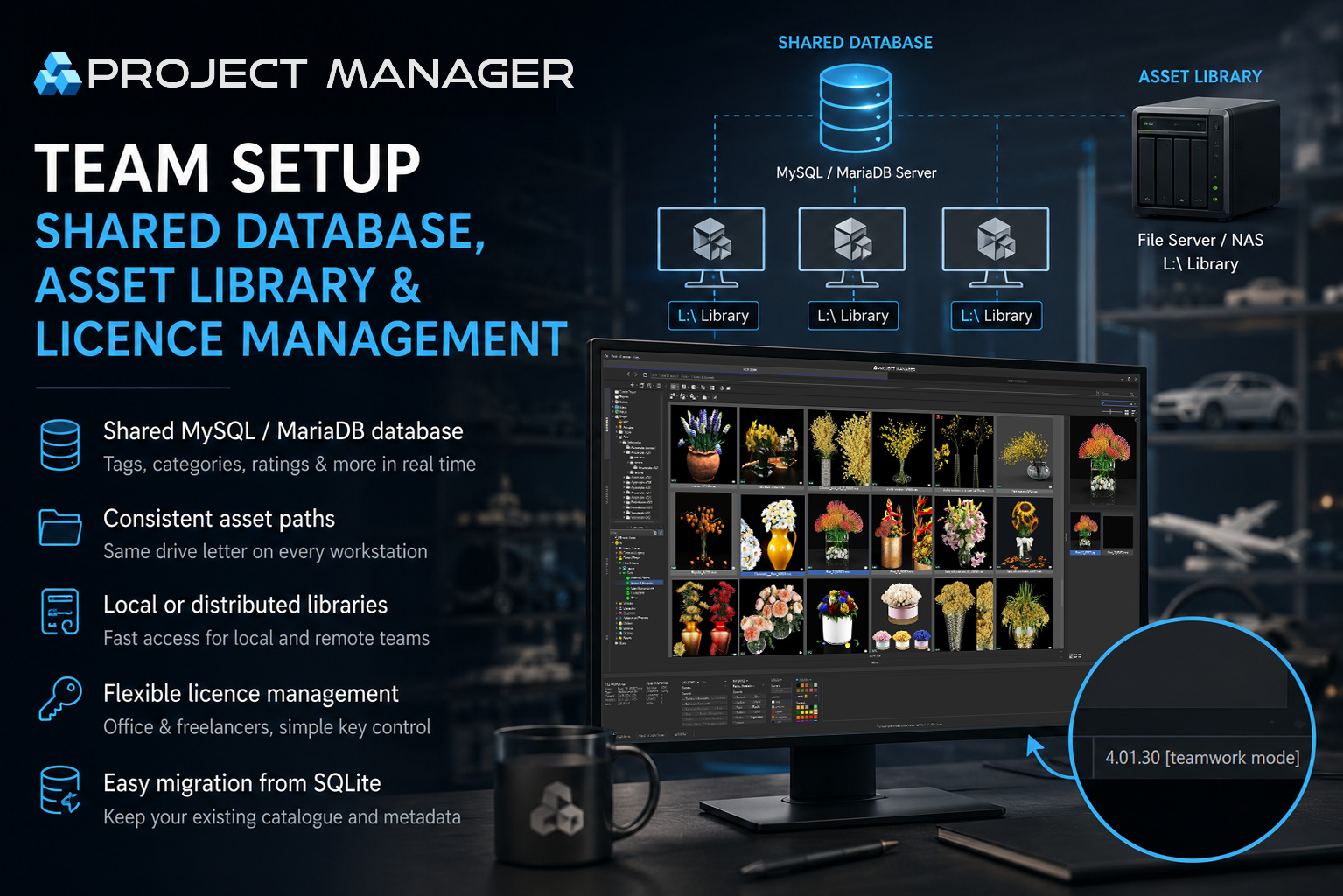
Project Manager supports shared asset libraries for both local studios and distributed teams. But a shared database alone is only part of the setup: the database, asset paths and licence management all need to work together.
This guide explains how to configure each part, choose the right setup for your studio, and avoid the most common mistakes.
1. First — do you actually need shared access?
Before setting up a MySQL server, ask yourself three questions:
- Are you working with a shared library of models and materials, or does each artist have their own collection of assets?
- Do tags, categories and ratings added by one artist need to be visible to everyone else?
- Does the library change frequently, or is it mostly static?
If tags and categories do not need to be shared and each artist works with their own library, SQLite is perfectly sufficient. It also saves you the overhead of maintaining a server, users, passwords and backups.
A shared database becomes useful when cataloguing is a team effort: one person organises the library into categories, adds tags and ratings, and the rest of the team works with that shared information.
Common mistake: a studio sets up MySQL simply because “we are a team”, while in practice every artist works with a separate asset folder. The result is a server that needs maintaining without providing any real benefit.
2. What the database synchronises — and what it doesn't
This is the most common source of confusion.
The database synchronises information about assets, not the asset files themselves.
The shared database stores:
- the category and catalogue structure;
- tags, ratings, comments and descriptions;
- material data and scene statistics;
- file paths, stored as ordinary text strings.
The shared database does not store:
- the actual
.maxfiles, textures, proxies or scene content; - the thumbnail cache — previews are not transferred through MySQL. Each workstation maintains its own local preview cache. This is intentional: keeping the cache local makes previews load much faster and avoids unnecessary network traffic.
The database is the catalogue, not the storage. It tells Project Manager how assets are organised and where they are located, but the actual model and texture files still need to be accessible to every workstation.
Project Manager does not automatically move or copy assets between computers — it simply remembers where each file is located.
Everything else in this guide follows from that: access to the files must be organised separately, and it should be configured so that the file path is identical on every workstation.
3. SQLite or MySQL?
SQLite
SQLite uses a local database file stored on the workstation. Each user has their own catalogue.
It is not designed to be used as a shared database over a network. Placing the SQLite database file on a network drive can result in locking issues, poor performance and a risk of database corruption.
Best suited for: individual users, freelancers and personal asset libraries.
MySQL / MariaDB
MySQL or MariaDB runs as a service on one machine in the studio. This can be a dedicated server or simply a workstation that is always switched on.
Every Project Manager installation connects to the same server, making the catalogue available to the whole team in real time.
Best suited for: studios where several artists work with the same organised asset library.
4. Setting up MySQL — simpler than it sounds
You only need to do three things:
- Install MySQL or MariaDB on a machine that is always switched on.
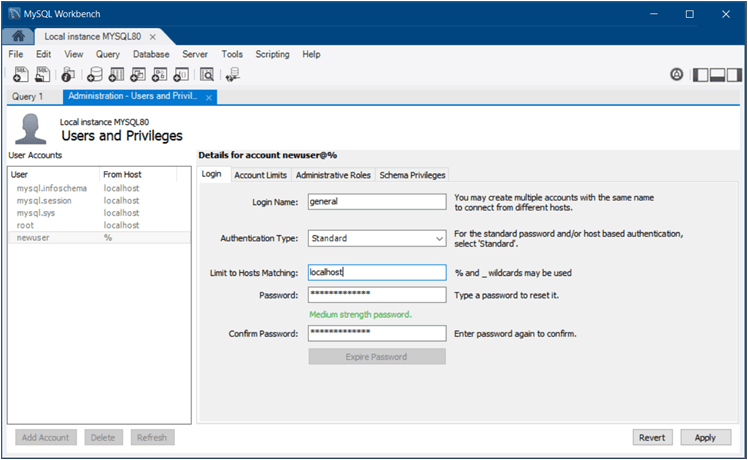
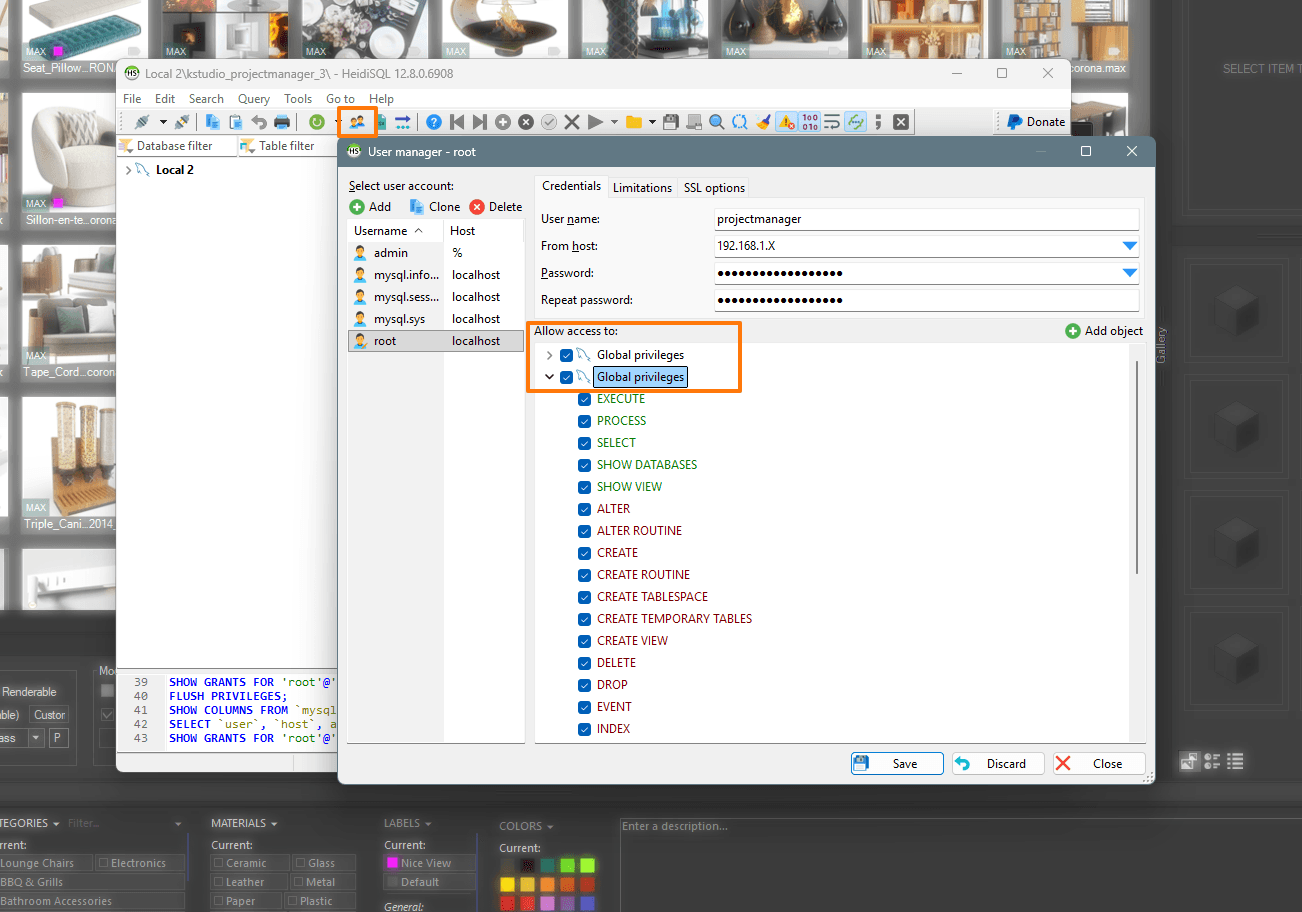
- Create a dedicated database user for Project Manager with a strong password. Do not use
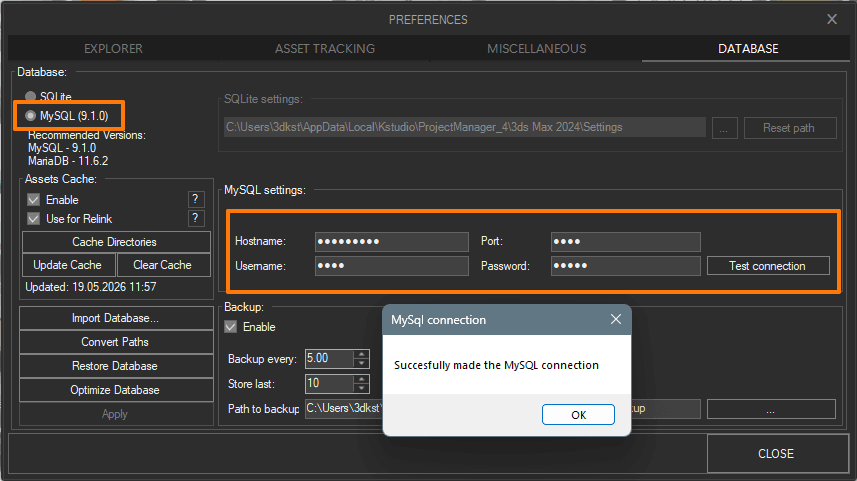
root. - In Preferences → Database, find the MySQL section and enter the
Host,Port,UserandPassword, then test the connection.
That’s it.
There is no database-name field to configure: Project Manager creates its own schema automatically the first time it connects.
The same schema is used by both Project Manager 3 and Project Manager 4, so upgrading Project Manager does not require rebuilding or migrating your catalogue.
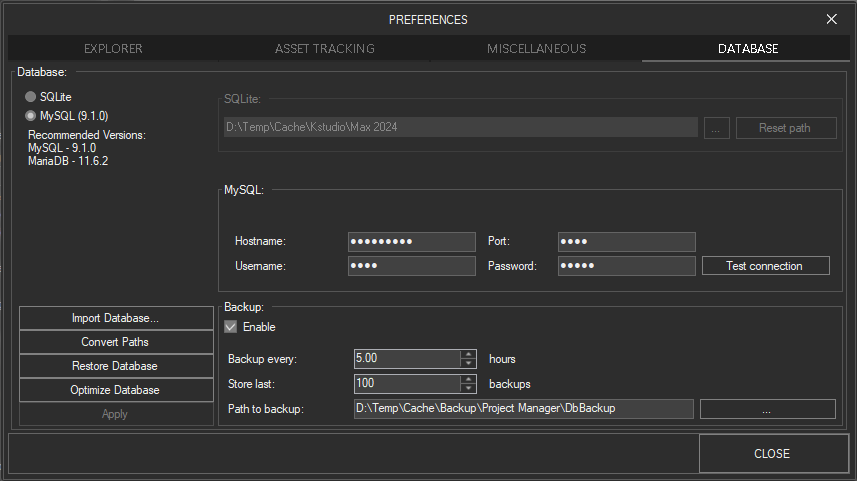
Project Manager → Preferences → Database: enter the MySQL connection details and test the connection.
For a step-by-step guide to installing and configuring MySQL or MariaDB, see: Shared Database Setup
How to check that Teamwork Mode is active
When the 3D Explorer tab is active and the database type is MySQL, Project Manager displays[teamwork mode]in the status bar at the bottom-right corner of the window, next to the version number.
This is the quickest way to confirm that Project Manager is connected to a shared MySQL database.
5. Use the same drive letter on every workstation
The database stores file paths exactly as they were seen by the workstation that scanned the library.
If one artist sees the library as:
D:\Library\
while another accesses exactly the same files through:
\\SERVER\Library\
the database treats them as two different locations.
This is the most common reason for “it works on one workstation but not on another”.
The simplest solution is to assign the same mapped drive letter on every workstation.
For example, L:\ can point to the shared library folder on every machine.
In an office environment, this can be configured once through Group Policy or a logon script and then largely forgotten about. For remote artists, the same drive letter should point to the local folder containing the synchronised copy of the library.
A mapped drive is generally more convenient than a UNC path: it is shorter, identical on every workstation, and can easily be redirected to another physical location without rewriting paths throughout the database.
What if the database already contains the wrong paths?
You do not need to rescan the library.
In Preferences → Database, use Convert Paths to open the Convert Paths in Database dialog:
- Convert paths to Network — converts local paths to network paths, for example
D:\Library\→\\SERVER\Library\. Enable Use mapped drives if possible to convert them directly to a mapped drive letter. - Convert paths to Local — performs the opposite conversion for a workstation where the library is stored locally.
- Convert paths by Mask — performs a manual search-and-replace operation on file paths, with optional Use Regex support.
Paths are updated in batches, so the operation also works efficiently with databases containing hundreds of thousands of records.
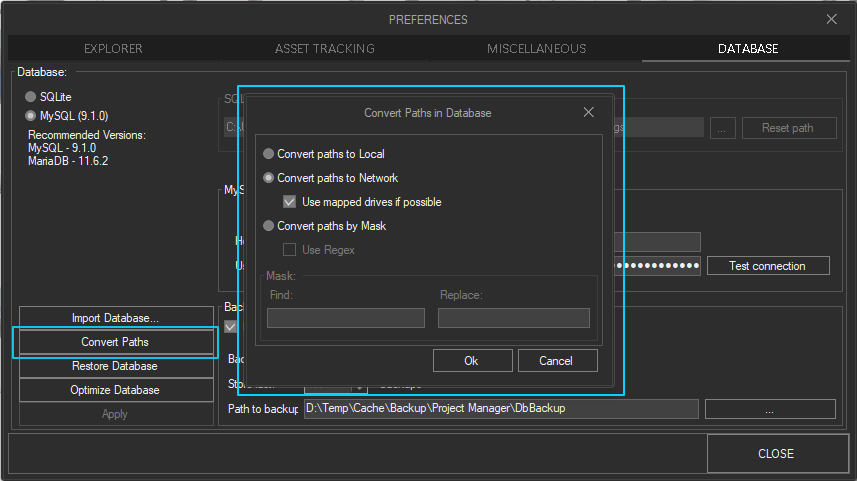
Convert Paths in Database provides several ways to standardise stored asset paths.
Tip: make a database backup before performing a large path conversion. Project Manager creates automatic backups through Preferences → Database, but keeping an additional copy before a bulk operation is always a good idea.
6. Scenario A: Local office
This is the simplest and most reliable configuration.
- The asset library is stored on a file server or NAS.
- MySQL runs on the server, or on any workstation that is always switched on.
- Every workstation accesses the library using the same mapped drive letter, for example
L:\.
The result is straightforward: one artist can organise assets into categories and add tags, and everyone else sees those changes immediately — without exports or manual catalogue synchronisation.
Project Manager PC 1 ─┐
Project Manager PC 2 ─┼── MySQL / MariaDB
Project Manager PC 3 ─┘

        │
        └──────── L:\ ──────── Shared NAS / File Server
7. Scenario B: Distributed team
Do not open a large asset library directly over a slow VPN or Internet connection.
Keep the library files locally on each workstation and use the network connection only to access the shared database.
For the files themselves, there are two practical approaches:
1. Cloud storage with local synchronisation
Dropbox, Google Drive, OneDrive, Resilio Sync or any similar service can keep a local copy of the asset library on each artist’s drive.
3ds Max then opens the files from the local disk, so asset access remains fast.
2. Local copies of the library
Each artist keeps a local copy of the asset library, updated periodically or according to a scheduled synchronisation process.
In both cases, the database remains shared through MySQL on the studio server, while the library path remains identical on every workstation — the same drive letter points to the locally synchronised folder.
                    Shared MySQL Server
                           │
                     VPN / Internet
                           │
              ┌────────────┴────────────┐
              │                         │
         Artist A                  Artist B
              │                         │
             L:\                       L:\
      local synced library      local synced library
8. Licences: Office workstations and freelancers
Licence management is available from your account:
https://3d-kstudio.com/my-account/
A single activation key can be used on multiple devices, up to the number of seats you have purchased.
This gives studios a simple way to organise activations:
- use one shared key for the main office — distribute it to the permanent workstations and leave it in place;
- create a separate personal key for each freelancer using Add New Type, with any meaningful name such as
Freelancer-PC,Workstation-2orcustomer@example.com.
Creating additional activation keys is available to customers with 5 or more licences.
Using separate, clearly named keys makes it easy to see who is using each licence.
To revoke a licence from a specific person, Delete or Regenerate their activation key. Within a few hours, all devices associated with that key are released and the seats become available for another computer.
There is no need to contact support.
This is particularly useful for studios that regularly work with temporary staff or freelancers: when someone finishes a project, their key can be revoked and the released licence can be assigned to another user.
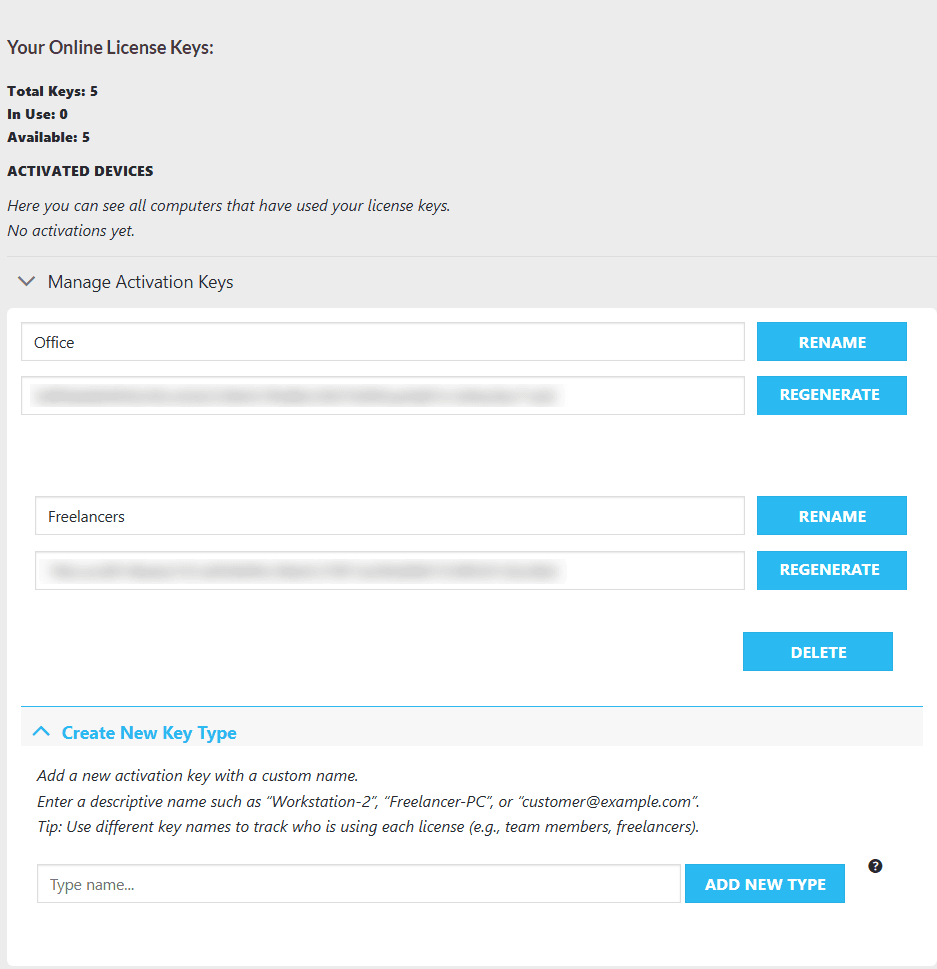
Manage Activation Keys: separate keys can be created for the office, individual workstations or freelancers.
Applying an activation key on a new workstation
- In 3ds Max, open the Project Manager activation form from the main menu → Activation.
- Paste the activation key into the corresponding field.
- Confirm activation on the computer.
9. Deployment and migration
Deploying Project Manager to multiple workstations
Silent installation allows you to deploy Project Manager without manually running the installer on every workstation:
Deployment: Silent Installation and Creation of Licence Files
Migrating an existing catalogue
Open:
Preferences → Database → Import Database…
Available migration options include:
- Import from SQLite to MySQL — the main option for a studio moving from an individual setup to a shared database. The existing local catalogue, including tags and categories, is transferred to MySQL, so there is no need to scan the library again.
- Import from MySQL to SQLite — the reverse operation. For example, this can be used to give a freelancer a standalone snapshot of the catalogue.
- Import from Connecter — migrates a catalogue from Connecter.
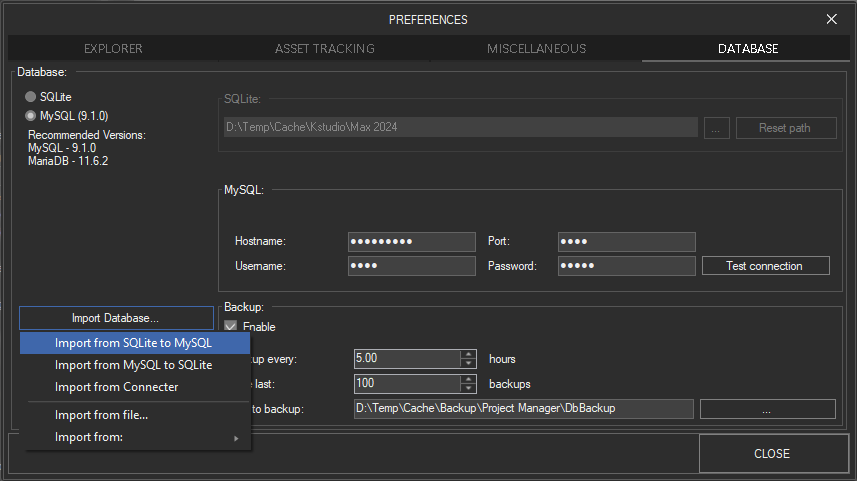
Import Database lets you move an existing catalogue between SQLite and MySQL or import data from Connecter.
Quick checklist
- Confirm that your team actually needs a shared catalogue.
- Set up MySQL or MariaDB on a machine that is always switched on.
- Create a dedicated database user with a strong password.
- On every workstation, open Preferences → Database → MySQL, enter the connection details and test the connection.
- Make the asset library available under the same drive letter on every workstation.
- If you already have an existing catalogue, migrate it using Import from SQLite to MySQL and standardise existing paths with Convert Paths.
- Distribute activation keys: a shared key for the main office and individual keys for freelancers where appropriate.
- Open 3D Explorer and confirm that
[teamwork mode]appears in the Project Manager window title.
FAQ
Team Setup & Shared Database:
How many users can one MySQL/MariaDB database handle?
For Project Manager’s metadata, this is not a concern.
A small studio of 5–20 artists and a large company with thousands of users are both trivial for MySQL/MariaDB on ordinary hardware — these engines routinely run far heavier workloads.
You will not outgrow it.Applicable to Project Manager running on a shared MySQL/MariaDB database (multi-user/team setup)
Can I install the database on a NAS (Synology, QNAP)?
Yes, many studios do.
The catch: the MySQL/MariaDB package on older NAS models is often outdated.
If the NAS database version is older than Project Manager requires (Preferences → Database tab),
it won’t work — update the NAS OS or install a newer database package via your device’s package centre.Applicable to Project Manager running on a shared MySQL/MariaDB database (multi-user/team setup)
“Test Connection” fails. What do I check?
- IP address — from another machine,
127.0.0.1won’t work; use the server’s LAN IP. - Firewall — is the inbound rule for port 3306 active on the server?
- Login/password — a typo when creating the account?
- MySQL 8+ authentication — see Section 5; use
mysql_native_password.
Applicable to Project Manager running on a shared MySQL/MariaDB database (multi-user/team setup)
- IP address — from another machine,
Connection works, but Project Manager reports missing tables, or tags don’t save.
The account is missing schema-creation rights. Project Manager creates its tables on first launch and needs full privileges to do so — confirm
CREATE TABLESPACEis granted (Section 4).Applicable to Project Manager running on a shared MySQL/MariaDB database (multi-user/team setup)
One artist added models, another can’t see them
Project Manager normally tracks changes and refreshes folders automatically, so this is usually a quick fix rather than a real problem.
First, confirm both machines point to the shared database, not the local one (Preferences → Database tab on each).
If a change still hasn’t appeared, manually refresh the current folder (right-click in empty space → refresh) to force an update.
Also, confirm the files themselves are on a shared network path both artists can reach; the database stores the organisation, not the files.Applicable to Project Manager running on a shared MySQL/MariaDB database (multi-user/team setup)
Can’t we just put the local SQLite file on a shared network folder?
This is the one shortcut that genuinely doesn’t work reliably. SQLite is excellent for local, single-user workflows, but it is not designed for concurrent multi-user writes over a network share — file-locking behaviour over SMB/NAS leads to errors, lost changes, or a corrupted file.
It’s a known limitation of network filesystem semantics, not something Project Manager can work around.
For real teamwork, use a database server (MySQL or MariaDB) — which is what this guide sets up.Do we need a separate database account for each artist?
For a small studio, no — one shared account is the simplest, most reliable setup, and a database server is built to handle many connections under one login.
What actually matters is that the account has full privileges (Section 4).
Studios with stricter security policy can use per-user accounts; see the advanced note in Section 4.
$60.00Add to Cart