Translate


A step-by-step guide written for 3D artists — clear enough to follow without a sysadmin, accurate enough that one wouldn’t wince.
Who is this for, and why bother?
You work in a studio, and every artist keeps their own separate library of tags, collections, comments, and ratings. Someone tidies up a catalogue — nobody else sees it. Sound familiar?
Project Manager solves this by switching from a local database (SQLite, just for you) to a shared database (MySQL or MariaDB, used by the whole team). One person organises an asset, tags it, rates it — and everyone sees it.
Do you actually need this? A shared database only makes sense when two or more people work with the same library at the same time. If you’re a solo artist — or the only one touching the library — stay on the default local database. It’s faster to set up, needs no maintenance, and a server would just add moving parts for no benefit. This guide is for teams sharing one library concurrently.
How the pieces fit together
A lot of confusion disappears once you can picture the setup. There are three separate things:
   Artists' PCs  (3ds Max + Project Manager)
        │   ← tags, catalogues, ratings, comments
        ▼
   Shared MySQL / MariaDB server   ← the catalogue (metadata only)

   Shared NAS / network drive      ← the actual model & texture files
The database stores the organisation — tags, catalogues, ratings, comments, folder structure. It does not store, move, or copy your model and texture files. Those still live on a shared network drive every artist can reach. The database is the catalogue; the network drive is the library shelves. Both need to be shared, and they’re independent of each other.
A note on scope, because it changes everything below. This database isn’t a general-purpose company database platform. It’s a dedicated metadata backend used exclusively by Project Manager — no other applications, no external services, no web exposure by design, no user-written SQL. That narrow, single-purpose role is why the setup in this guide is deliberately simple: it’s the right amount of engineering for the job, not a shortcut.
The good news: you do not need a database expert for this. If your studio has a sysadmin, this is a perfect job for them. If it doesn’t — that’s exactly who this guide is for. Set aside an unhurried half hour and follow the steps in order.
1. MySQL or MariaDB — which one?
Both are free, both are fully supported, and the setup is almost identical. Project Manager works with either.
- MariaDB (recommended for small studios). A community-driven, open-source database from the original MySQL developers. It installs cleanly and avoids an authentication change that the modern MySQL installer introduces (Section 5). For a small team, it’s the path of least resistance.
- MySQL (the industry standard). Hugely popular with extensive documentation. A solid choice — just note the authentication step in Section 5.
Which version? Don’t memorise a number — it changes between plugin releases. Project Manager tells you what it needs: open Project Manager → Preferences (gear icon) → Database tab, where the minimum supported versions are listed. Download that or newer from the official site.
This guide uses MariaDB in its examples. Where MySQL differs, it’s flagged.
2. Choosing the computer for the server
Get this right and you avoid the most common headache.
Don’t install the database on a render node. During rendering, CPU and RAM are at 100%, the database stops responding in time, and Project Manager appears to “freeze” for everyone. (If the server ever becomes unreachable, Project Manager falls back to the local database — no data is lost — but a stalled library mid-deadline is no fun.)
Good choices:
- A dedicated file server or NAS — often ideal, since it’s already always-on (see the NAS caveat in the FAQ).
- Any reliable studio workstation that is always on while artists are working.
The only hard rule: the database computer must be available whenever anyone needs the library.
Does it need to be powerful? No. Project Manager’s database traffic is lightweight — it’s text metadata, not the asset files themselves. A modern workstation or NAS on a gigabit LAN is far more than enough, whether you have 5 artists or 50. Remote users on a VPN may see slightly slower refreshes, but day-to-day work stays comfortable.
3. Download and install
Download MariaDB (recommended) or MySQL Community Server from its official website and run the installer. You can accept most defaults; only three screens need attention.
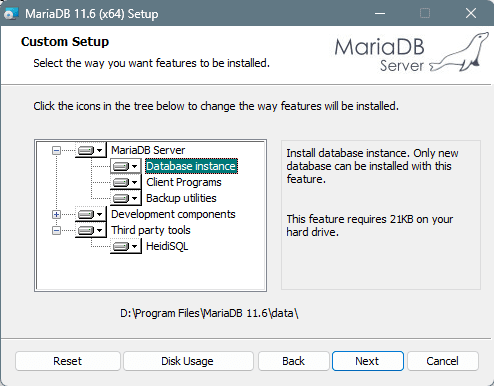
Custom Setup.
Keep Database instance selected.
The bundled HeidiSQL is listed here too — leave it ticked, you’ll use it in Section 4 to create the account.
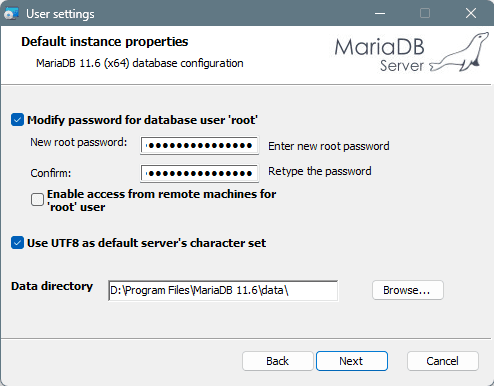
User settings.
Set a strong password for the root account and save it somewhere safe — changing it later requires extra reconfiguration, so it’s worth getting right the first time.
Leave “Enable access from remote machines for ‘root’ user” unchecked.
This is intentional: root stays local for security, and the network-accessible account you create in Section 4 (projectmanager) is what the team will actually connect with.
Do tick “Use UTF8 as default server’s character set” to ensure asset names, tags and paths with non-Latin characters are stored correctly.
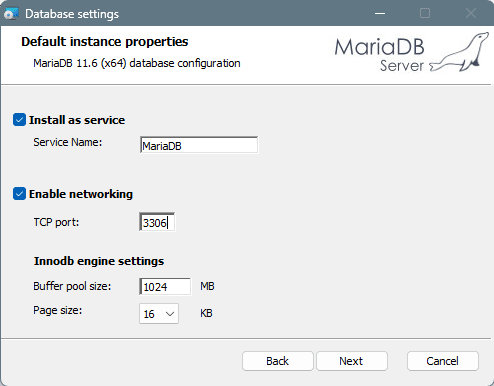
Database settings.
Keep Install as service ticked (the database then starts automatically with the computer — no one launches anything by hand).
Keep Enable networking on with TCP port 3306.
Leave the InnoDB engine settings at their defaults.
4. Create the database account
Project Manager needs a database account to connect with. For a small studio, one shared account for the whole team is the simplest and most reliable setup — every artist’s machine uses the same login. A database server handles many simultaneous connections under one account by design; that’s a normal, intended pattern, not a workaround.
Why one account is fine here: because this server is a dedicated Project Manager metadata backend (see “A note on scope” above), there’s no multi-tenant separation to enforce, no other application sharing the server, and no granular access control to design. Fewer accounts also means fewer places for a setup mistake. If your studio has stricter internal security policy, an advanced admin can of course create per-user accounts and tighten permissions manually — see the note at the end of this section.
The privilege the account needs
The Project Manager account needs full (global) privileges on the server.
This is a deliberate design choice, not over-permissioning. On first connection, Project Manager creates and maintains its own schema and tables automatically — on first launch and again during version upgrades. To do that reliably it needs administrative rights, including the
CREATE TABLESPACEprivilege (Project Manager stores its data using an InnoDB configuration that requires it).Granting full privileges on a server used only for Project Manager metadata avoids partial-permission states during schema creation, updates, and maintenance — and removes a whole category of “works on one machine but not another” support issues. It’s the right trade-off for an embedded, single-purpose backend.
If the account is missing this privilege you get a confusing symptom: the connection succeeds, but tables aren’t created, so tags and changes quietly fail to save. Almost every “my changes keep disappearing” report traces to exactly this.
You do not need to create the schema yourself — Project Manager builds it on first launch. You only create the account.
🔒 Keep this account scoped to Project Manager. Since it has full server access, don’t reuse it to manage anything else (accounting software, a website, and so on). If the studio runs other databases on the same machine, create separate, restricted users for those. Powerful account → Project Manager only.
How to create the account (HeidiSQL)
You’ll want a graphical client. HeidiSQL is small, free, and the easiest option, and handles both MariaDB and MySQL well. (MySQL Workbench also works; for MariaDB, HeidiSQL is smoother.)
- Open HeidiSQL and connect using root and the password you set during installation.
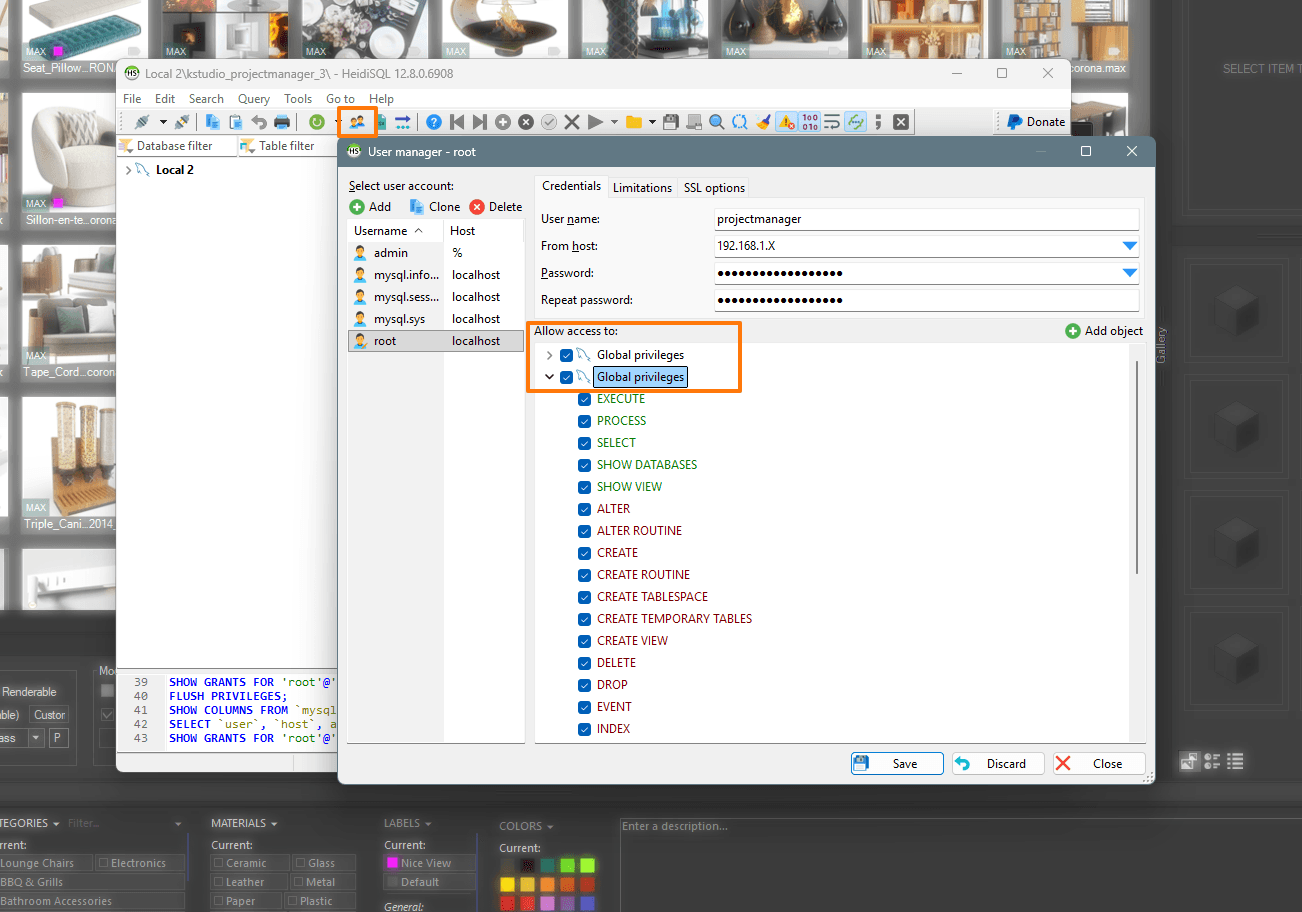
- Go to Tools → User manager.
- Click Add. Give the account a clear name (e.g.
projectmanager) and a strong password — notadminor12345. - For Host / “From”, allow it to connect from the network (
%for any host, or restrict to your subnet for tighter security). - Under Global privileges, grant full access, ensuring
CREATE TABLESPACEis included. - Save. That account is now ready for every artist’s machine.
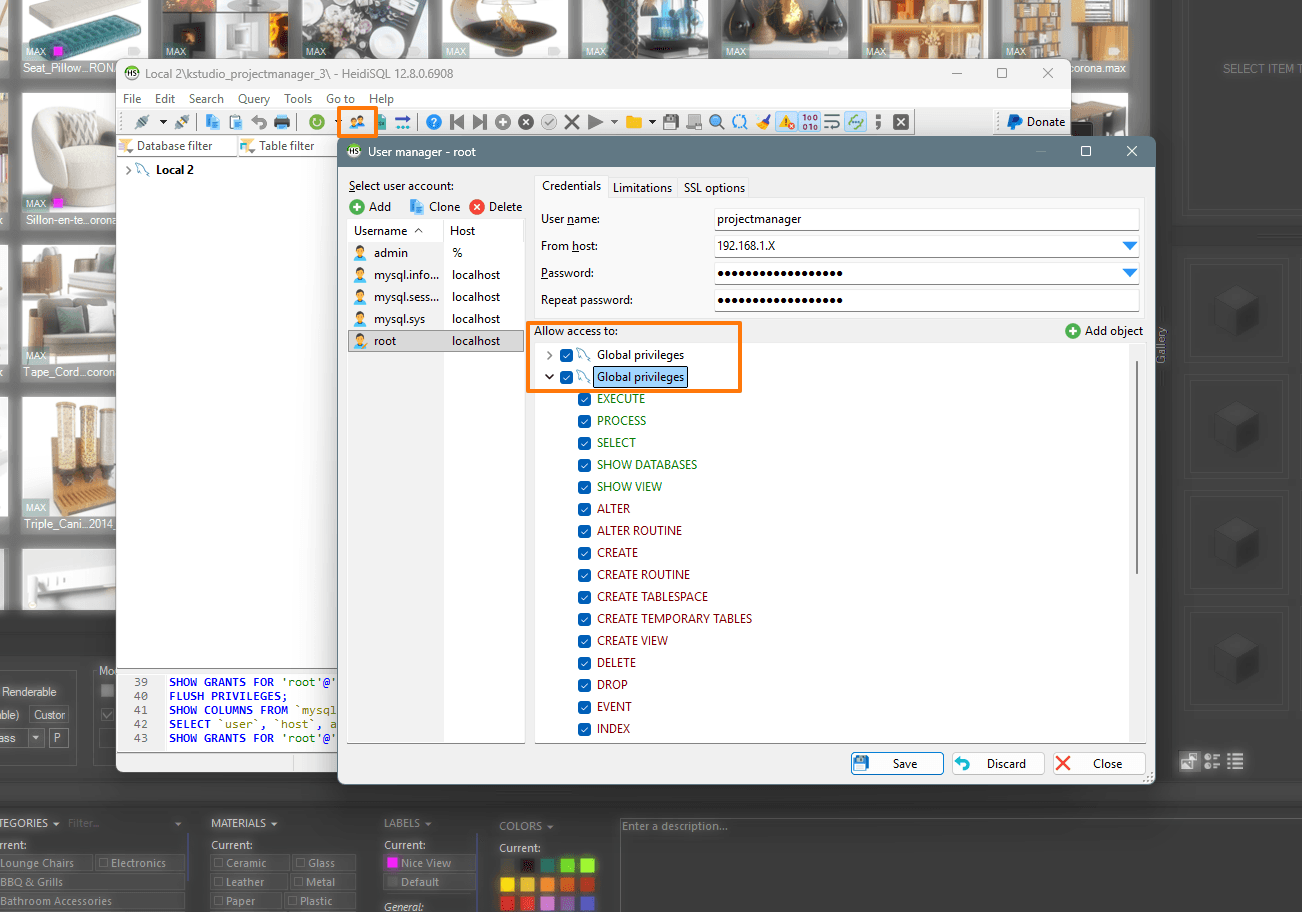
(most important image in the guide)
HeidiSQL → User manager: account projectmanager,
From host set to the studio subnet (not localhost), and the Global privileges list fully ticked. CREATE TABLESPACE is the one that matters most — without it, Project Manager connects but silently fails to create its tables
For studios with stricter security needs (optional, advanced).
The simple setup above is recommended for most small and mid-sized studios. If your policy requires least-privilege, an experienced admin can instead create the schema-creation rights only as needed, restrict the account to the Project Manager schema after first launch, and use per-user accounts.
This is more maintenance for the same result on a single-purpose server, which is why it’s optional rather than the default.
5. Authentication note (important if you chose MySQL)
This is the most common cause of a failed Test Connection with modern MySQL — and a reason MariaDB is the smoother choice for non-technical setups.
MySQL 8.0+ defaults new accounts to an authentication method called caching_sha2_password. Project Manager’s connection may not negotiate it cleanly, producing an access-denied error even when the username and password are correct.
The fix: create the account with the classic authentication method instead of caching_sha2_password.
- In MySQL Workbench: on the account’s Login tab, set Authentication Type to
Standard. (Workbench labels the classicmysql_native_passwordmethod as “Standard” — don’t go looking for the literal plugin name in the dropdown.) - In HeidiSQL: use the small dropdown arrow at the end of the Password field in User manager to pick the authentication plugin.
MariaDB uses the classic method by default, so MariaDB users can skip this entirely.
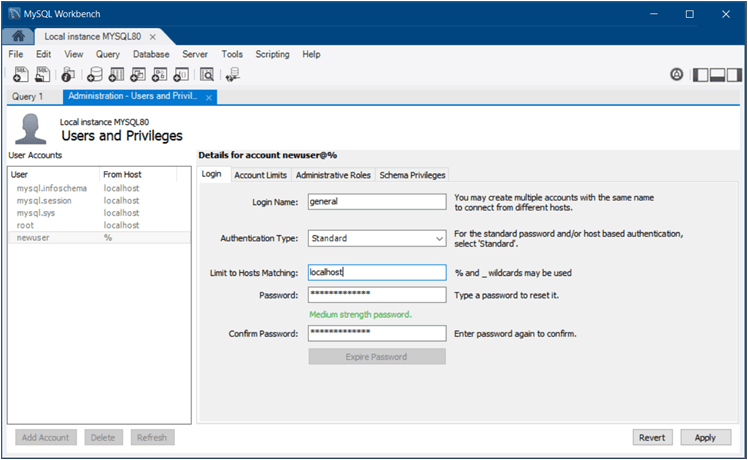
MySQL Workbench → Users and Privileges → Login tab:
set Authentication Type to Standard.
This is the classic method Project Manager connects with reliably.
(Set “Limit to Hosts Matching” to % or your studio subnet so artists on other machines can connect — not localhost.)
6. Networking — letting the other computers in
The artists’ machines need to find the server and be allowed to connect.
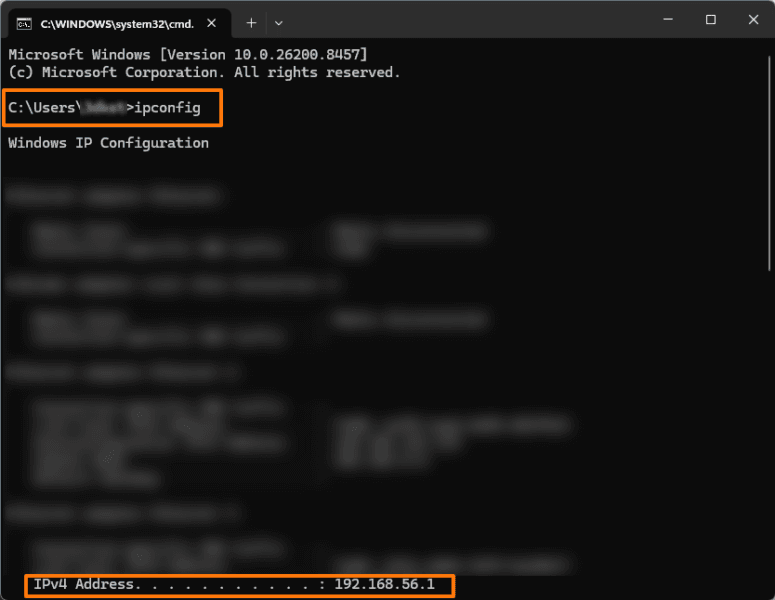
Find the server’s IP address:
- On the database computer, press Win + R, type
cmd, press Enter. - Type
ipconfigand press Enter. - Note the IPv4 Address line — that’s your server’s address (typically
192.168.1.xor10.0.0.x).
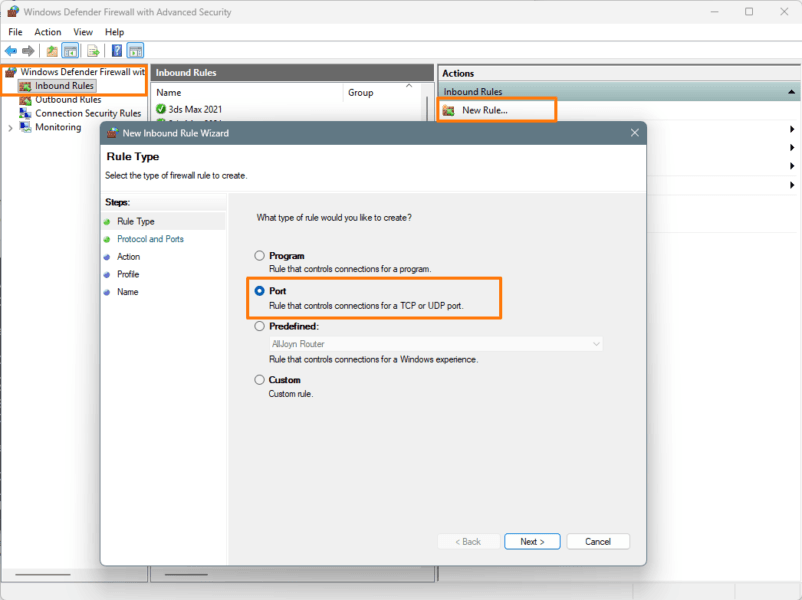
Open the firewall (single-office network):
On the server, open Windows Defender Firewall with Advanced Security, select Inbound Rules, and click New Rule to launch the wizard.
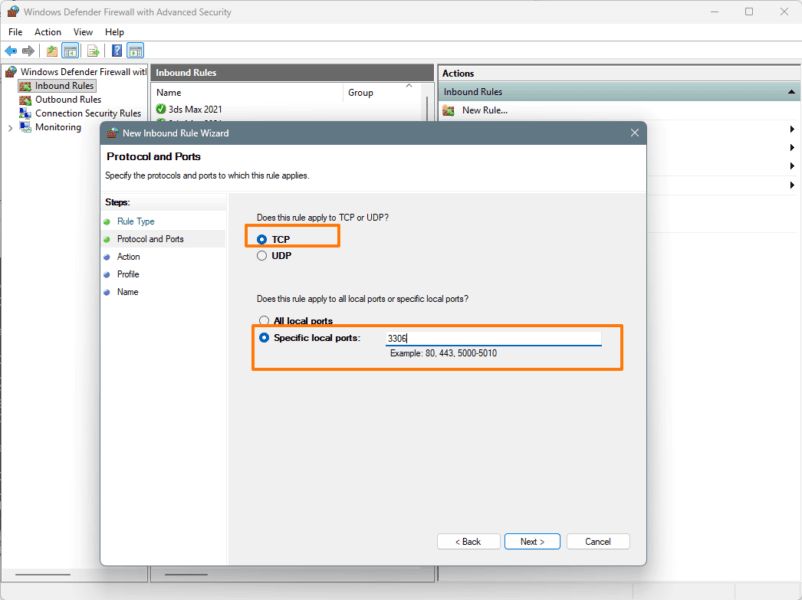
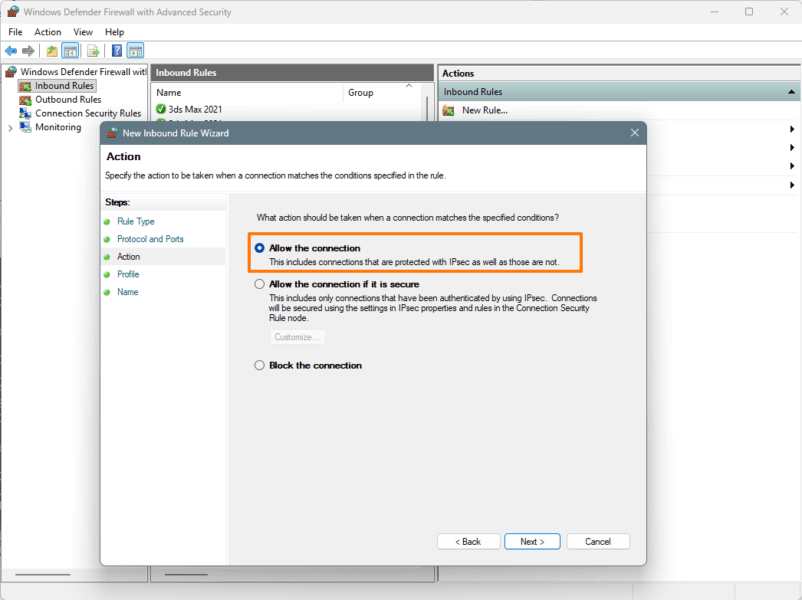
If you need remote access (working from home):
Don’t forward port 3306 directly to the internet via your router — exposed database ports are routinely scanned by automated bots, so this is a real risk.
Two safe routes:
- Easiest — a VPN. Tools like Tailscale, ZeroTier, or Radmin VPN securely link computers over the internet. The remote artist enters the server’s VPN IP address and works exactly as if in the office. For most studios this is the right answer.
- Advanced — static IP allow-list. If you must expose the port, configure the server firewall to accept connections on 3306 only from the specific static IP addresses of your remote staff, and block everything else.
7. Connect Project Manager to the database
Do this on each artist’s machine:
- Open 3ds Max and launch Project Manager.
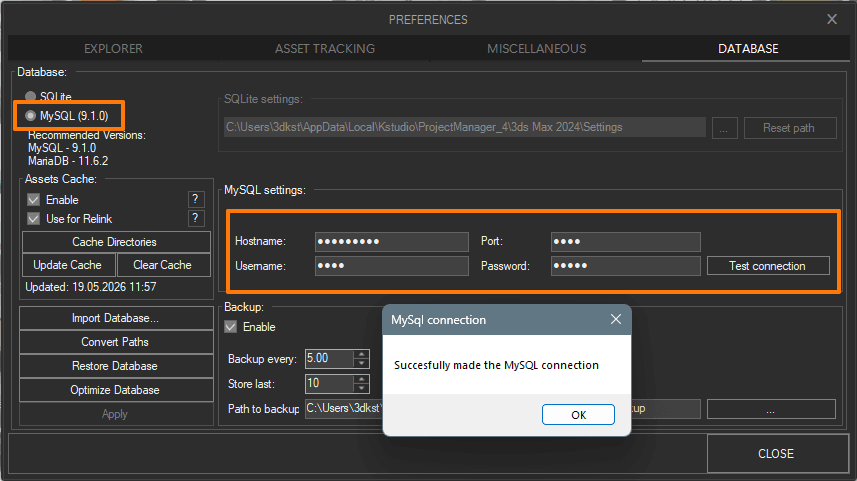
- Go to Preferences (gear icon) → Database tab.
- Select MySQL / MariaDB.
- Host Name: the server’s IP address from Section 6 (e.g.
192.168.1.50, or the VPN IP). Don’t use127.0.0.1/localhostunless you’re configuring it on the server computer itself — this is the single most common connection mistake. - Port:
3306. - User Name & Password: the account you created in HeidiSQL.
- Click Test Connection. A success message means you’re connected.
- Migrating an existing local library? If you already have tags, collections, and comments in your local database, click Import Database → Copy from SQLite to MySQL.
Depending on the size of your library, this may take a while. Do this on ONE computer only.
Everyone else simply connects to the now-populated shared database. - Convert local paths to network paths. If your assets were catalogued using local paths (e.g.
D:\Models\), other artists won’t find them under those drive letters.
After importing, click the Convert Paths button, choose Convert paths to Network, and confirm with OK.
Project Manager automatically finds the matching network or UNC path for each local folder (where one exists) and rewrites the stored paths into their shared form (e.g.\\SERVER\Models\), so they resolve for everyone — you don’t need to map the folders by hand.- Leave Use mapped drives if possible ticked if your studio maps the shared storage to a consistent drive letter on every machine (e.g.
M:\on all PCs) — Project Manager will then prefer that mapped drive over the raw UNC path.
- Leave Use mapped drives if possible ticked if your studio maps the shared storage to a consistent drive letter on every machine (e.g.
Project Manager → Preferences → Database: select MySQL, fill Hostname, Port, Username and Password, then Test connection. The success dialog confirms everything is wired up. (The panel also shows the recommended MySQL/MariaDB versions — your single source of truth for which version to install.)
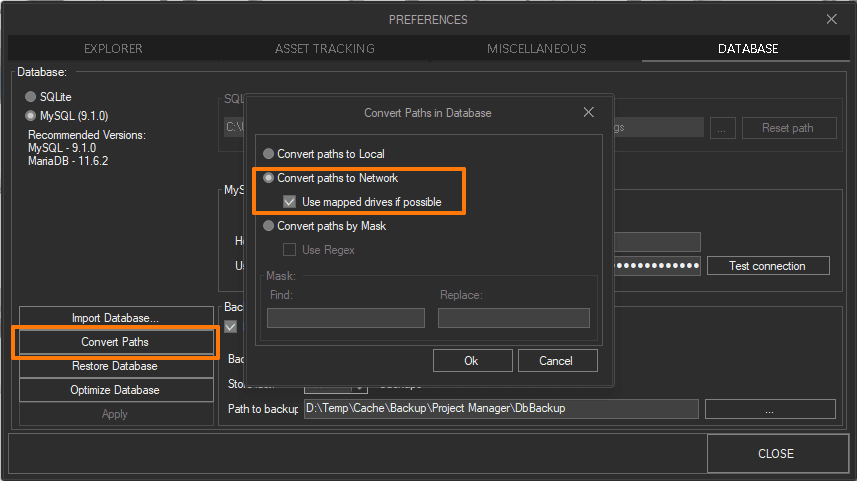
Convert local paths to network paths.
If your assets were catalogued using local paths (e.g. D:\Models\), you’ll need to convert them to network.
After importing, click the Convert Paths button, choose Convert paths to Network, and confirm with OK.
Your studio now shares one library. Project Manager tracks changes and refreshes automatically, so when someone adds a folder or catalogue it normally appears for everyone on its own; if a change is slow to show, a manual refresh (right-click in empty space → refresh, or refresh the current folder) forces it.
FAQ
Team Setup & Shared Database:
How many users can one MySQL/MariaDB database handle?
For Project Manager’s metadata, this is not a concern.
A small studio of 5–20 artists and a large company with thousands of users are both trivial for MySQL/MariaDB on ordinary hardware — these engines routinely run far heavier workloads.
You will not outgrow it.Applicable to Project Manager running on a shared MySQL/MariaDB database (multi-user/team setup)
Can I install the database on a NAS (Synology, QNAP)?
Yes, many studios do.
The catch: the MySQL/MariaDB package on older NAS models is often outdated.
If the NAS database version is older than Project Manager requires (Preferences → Database tab),
it won’t work — update the NAS OS or install a newer database package via your device’s package centre.Applicable to Project Manager running on a shared MySQL/MariaDB database (multi-user/team setup)
“Test Connection” fails. What do I check?
- IP address — from another machine,
127.0.0.1won’t work; use the server’s LAN IP. - Firewall — is the inbound rule for port 3306 active on the server?
- Login/password — a typo when creating the account?
- MySQL 8+ authentication — see Section 5; use
mysql_native_password.
Applicable to Project Manager running on a shared MySQL/MariaDB database (multi-user/team setup)
- IP address — from another machine,
Connection works, but Project Manager reports missing tables, or tags don’t save.
The account is missing schema-creation rights. Project Manager creates its tables on first launch and needs full privileges to do so — confirm
CREATE TABLESPACEis granted (Section 4).Applicable to Project Manager running on a shared MySQL/MariaDB database (multi-user/team setup)
One artist added models, another can’t see them
Project Manager normally tracks changes and refreshes folders automatically, so this is usually a quick fix rather than a real problem.
First, confirm both machines point to the shared database, not the local one (Preferences → Database tab on each).
If a change still hasn’t appeared, manually refresh the current folder (right-click in empty space → refresh) to force an update.
Also, confirm the files themselves are on a shared network path both artists can reach; the database stores the organisation, not the files.Applicable to Project Manager running on a shared MySQL/MariaDB database (multi-user/team setup)
Can’t we just put the local SQLite file on a shared network folder?
This is the one shortcut that genuinely doesn’t work reliably. SQLite is excellent for local, single-user workflows, but it is not designed for concurrent multi-user writes over a network share — file-locking behaviour over SMB/NAS leads to errors, lost changes, or a corrupted file.
It’s a known limitation of network filesystem semantics, not something Project Manager can work around.
For real teamwork, use a database server (MySQL or MariaDB) — which is what this guide sets up.Do we need a separate database account for each artist?
For a small studio, no — one shared account is the simplest, most reliable setup, and a database server is built to handle many connections under one login.
What actually matters is that the account has full privileges (Section 4).
Studios with stricter security policy can use per-user accounts; see the advanced note in Section 4.
$60.00Add to Cart