Translate


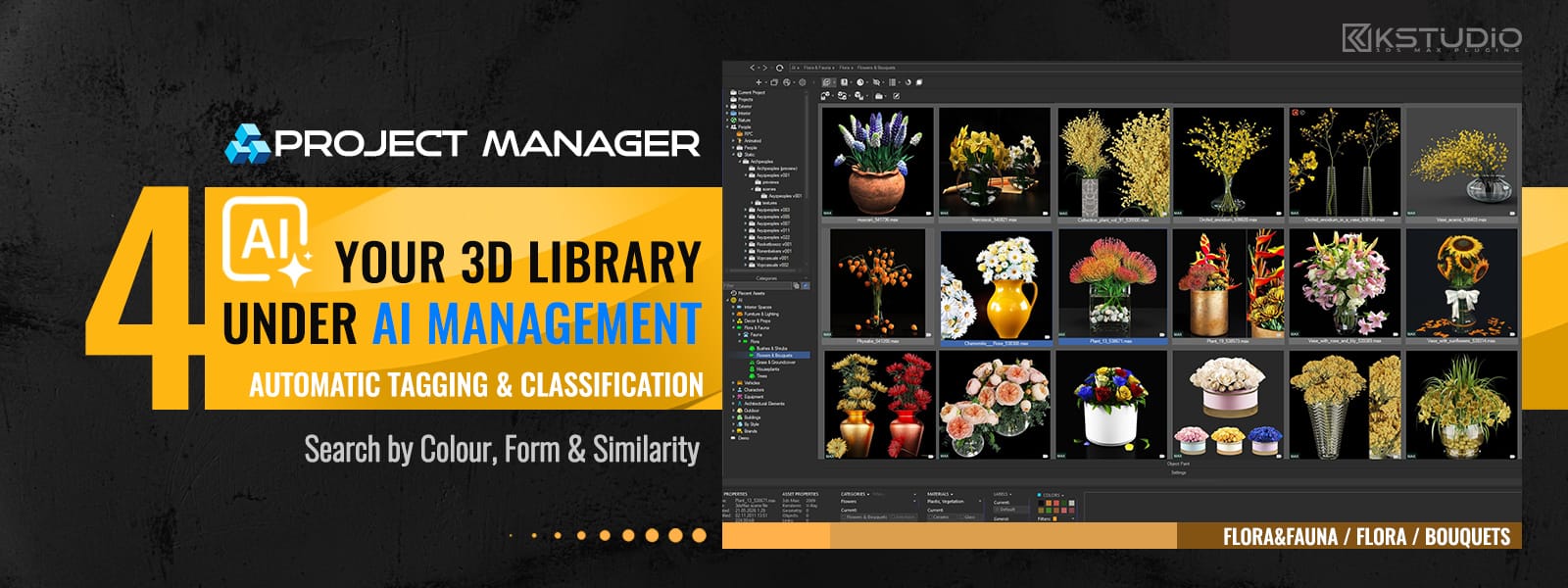
Most asset libraries are organised in theory. In practice, you spend more time hunting for the right chair than actually using it.
Project Manager 4 fixes that — without migrating your data or changing your folder structure:
- Classifies automatically. Local AI identifies and tags your 3D models — no manual input.
- Surfaces what’s related. Find similar models across thousands of files in seconds.
- Makes everything searchable. Locate any asset by category, material, colour, or visual similarity — instantly.
Everything stays where it is. The organisation simply appears.
Important: all organising happens purely virtually. Project Manager does not move your files or change your folder structure on disk — it builds virtual categories on top of your existing library. Physically, not a single file goes anywhere.
And we’ll start with the feature that earned this release the number 4 in the first place.
AI Asset Classification: The End of Manual Tagging
The headline news in PM4 is a built-in AI classification engine that automatically sorts your 3D models into place.
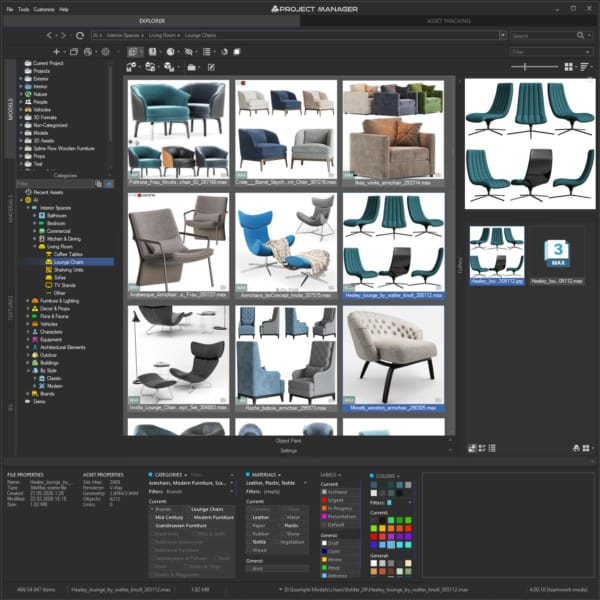
A dedicated AI classifier analyses your assets and assigns categories by object type (chair, sofa, lamp…), material composition (glass, wood, metal…) and style.
For furniture it goes further still — recognising brand and styling: classic, contemporary, and everything in between.
3D models are automatically tagged by material type.
Now for what really matters:
- Everything runs locally, on your own machine. Your assets are never uploaded, never sent to the cloud, never handed to anyone else’s servers. No subscription, no monthly “AI credits.” The classifier runs with GPU acceleration right on your hardware — a matter of principle, not a technical footnote.
- The AI suggests; you decide. Categories assigned by the AI are visually separated from your manual ones, so you always see where each came from. Disagree with a suggestion? Review, reassign, or delete any of them — you remain fully in control.
- It scales to a team. Point several workstations at the same database and they classify in parallel, each taking its share of the queue. A large studio library gets sorted not over a week, but over an evening.
And, crucially for anyone rendering against a deadline: the classifier is designed to stay out of your way.
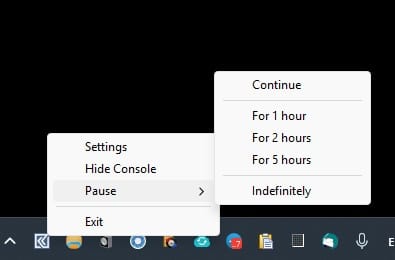
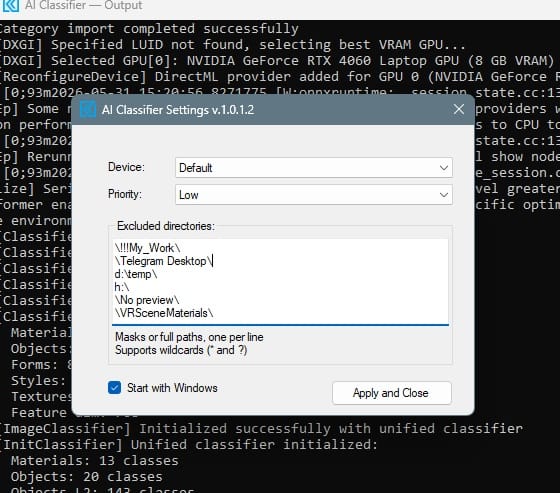
It runs in the background at low priority and won’t compete with your render or your active work. Need every watt of GPU for a final pass?
Pause classification — for one to five hours, or indefinitely.
You can choose which GPU does the work, or fall back to a slower CPU if that suits you better.
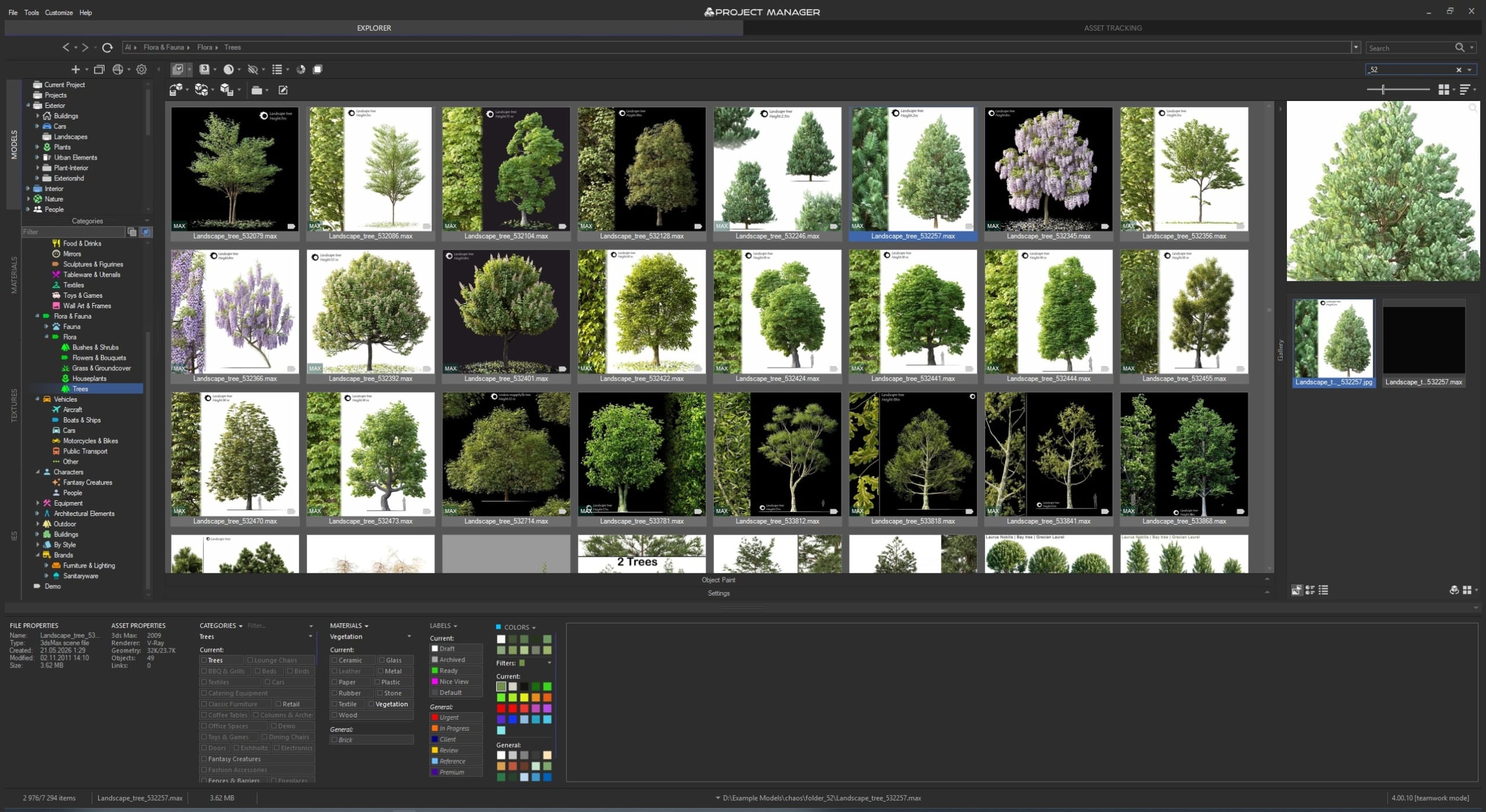
Working Through the Leftovers: Categorised / Uncategorised
The AI has done its part — but how do you tell, at a glance, what’s still left to sort? That’s what the Categorised / Uncategorised quick filters are for.
One click on “Uncategorised” shows you exactly the assets still waiting for attention; “Categorised” shows everything already in order.
This is the practical workflow for adopting the AI: start the classification, get back to work, and every now and then click “Uncategorised” and clear the leftovers in batches. No need to take on the whole library in one sitting.
A few tips for better results. The classifier works with what it can see, so preview quality directly affects accuracy: the better the render or screenshot of a model, the more precisely the AI identifies its type, material, and style. Models with dark, empty, or “technical” previews are recognised less well — it’s worth generating proper thumbnails for them.
And, above all: there’s no magic wand. The AI does sometimes get it wrong — calling an armchair a sofa, or a floor lamp a table lamp. That’s normal and expected, which is precisely why you can always review, reassign, or delete any suggested category, while the “Uncategorised” filter helps you quickly find what needs a manual touch.
A handy trick, by the way: to remove an asset from the active category in a flash, press Alt+Delete. The AI clears 90% of the routine — the last 10% stays with you, and that’s a deliberate trade-off.
Find Similar — match assets by how they look.
Find Similar uses AI visual matching, so it works on any model in your library.
There are a few ways to use it, from a single folder up to your whole library, and even from a drawing.
- Filter Similar Objects (within a folder). Pick a model you like and filter the current folder down to everything that resembles it, ranked with the closest matches first.
The filter stays live as you move between folders, and a slider lets you loosen or tighten the match in real time.
Changed your mind? Select another model, click again, and the view updates instantly. - Find Similar by Object (across the whole library). Select one or several reference models, right-click, and search the entire library rather than a single folder.
Results are grouped under each reference they came from, so you always know where a match belongs. - Find Similar by Image (from any reference — even a sketch). Drag in any reference images — a photo, a render, or even a rough pencil sketch — and Project Manager finds the models in your library that match.
Save these references as reusable Reference Sets (one per project, like a mood board you can return to), switch between them in a click, and turn a sketch into matching 3D models from your own library.
Colour tools — find assets by colour.
Project Manager now analyses colour — both for 3D model previews and for textures.
Pick any colours from the palette and instantly see the models or textures that match.
This isn’t a crude “find everything red”: the search understands perceptual colour similarity — closeness of colour as the eye sees it, not as the pixels happen to be stored.
Active colour filters appear as visual swatches right in the filter bar, so you can see at a glance what’s currently applied.
You can also match by colour palette: point Find Similar at any image or texture, and Project Manager breaks down its full set of dominant colours and their proportions to find assets with a matching colour profile — invaluable when you need textures to suit a specific reference photo or mood board.
Smarter Text Search
Multi-keyword search returns more relevant results: a query like “Chair, Glass” now finds a Chair.max file described as “glass,” not only files where both words appear verbatim.
Categories themselves can be filtered quickly too. To list the available brands, for example, just type style into the category filter field and you’ll get every available style; likewise brand shows all brands.
Instead of scrolling the category tree by hand, a single word gives you the slice you need.
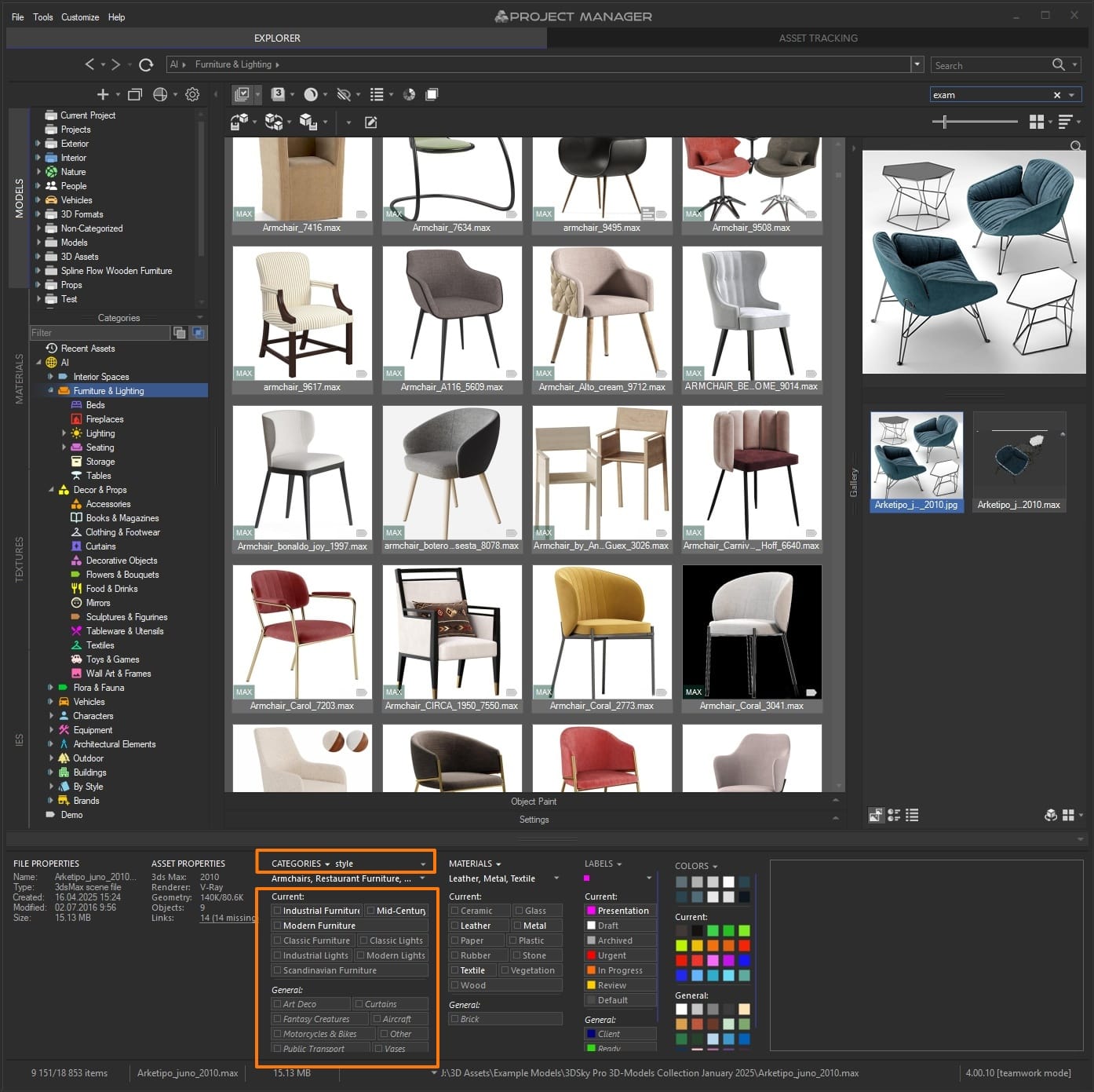
Flexible OR / AND logic and Cross-Filters
When combining several categories, you choose the mode: match any (OR) or require all at once (AND).
You can also cross category and material filters with each other. Need coffee tables specifically in glass and metal — or only wooden ones?
One click instead of trawling through hundreds of files by hand.
Filtering now works directly from the category tree via the context menu, and it correctly covers sub-categories: “Furniture” finds even what sits deep inside “Furniture → Chairs → Dining.”
And most importantly — it all works together.
Run a colour search, then narrow the result with a material filter, then add a status label, and each step instantly tightens the selection.
Search and filters don’t compete; they reinforce one another, so you steer the library towards the result you want rather than composing the perfect query blind.
And the best part: every click on a filter, every keyword and colour updates the selection instantly.
You can explore the library by feel, rather than composing queries.

Teamwork and Control Over the Interface
When more than one person works on a project, two things are critical: a shared asset status and the ability to keep the whole picture in view.
PM4 covers both.
Colour Labels — a built-in team workflow.
Tag models and textures with working states: Draft, Approved, In Review, Archived, Urgent — or any of your own. An artist marks work in progress, a lead sets “approved,” and everyone sees the same asset status at a glance.
No more “which version of this sofa is the current one?” in chat.
Filter and search by colour label to instantly surface everything that’s “In Review,” or hide the archived from your working view.
The system is fully flexible: any colour, any label text. Tune it precisely to the workflow your studio already has, rather than bending to someone else’s logic.
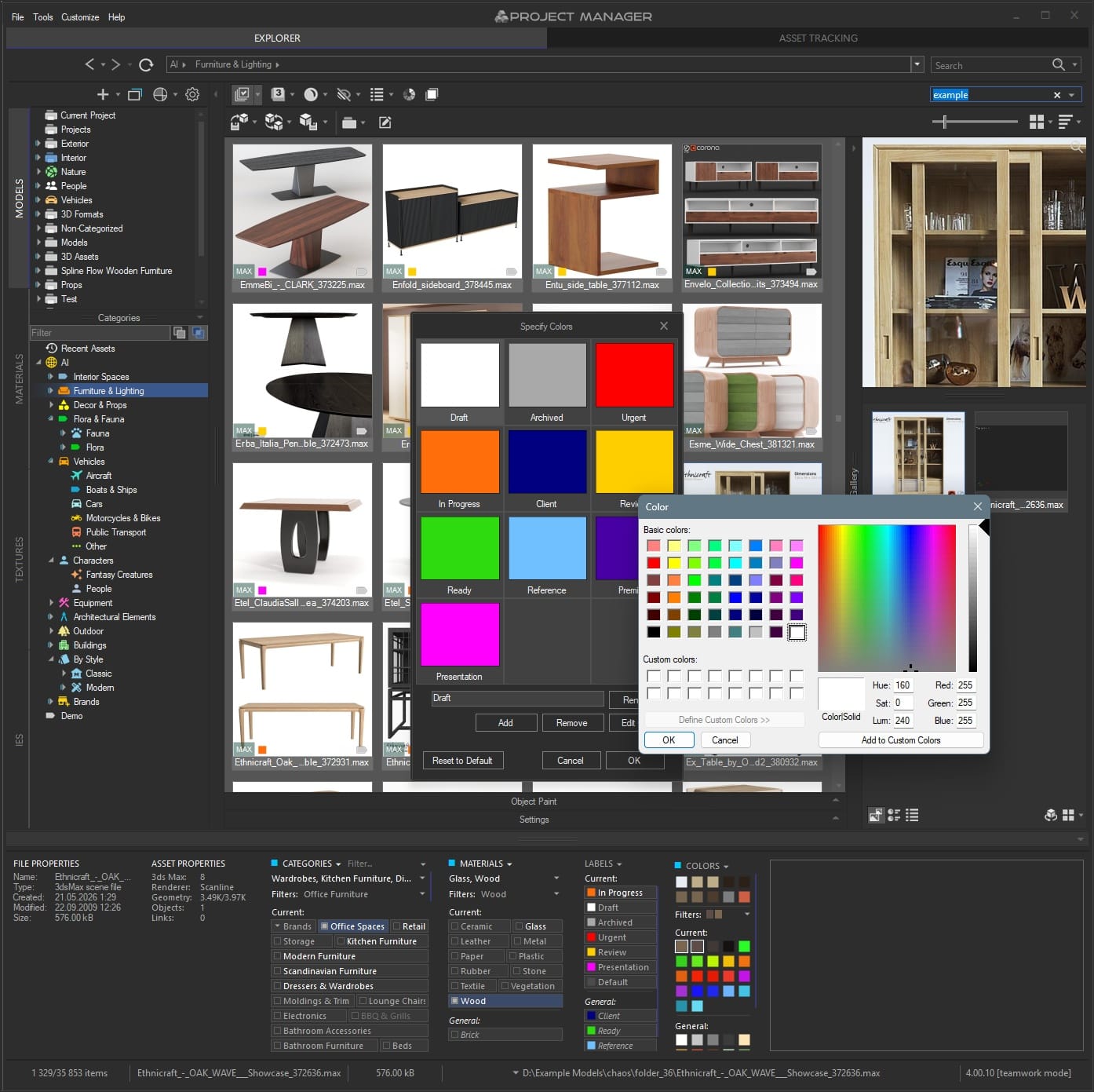
Completely rebuilt Status Bar panels.
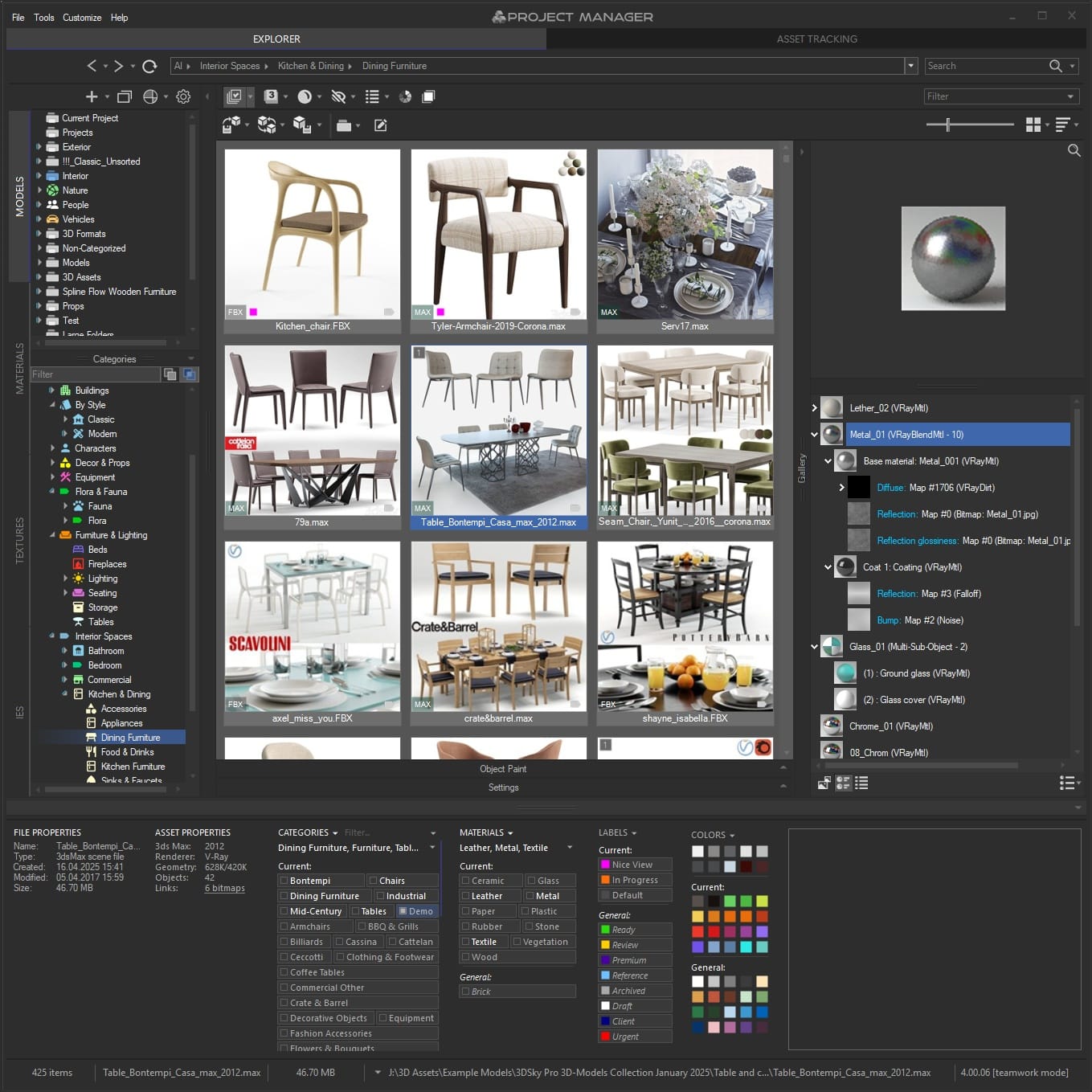
The panels for Categories, Materials, Colour Labels, and Colours have been rebuilt from the ground up.
Each now shows three contextual sections at once: what’s in your current selection, which filters are active, and what’s available across the library as a whole. Instead of clicking back and forth and holding the filter state in your head, you keep the whole project in view — selection, statuses, and what’s available — in one glance instead of three detours.
For a team, that means anyone can sit down at the library and understand its state in a second.
The Gallery and Working with .max Files
Working with the contents of .max files has become far more transparent.
The gallery now has three tabs for .max files: Gallery (linked previews), Materials (the scene’s material tree), and External Links (every texture and asset the scene references).
Drag materials into the scene without opening the source file.
For many visualisation artists, that alone is reason to upgrade. Found the material you need in the gallery, from another .max? Just drag it straight into your open 3ds Max scene.
No more “open the source file → find the material → save to library → go back → apply.” One motion instead of a whole ritual — and it works instantly, without opening the source scene and without the familiar 3ds Max freezes that come with loading heavy files. A huge time-saver during shading, especially when there are dozens of materials.
Repair External Links on the fly.
A purchased model with missing textures? A project moved off an old drive with broken paths?
You can now fix or replace missing textures and links right in the gallery — without opening the .max itself. The same goes for external links in material libraries. It saves hours of frustration when migrating projects and working with third-party assets.
On top of that: for FBX, 3DS, OBJ, and other 3D formats, a 3D viewport is now built right into the gallery — inspect the geometry before importing. Zoom and pan for preview files and textures let you examine images at full resolution without leaving Project Manager.
And any image format now can be used as preview — WebP, and even EXR, HDR, and others work as custom thumbnails.
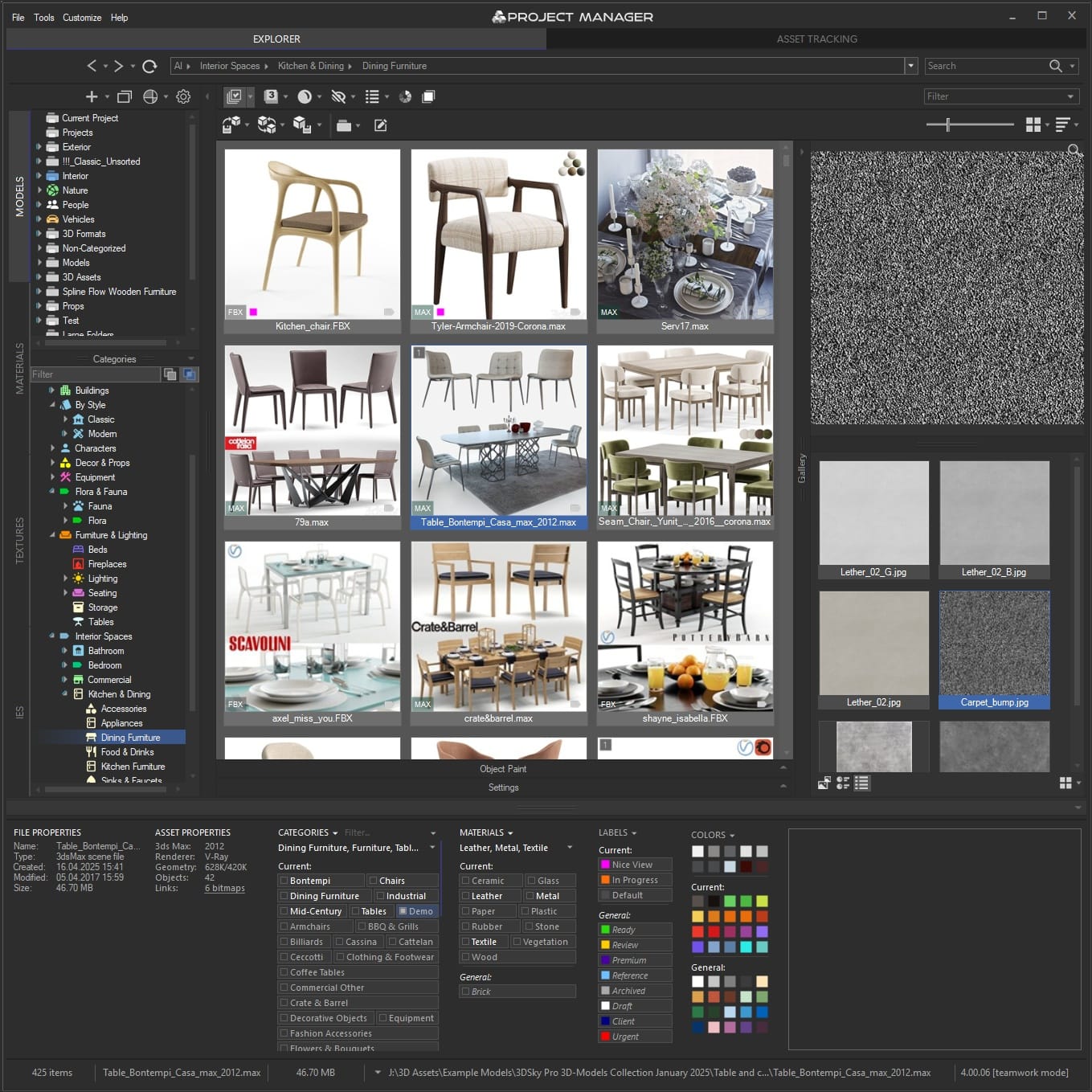
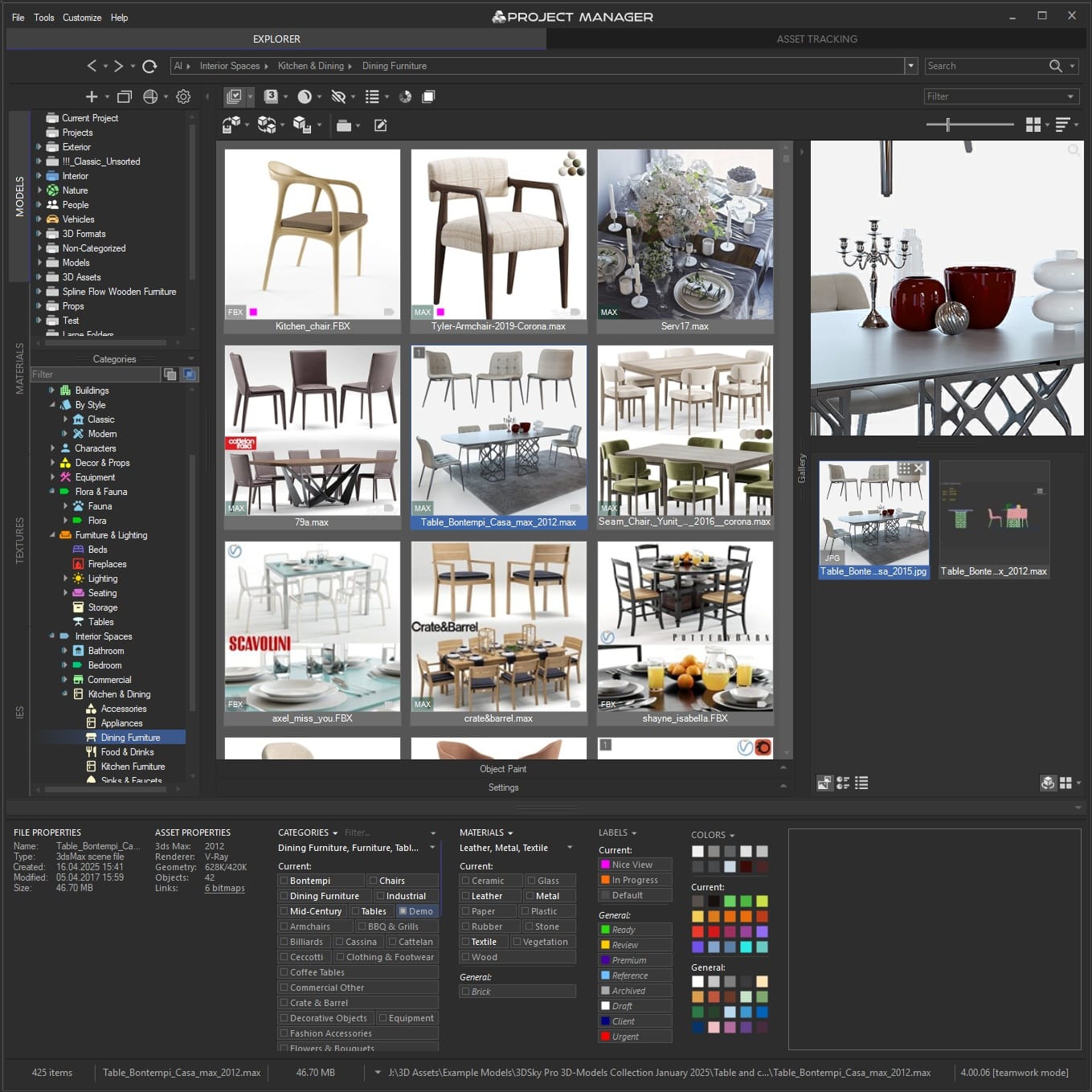
Three gallery tabs, one asset: inspect the scene’s material tree, zoom into linked previews, and see every texture the scene depends on — all without opening the .max file
Seamless Migration and a Quick Start
One of PM4’s strongest arguments — especially for studios — is how calmly you can move to it.
v3 and v4 use the same database format. That means your library works with both versions at once. You can run v4 on one artist’s workstation while the rest of the team stays on v3, and migrate when you’re ready. No rebuilding the library: point v4 at your existing v3 database and it just works.
License compatibility applies across versions: you can use v3 with 3ds Max 2026 and v4 with 3ds Max 2020 on a single licence.
The 3ds Max coverage is broad — from 2016 all the way to 2027 inclusive, with full support for the latest 3ds Max 2027. And, importantly, everything you relied on in v3 is still there. v4 adds on top; it doesn’t take away.
And to set all this magic in motion, you only need to point to two folders. No complicated setup: on the Models tab you add your models folder, and on the Textures tab you set the path to your textures. That’s the starting point for the AI classifier. The moment you open a folder, its files are sent off for classification straight away — and within a few minutes you’ll see the first results. A large library is processed gradually in the background: in our experience, a collection of 500,000 models classifies in roughly 8–10 hours (and longer if the machine is busy rendering at the same time, since the classifier deliberately yields resources to your active work). For reference, those figures come from an ordinary laptop — an Intel Core i7-12700H, 32 GB of RAM, and an NVIDIA RTX 4060 with 8 GB of video memory — so on a more powerful workstation it will only be quicker. But it’s a one-off background job, after which you have a library that keeps itself organised from then on.
Changed your mind about a result? Send it for reclassification. Classification depends on the preview — and if a model didn’t have one, the AI worked from the preview embedded in the file itself. Added a proper preview image later? Just send that asset for reclassification and the AI will look at it afresh, this time with better material to work from. You can reclassify individual files or whole folders at once.
Other Improvements
Beyond the headline features, PM4 has a host of important small touches. Deleting files and folders is now radically faster — operations that took tens of seconds on large libraries now finish in a second.
Smart memory management for the AI classifier: the CLIP model is unloaded from RAM when not in use and returns instantly when needed. The new Windows installer integrates with Autodesk’s standard ApplicationPlugins folder.
And the Place Objects tool now correctly preserves the original orientation of objects — when you “paint” them across a surface, they no longer flip over and settle exactly as you expect.
Time to Bring Order
Think back to how many times this month you opened the wrong file, hunted for “that one” material across other people’s scenes, or hand-tagged hundreds of models instead of getting on with your actual work.
Project Manager 4 takes that routine off your hands: the AI sorts your library into place, colour search and Find Similar locate what you need in seconds, Colour Labels keep the team in sync, and seamless compatibility with v3 means zero risk in upgrading.
A library that organises itself is no longer a wish for the future. It’s here.
Already on v3? Upgrading is safe: the database format is shared, there’s no library to rebuild.
On a single computer, v3 and v4 can run side by side — but in different versions of 3ds Max (for example, v3 under 3ds Max 2026 and v4 under 3ds Max 2027).
Two versions of Project Manager won’t run at the same time within one and the same version of 3ds Max.
Original price was: $60.00.$48.00Current price is: $48.00.Add to Cart
Project Manager 4 — What’s New Since v3
AI-Powered Asset Classification
- Automatic categorisation of 3D models — no more manual tagging
- Dedicated AI Classifier engine runs in the background with GPU acceleration
- Classification by object type (chair, sofa, lamp…), material composition (glass, wood, metal…), style, and brand
- Brand and style recognition for furniture — classical, contemporary, and everything in between
- 3D Models get tagged by material type automatically
- AI-assigned categories are clearly distinguished from your manual ones, so you always know what came from where
- Full control over results: review, reassign, or remove any AI suggestion you disagree with — the AI proposes, you decide
- Reclassify specific folders or categories on demand — no need to reprocess your entire library when you want to update just one section
- Runs entirely on your machine — your assets never leave your computer
- Scale across your team: point multiple workstations at the same database and they’ll classify in parallel, each picking up its own share of the queue
- Designed to stay out of your way — runs in the background at low priority, so it won’t interfere with rendering or active work
- Pause classification anytime, from one hour up to five — perfect when you need every bit of GPU for a render
- Choose which GPU does the work, or fall back to CPU if you prefer
Colour Tools
- Colour analysis for both 3D model previews and textures
- Find assets by colour — pick any colours from a palette and instantly see matching models or textures
- Colour similarity search that understands perceptual colour
- “Find similar by colour” available in the asset menu — locate visually related models or textures across your library
- Visual colour swatches in the filter row show your active colour filters at a glance
Colour Labels — Team Workflow
- Built-in status system for your assets — tag models and textures with workflow states like Draft, Approved, In Review, Archived, or Urgent
- Perfect for team collaboration: artists can mark work in progress, leads can flag approved assets, and everyone sees the same status at a glance
- Filter and search by colour label — instantly pull up everything that’s “In Review” or hide archived assets from your daily view
- Use any colour and label text you like — set up a system that matches your studio’s existing workflow
Smarter Search
Find Similar — Two Ways to Match Assets
- Find similar by content — pick any 3D model and instantly find others that match its style, shape, and overall look, powered by AI visual analysis
- Find similar by colour palette — pick any image or texture, and Project Manager analyses its full set of dominant colours and their proportions to find other assets with a matching colour profile. Brilliant for finding textures that fit a specific reference photo or mood board
- Both available right from the asset’s right-click menu
Search
- Multi-keyword search returns more relevant results: searching “Chair, Glass” now finds a file named “Chair.max” described as “glass” — not only files containing both words literally
- Full-path category search: find every subcategory under a brand or style in a single query
- Instant feedback — every filter tick, keyword, and colour pick updates the view immediately, so you can explore your library by feel rather than by query
Redesigned Status Bar
- Completely rebuilt panels for Categories, Materials, Colour Labels, and Colours
- Each panel shows three contextual sections: what’s in your current selection, what filters are active, and what’s available across your library
- Active filters stay visible even when you navigate to folders where those categories aren’t present — no more “lost filter” confusion
- OR / AND filtering modes when combining multiple categories — match any of them or require all of them
Category & Material Filtering
- Filter by category directly from the category tree via right-click menu
- Category filter correctly includes subcategories — filtering “Furniture” also finds items in “Furniture → Chairs → Dining”
- Combine category and material filters to narrow down precisely: find glass-and-metal tables, or wooden ones, in one click
- Filter furniture by brand and style — classical, contemporary, industrial, and so on
- “Categorised” / “Uncategorised” quick filters — instantly see which assets still need attention
- Per-category control over subfolder visibility — show files from subfolders only for the categories where it makes sense
Gallery & 3D File Browsing
- Three gallery tabs for .max files — Models (linked previews), Materials (the scene’s material tree), and External Links (every texture and asset the scene references)
- Drag materials straight from the gallery into your open 3ds Max scene — no need to open the source file first
- Edit external links right in the gallery — fix or replace missing textures and asset references without opening the .max file
- 3D viewport preview for FBX, 3DS, OBJ, and other 3D formats right in the gallery — inspect geometry before importing
- Materials gallery for material libraries — browse linked previews, the material tree, and every texture used by each material; edit external links inline
- Zoom & Pan for images — inspect textures and reference images at full resolution without leaving Project Manager
- Use any image format as a preview — WebP, EXR, HDR, and more all work as custom thumbnails
Seamless Migration & Gradual Rollout
- Perfect for studios: run v4 on one artist’s workstation while the rest of the team stays on v3, then migrate when you’re ready
- Upgrade at your own pace — v3 and v4 share the same database format, so your library works with both versions simultaneously
- No library rebuild required: point v4 at your existing v3 database and you’re ready to go
- License compatibility across versions — use v3 with 3ds Max 2026 and v4 with 3ds Max 2027 on the same license on one computer
- Broad 3ds Max coverage: supported from 2016 all the way through 2027
- Everything you relied on in v3 is still here — v4 adds on top, it doesn’t take away
3ds Max 2027
- Full support for 3ds Max 2027
Other Improvements & Fixes
- Significantly improved UI responsiveness — reduced flickering, faster scrolling, and snappier list updates across the board
- Dramatically faster file and folder deletion — operations that used to take minutes on large libraries now finish in seconds
- Live sync in shared database mode — files added or deleted by a colleague now appear automatically, without reloading the folder
- Smart memory management for AI Classifier — the CLIP model unloads from RAM when idle and reloads instantly when needed
- Windows installer that integrates with Autodesk’s standard ApplicationPlugins folder
- Place Objects: original orientation of objects is now always preserved when painting onto surfaces