Project Manager – Save Search as Smart Category

- October 6, 2026 at 20:17 #48033
- Working selections in one click: whatever you search for every week becomes a permanent category.
- Order without restructuring folders: group your library by content, without physically moving or duplicating files.
- Selections for a specific project: save searches for the current scene (say, “Restaurant lighting”) and get back to them in a moment.
- You know which model gets imported: when you drag the archive itself into the viewport, priority goes to the model with the same name as the archive (AM251.zip → AM251.max), followed by .max files, then other formats; all else being equal, files at the root of the archive take precedence.
- Exactly the file you picked: when you drag a file from an opened archive, a file with the same name from another subfolder can no longer be used in its place.
- No needless questions: files that have already been extracted and haven’t changed are simply skipped. Even with Ask User enabled, dragging the same archive again no longer asks about every file: you are only prompted when the file on disk differs from the one in the archive.
- “Apply to all” for the current action only: your choice in the overwrite dialog applies only to the current operation, including all archives dragged in together, and no longer changes the setting in Preferences.
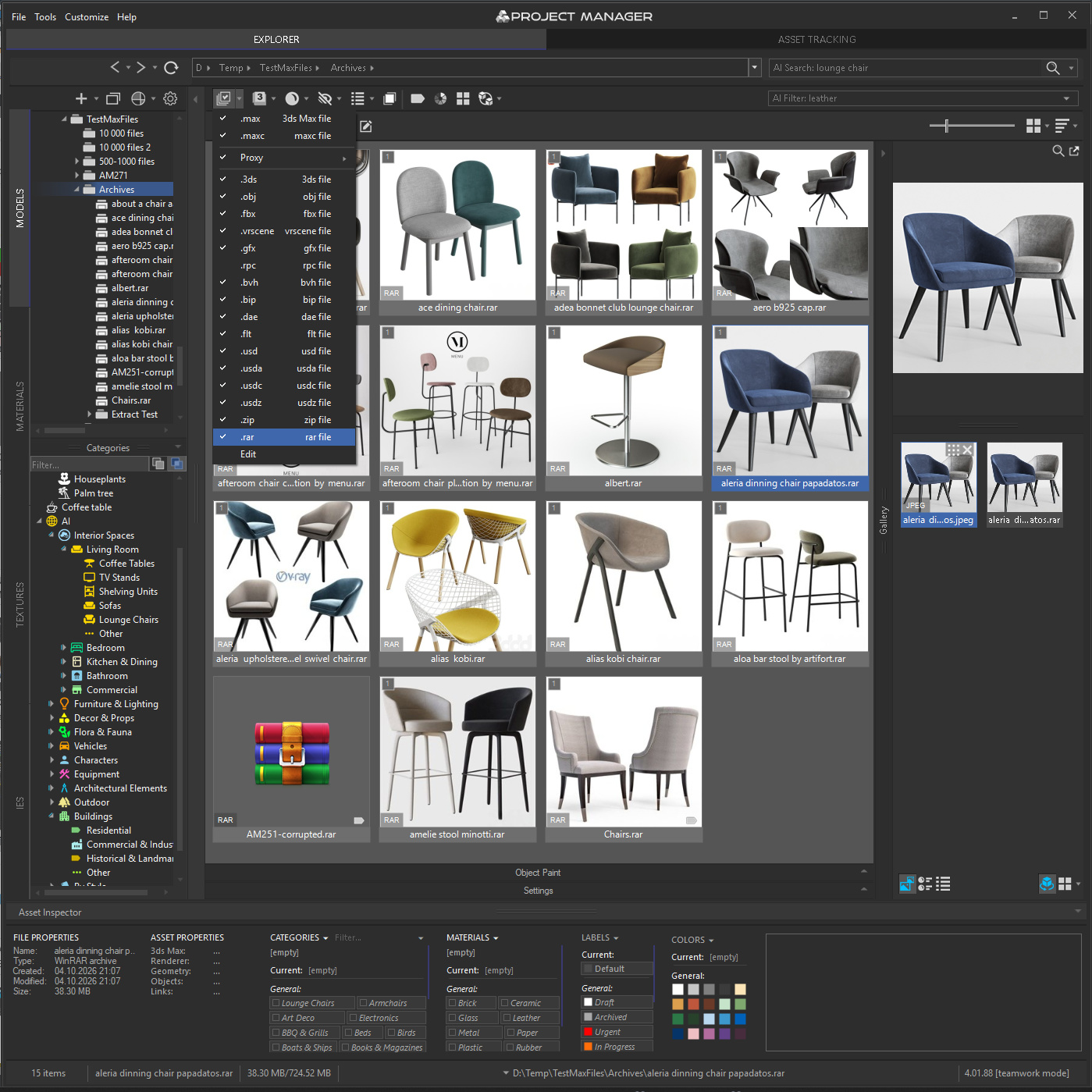
- Thumbnails for archives: add .zip or .rar to the Models filter, and each archive will display an image with the same name as its preview.
- Automatic previews: Auto-Assign Previews processes archives just like regular 3D models.
- AI classification and search: the AI classifies an archive by its preview, if there is one. You can now find an archive containing an armchair by describing the armchair itself, without remembering the archive’s file name.
- AI on more configurations: installation issues with the AI components have been fixed. If AI would not start for you before, now is a good time to update and try again.
- Colour and icon panel: fixed display and scaling issues in 3ds Max 2016–2025.
- Performance: faster sorting in large folders and faster IES preview generation, plus improved stability with large shared MySQL databases.
- Stability: fixed crashes that could close 3ds Max during interactive rendering of material previews.
- Localisation: improved interface translations and more consistent technical terminology.
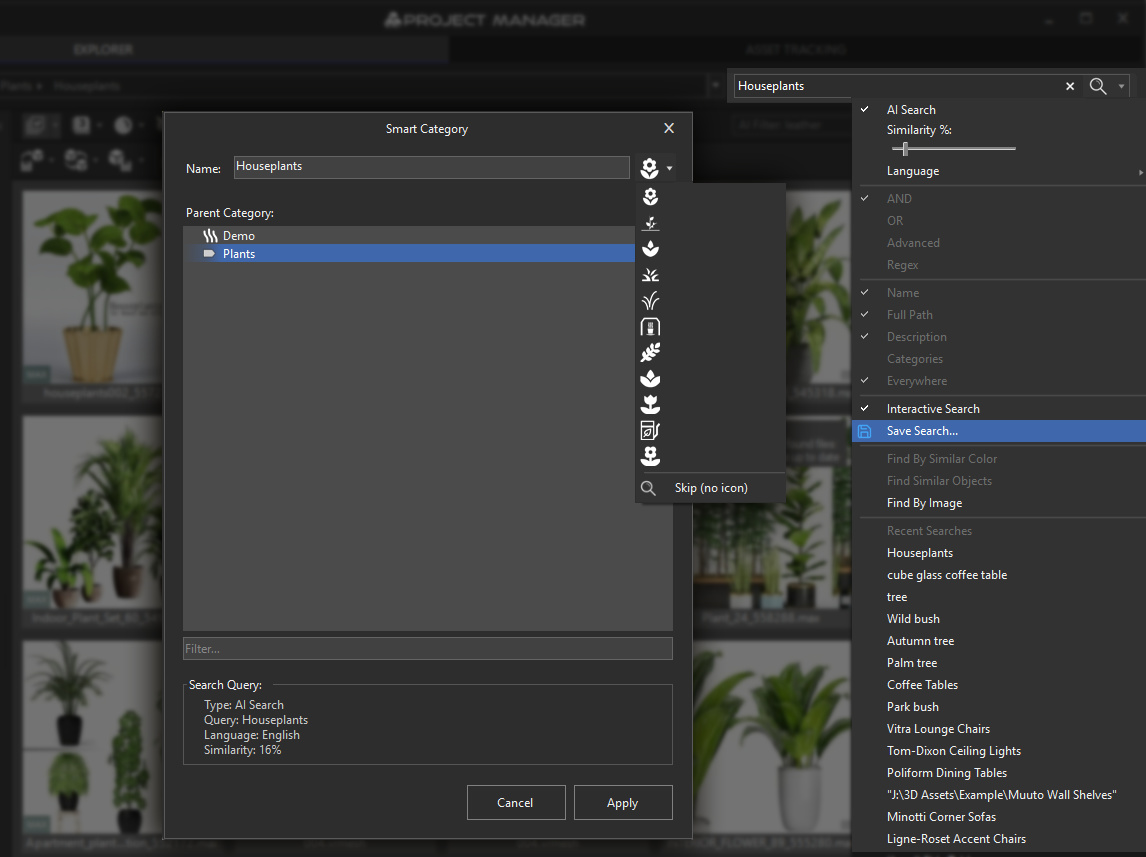
- Save any text or AI search as a Smart Category — it sits in the tree alongside your regular categories and shows the matching files every time you open it
- Group Smart Categories under a parent category, including a new one created on the spot, with an icon suggested automatically
- Edit a Smart Category whenever your needs change
- Select folders and click Auto-Assign to selection — the AI picks an icon for each folder based on its name
- The AI looks at the icons themselves, not their names, so it doesn't matter what an icon is called
- AI-powered icon search in the colour and icon panel — find the right icon from a short description
- Thumbnails for archives: custom file types added to the Models filter, such as .zip or .rar, now show a same-name preview image
- Auto-Assign Previews now processes these file types too
- AI classification supports archives that have a preview — find an archive by describing what its preview shows
- Predictable model choice when you drag an archive into the viewport: a model with the archive's name comes first (AM251.zip → AM251.max), then .max files, then other formats; top-level files win over files in subfolders
- Fixed dragging a file from an opened archive picking a same-name file from another subfolder instead
- No needless prompts: already extracted, unchanged files are skipped silently; with Ask User on, you are only asked when a file on disk differs from the one in the archive
- Apply to all in the overwrite dialog now applies only to the current operation, including all archives dragged together, and no longer changes the setting in Preferences
- AI enhancement of interactive material previews — thumbnails and the large preview are now sharper and more detailed
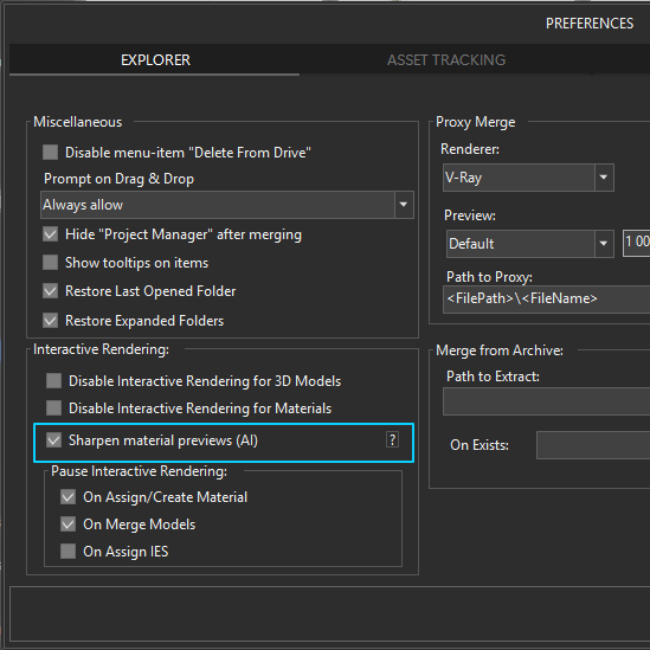
- Applies only to previews created by 3ds Max interactive rendering; your own previews are left untouched. Can be switched off in Preferences → Interactive Rendering → Sharpen material previews (AI)
- Improved drag & drop of materials and textures into the Slate and Compact Material Editors, including OpenPBR map buttons
- Fixed errors when updating cached material libraries after renaming or categorising materials
- Fixed an issue with deleting materials
- Fixed installation issues that could prevent AI from working on some systems — if AI didn't start for you before, it's worth trying again
- AI categories now update automatically
- Improved multilingual AI search accuracy for complex queries and words containing apostrophes
- Improved AI classification reliability when using several databases or 3ds Max versions
- Improved AI Classifier recovery after errors and handling of low GPU memory
- Improved AI search reliability and reduced delays when reclassifying assets with a MySQL database
- Fixed some minor issues with the AI Classifier
- Faster navigation and sorting in folders and catalogs with many files
- Faster IES preview generation with parallel rendering and disk caching
- Improved interface responsiveness while previews are loading
- Improved performance and stability with large shared MySQL databases
- Improved translations and more consistent technical terminology
- Fixed display and scaling issues with the colour and icon panel in 3ds Max 2016–2025
- Fixed missing file type and category badges after sorting or scrolling
- Fixed hidden catalogs becoming visible again when switching categories
- Fixed an issue that could prevent importing models
- Improved stability when generating previews and opening problematic 3D models
- Fixed AssetViewer compatibility with 3ds Max 2026 and later
- Fixed the saved Display as Box option not being applied when placing objects
- Fixed command behaviour when using Windows shell context menus
- Fixed an issue that could create invalid MySQL backups
- Fixed several issues with silent installation and deployment to another Windows user account
- Fixed several issues with generating and sending support requests
- Various other fixes and improvements
A good asset library saves you time twice: when you find something, and when you find it again.
The first time is when you are hunting for a new asset for a scene.
The second is when you come back to something you have already found: the same chairs, the same lights, the same brand library.AI search in Project Manager has handled the first part for some time. Coming back, though, still meant typing the same query again and browsing through the folders once more.
Project Manager 4.01.88 focuses on precisely that repetitive part of the job. Searches can now be saved as categories, folder icons are assigned in a single click, archives behave like ordinary folders, and working with materials has become more comfortable still.
Find: a search saved as a category
Every visualiser has a handful of queries they keep coming back to: “wooden chairs”, “brass pendant lights”, “potted plants”. Typing one takes seconds, yet you do it dozens of times a month.
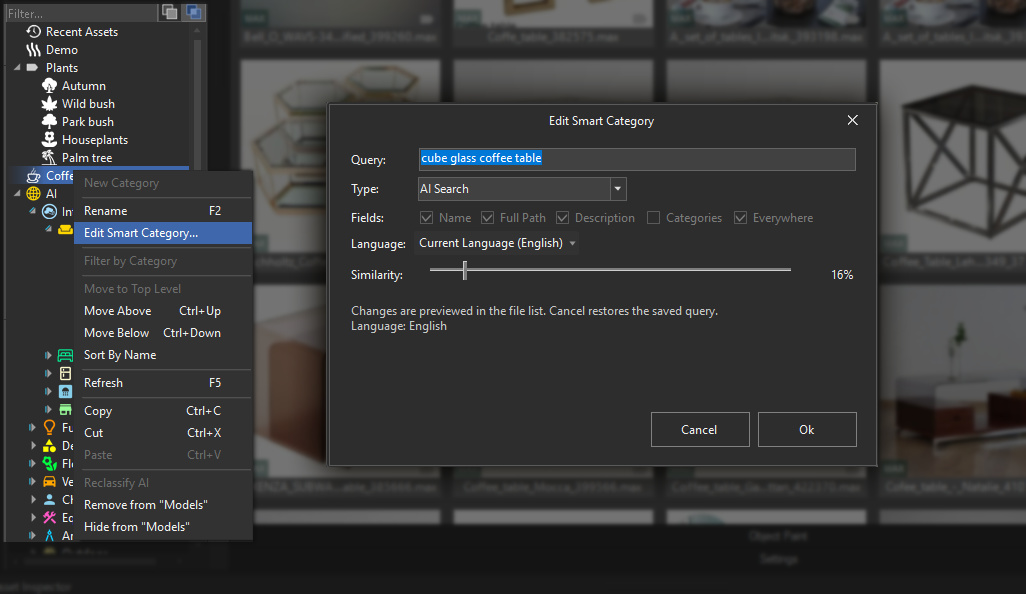
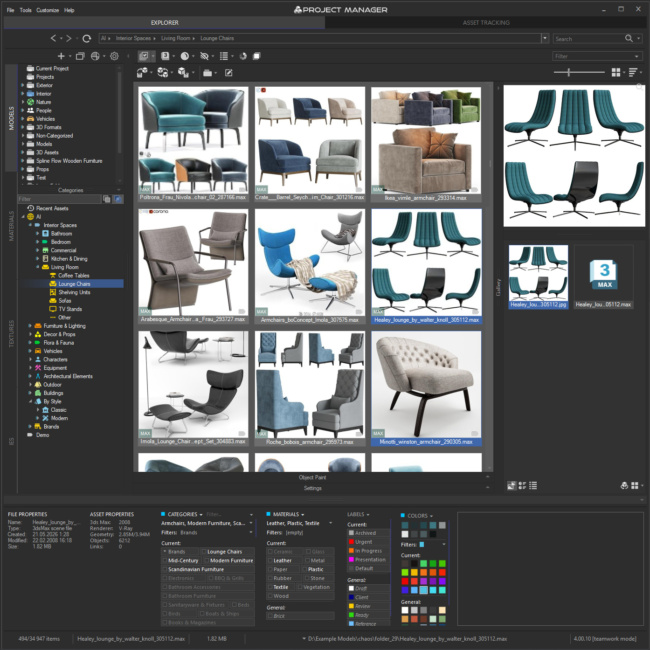
Smart Categories remove that repetition. Find what you need with a text or AI search and save the query as a category. It appears in the tree alongside your regular categories and, every time you open it, shows the current matching files.
In practice, this gives you three advantages:
A Smart Category is never set in stone. Its edit dialog lets you switch between AI and standard search, refine the query, change the search language or adjust the Similarity threshold.
Organise: icons for every folder in one click
Colours and icons in the category tree make it easy to find your way at a glance, but few people have the time to dress up every folder by hand. The AI now takes care of that chore.
Select the folders in the tree and click Auto-Assign to selection: the AI will pick an icon for each folder based on its name. One important detail: the AI analyses what the icons actually look like, not their names. So even if your icons are called icon_01, the match will still be right.
If you would rather choose an icon yourself, the new AI search² in the icon panel will find the right image from a simple text description.
Store it your way: archives on a par with models
A large share of purchased content lives in ZIP and RAR archives. Project Manager lets you browse the nested folders inside an archive and drag models (or the archive itself) straight into the viewport without unpacking anything by hand.
In version 4.01.88, dragging from archives has become predictable:
Archives have also become a full part of the library visually:
The extraction path and the behaviour on name conflicts can be configured in Preferences → Merge from Archive.
Browse archives like folders and drag models straight into the viewport, no unpacking needed
Materials: sharper previews and smoother drag and drop
Material previews
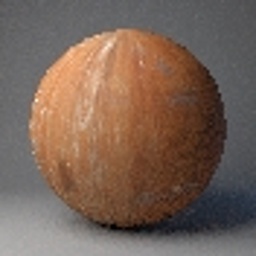
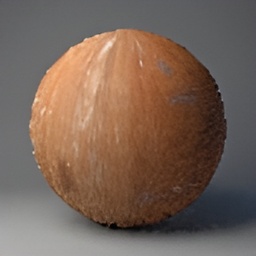
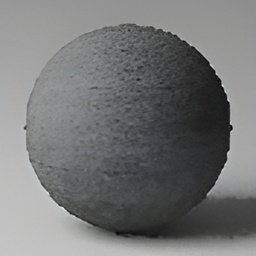
Interactive rendering creates material previews on the fly using 3ds Max itself, so you can view a material even if it has no ready-made preview. There is one limitation: 3ds Max renders these previews quickly, but at just 88 pixels, so they look somewhat blurry.
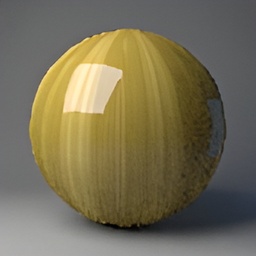
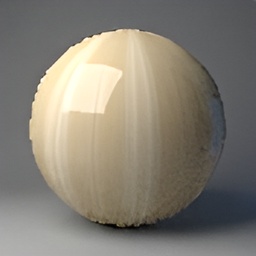
In version 4.01.88, material previews have been noticeably improved¹: a neural network upscales interactively generated previews, making them considerably sharper. The extra detail is filled in by the neural network. If you prefer, the feature can be switched off in Preferences → Interactive Rendering → Sharpen material previews (AI).
Before After (AI enhanced) 


Material preview before and after AI enhancement
Preferences → Interactive Rendering → Sharpen material
P.S. For genuinely detailed material previews, use batch rendering: Custom Menu → Thumbnail → Render Thumbnail(s). The video overview demonstrates the process with models; for materials, it works exactly the same way.
Drag and drop into material slots
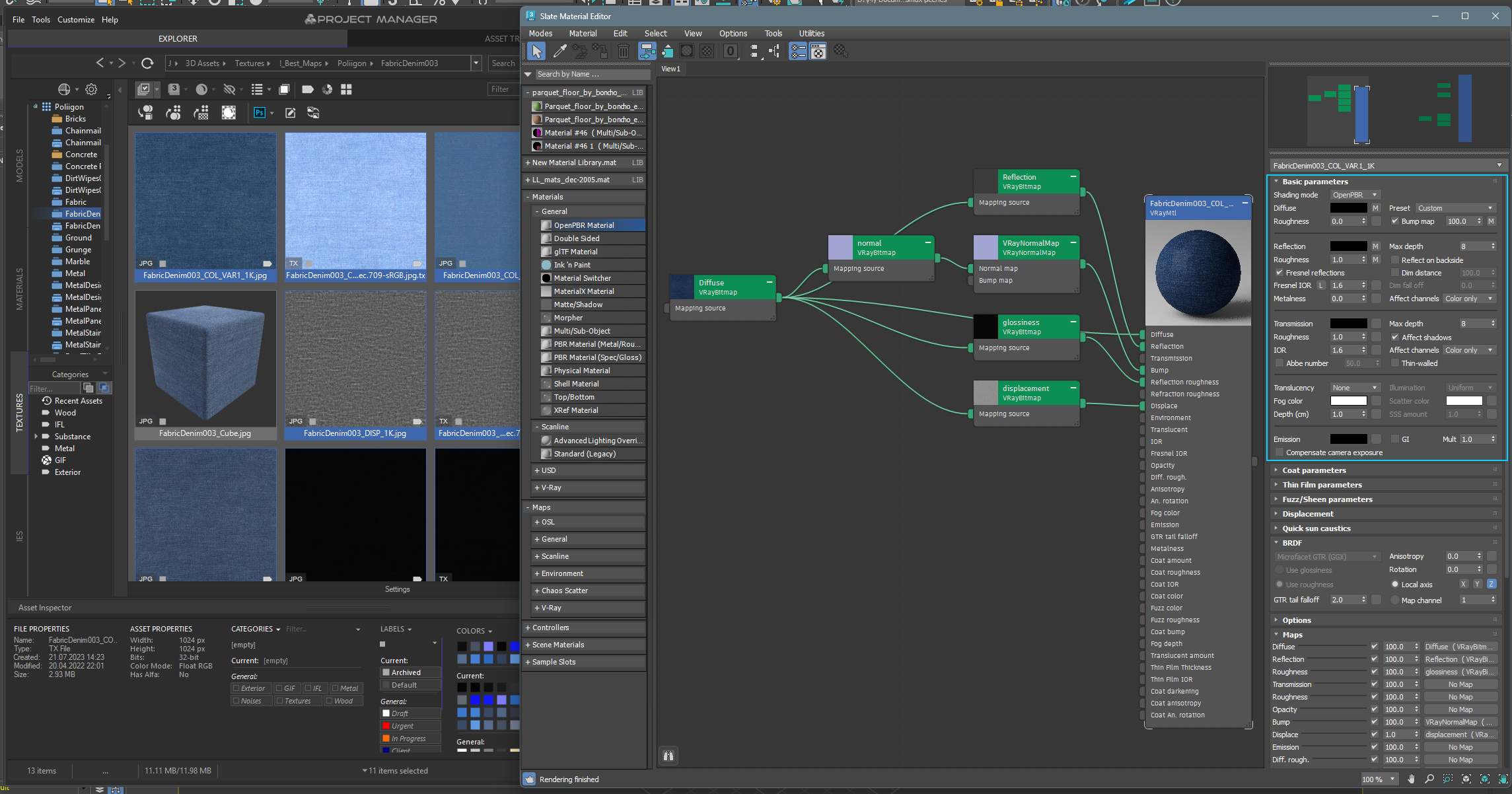
Drag and drop has been improved. Maps and textures can now be dragged smoothly onto slots and map buttons in the Slate and Compact Material Editors, including for OpenPBR materials.
🛠 Under the bonnet: stability and performance
It all runs on your computer
All AI features (search, classification, icon matching and preview enhancement) run entirely locally. No subscriptions, no cloud credits and no uploading of your files to third-party servers. For NDA projects, that means your files never leave your computer.
Update Project Manager and save your most frequent search as your first Smart Category!
¹ AI upscaling applies only to previews created by 3ds Max interactive rendering. Your own previews (generated or assigned manually) are left untouched.
² Requires the AI Classifier to be installed.
$60.00Add to Cart
Below, you can find the full list of changes and enhancements for this version
New Features for Project ManagerView Product
Smart Categories
AI Icons
Archives
Materials
AI Search & Classification
Performance
Interface & Localisation
Fixes
Related to "Project Manager 4.01.88 — The Library That Remembers What You Searched For"
You must be logged in to reply to this topic.
Translate
Project Manager