Translate
- October 16, 2025 at 22:54 #45999
 Sergio Alonso ÁvilaParticipantPosts: 12Threads: 31Joined: Sep 2025
So I dont really know if I´m making some mistakes during the BatchRender&Relink process or maybe it´s the script (material to model) that you designed for us maybe. Because I already change the routes of the multimaterial and attach it to the entire chairs folder as a new test, but even like this , it´s still appear to use the old routes and new ones at the same time.


Plugin version: 3.42.09
3ds Max version: 3ds Max 2024
Renderer: Arnold - October 16, 2025 at 22:56 #46002Oleksandr KramerModeratorPosts: 269Threads: 1411Joined: Aug 2009
Sorry, but I’m not completely sure I understand the issue.
Did you perform the Batch Render & Relink, but some of the old paths are still there?
Or did you use the “Material to Model” script, but you’re still seeing paths from previously used material?Could you please clarify why you think that these paths are incorrect?
- October 17, 2025 at 09:36 #46005Sergio Alonso ÁvilaParticipantPosts: 12Threads: 31Joined: Sep 2025
Good morning Oleksandr, sorry about my explanation.
Let me clarify myself , I tried both methods but what I really wanted to say is that I practically had what I wanted with the material to model script. However with this last option, there´s still being paths from previously used material in the models even when I already changed all the routes in the multimaterial with the Set path tool. So I don´t really know if I did some mistake during the steps of this process or maybe the script doesn´t do what we exactly expected or wanted .
- October 17, 2025 at 11:19 #46007Oleksandr KramerModeratorPosts: 269Threads: 1411Joined: Aug 2009
Assigning a new material doesn’t necessarily mean that all old paths will be replaced.
The previous material could still remain in the Material Editor, in a Scene State, or on some objects.So the first step you did is fine — it seems the issue appears in the next stage.
As I understand, you used “Set Path” directly from Project Manager, correct?
Because earlier you mentioned the Batch Render & Relink process.Could you please send me that file so I can take a look?
- October 17, 2025 at 13:49 #46010Sergio Alonso ÁvilaParticipantPosts: 12Threads: 31Joined: Sep 2025
Right, I used the “Set path” directly from Project Manager. I also think that the problem must be as you said previously, it could still remain in some of these files in the Material Editor, in a Scene State, or on some objects. If there´s no other option I could open each file and change manually but only in that case because I consider it will be a waste of time.
My question now is: Could it be posssible to add to the Material to Model script the option of deleting the materials and their paths that are unused or outdated at the same time we are assigning the new or updated material? If not I will probably have to assign the multimaterial manually to each file of the directories which I want to avoid as I mentioned before.
P.S: I opened each file individually and its exactly what We were talking about.


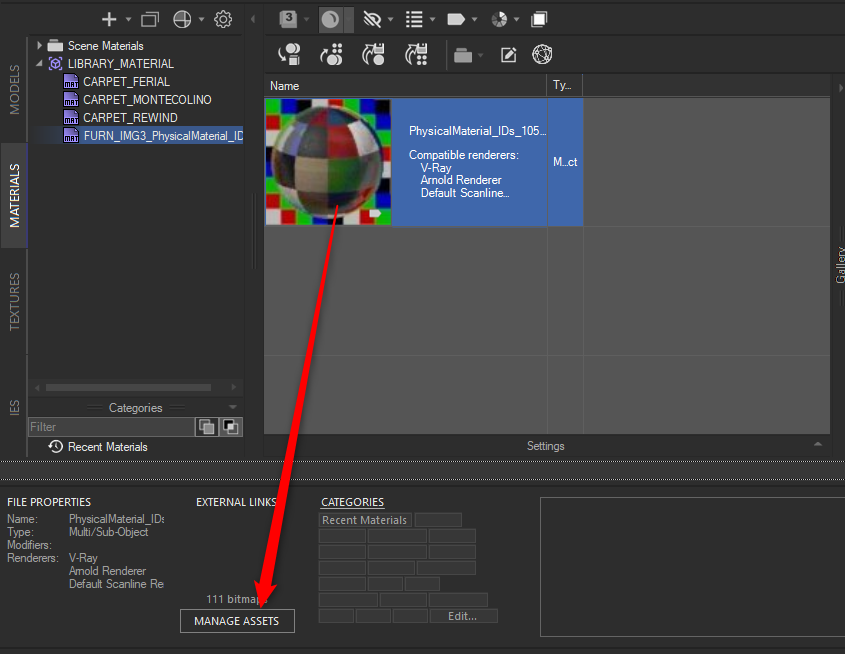
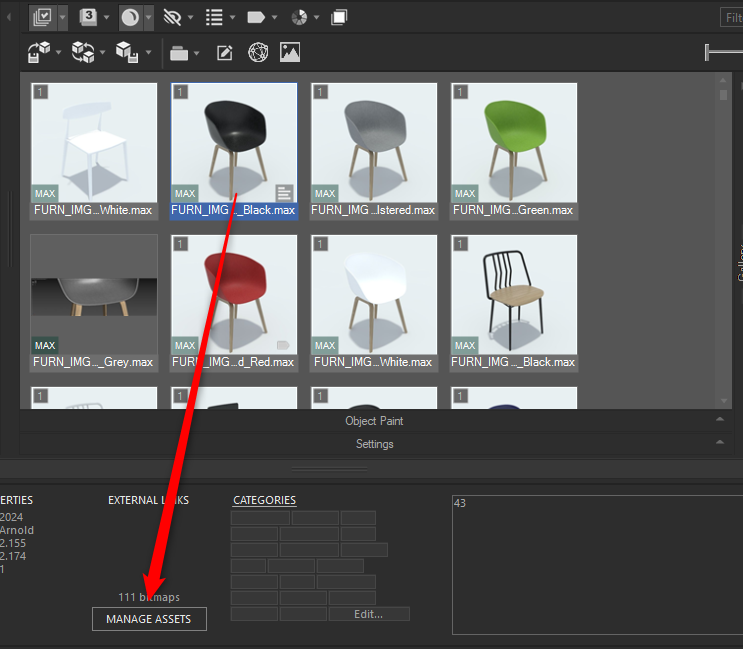
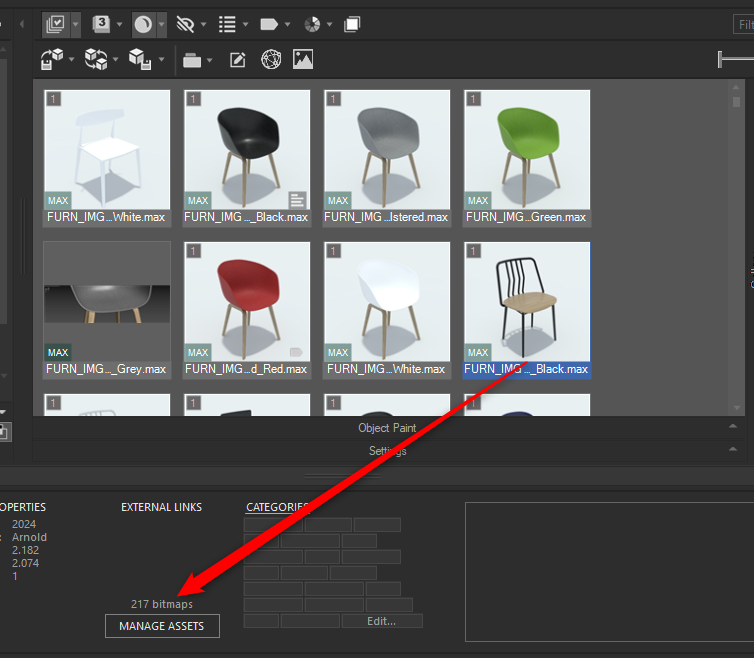
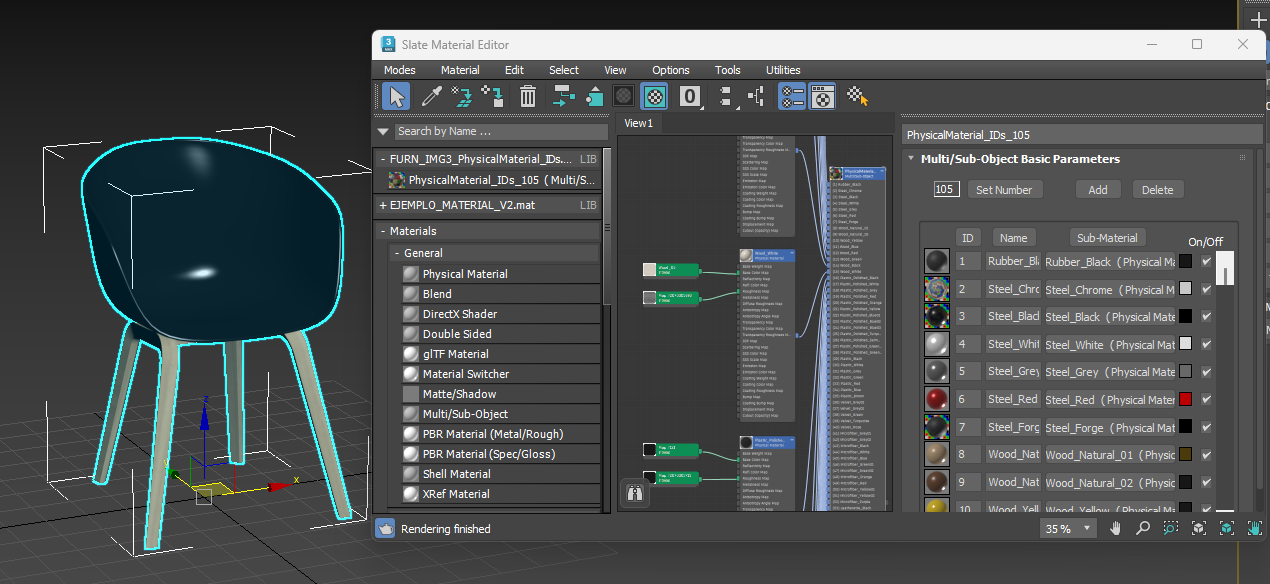
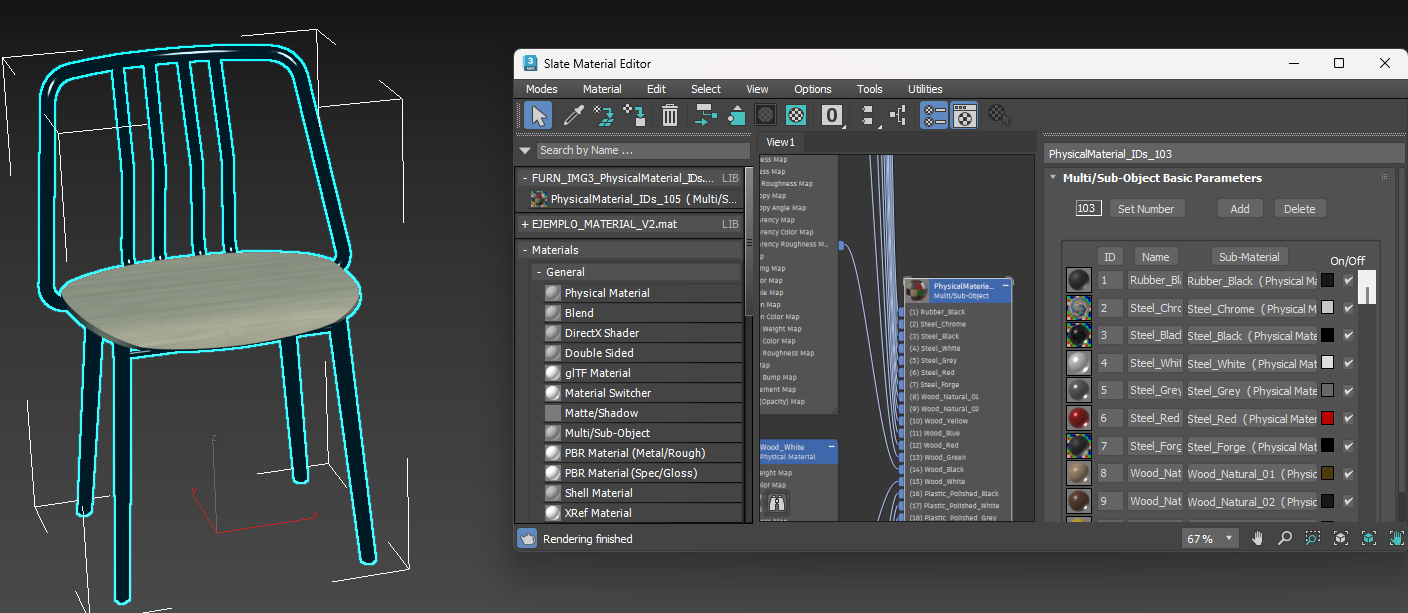
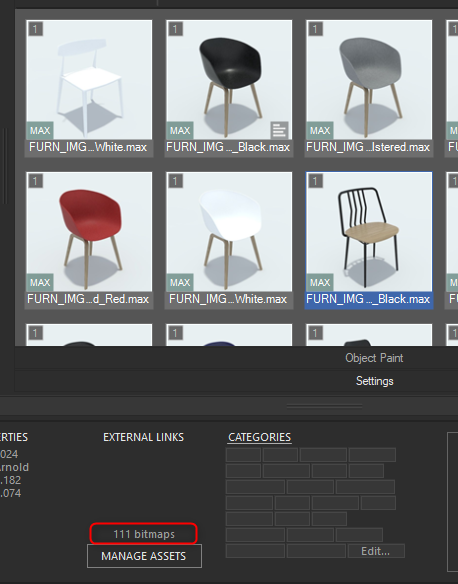
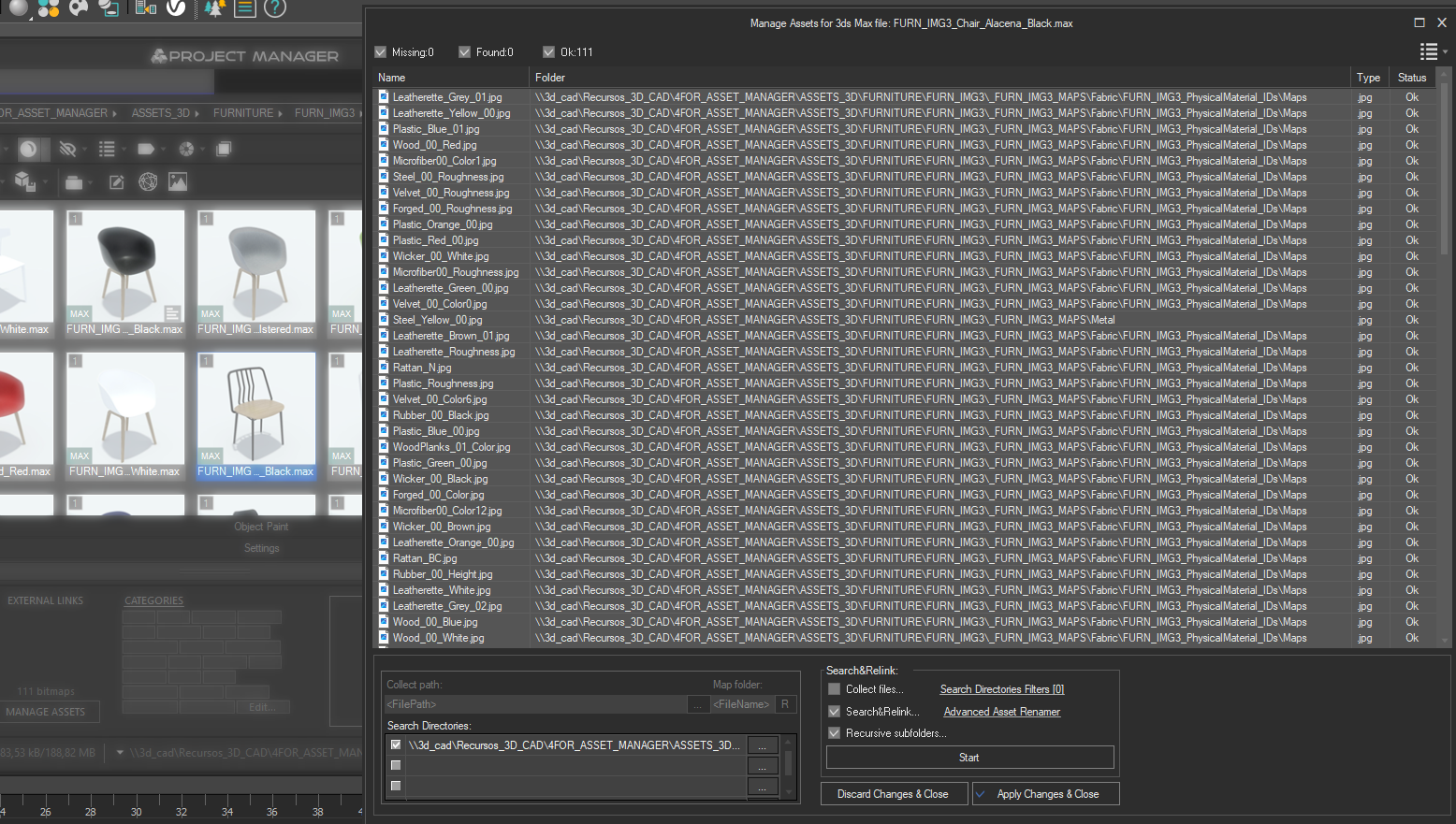
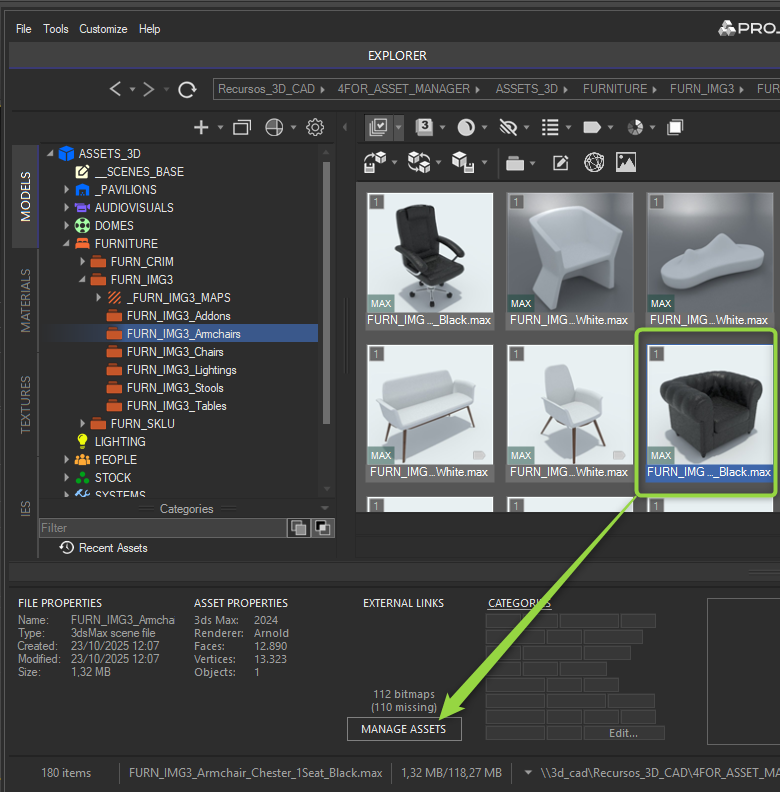
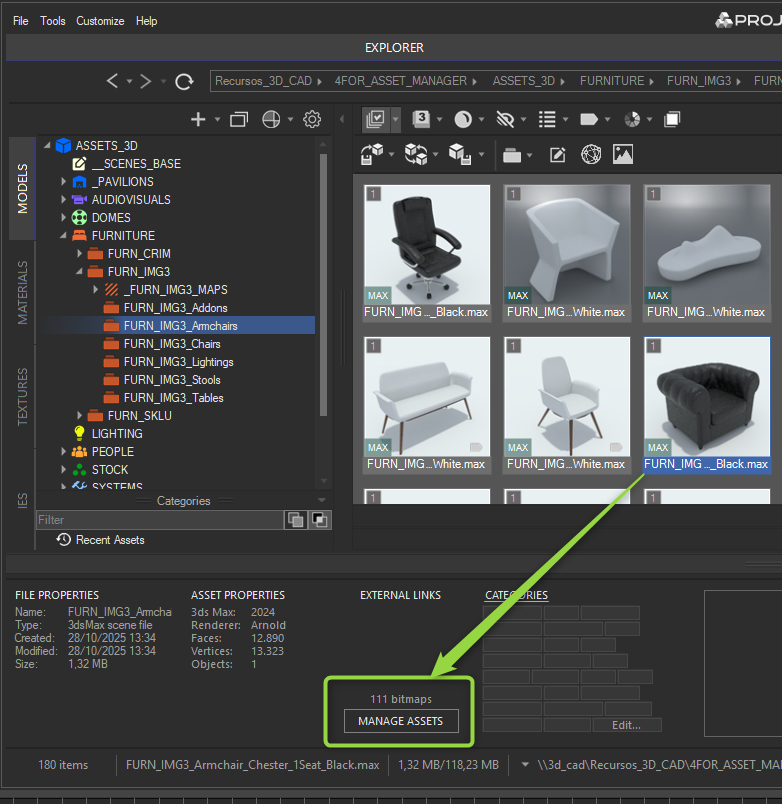
I already assign the new multimaterial //In this case Multimaterial 105// to the second chair that I´m showing in images ( not like the last image which is Multimaterial 103) and now it appears to be corrected in Project Manager but just in the Bitmaps section, it still doesn´t change in the paths one.

- October 20, 2025 at 18:34 #46040Sergio Alonso ÁvilaParticipantPosts: 12Threads: 31Joined: Sep 2025
Good afternoon Oleksandr,
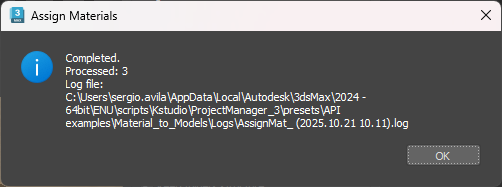
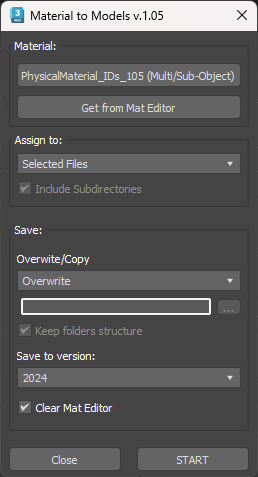
I tried for a moment the Material to Model update during this afternoon. It works perfect assigning the multimaterial to the assets as it was but still don´t delete the outdated paths from the models.
It shouldn´t be like this because we want all the textures clasified in their respective folders.
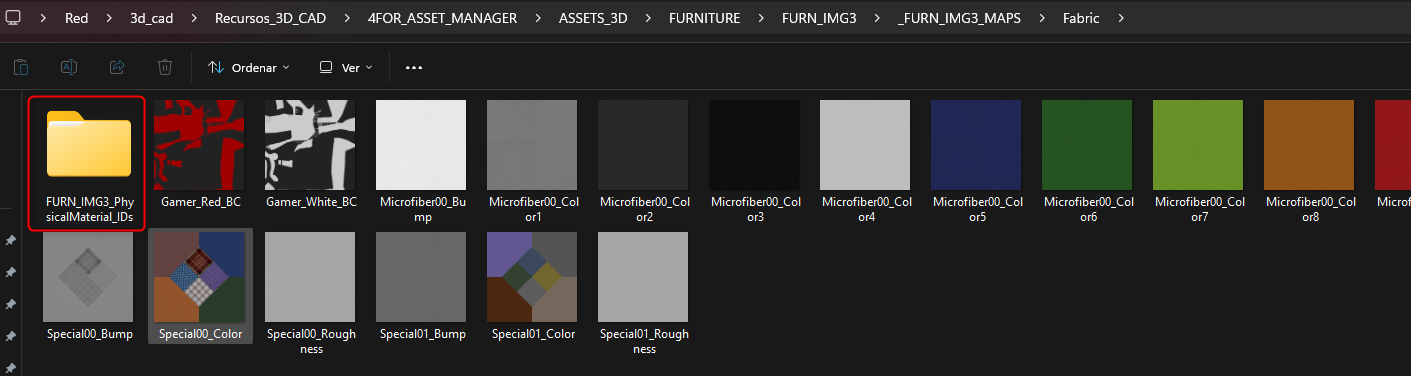
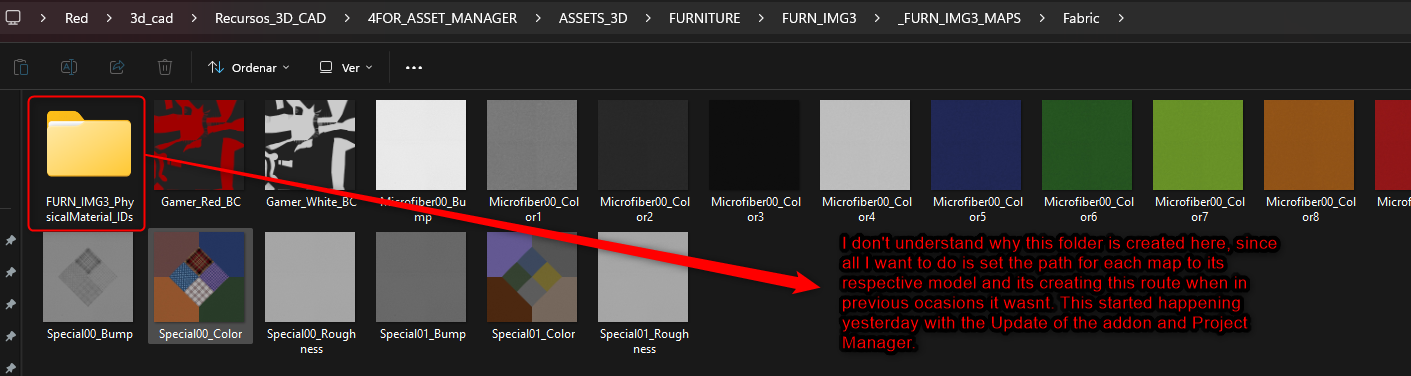
Instead its creating a folder called as the Material Library inside the maps folder.
What we are actually looking for is that while assiging the multimaterial We want the rest of the paths that are not from the Maps Folder to be deleted and not shown in the Project Manager.
- October 20, 2025 at 18:45 #46041Oleksandr KramerModeratorPosts: 269Threads: 1411Joined: Aug 2009
So the problem, as I understand it, is not with Project Manager, but most likely with how the addon works.
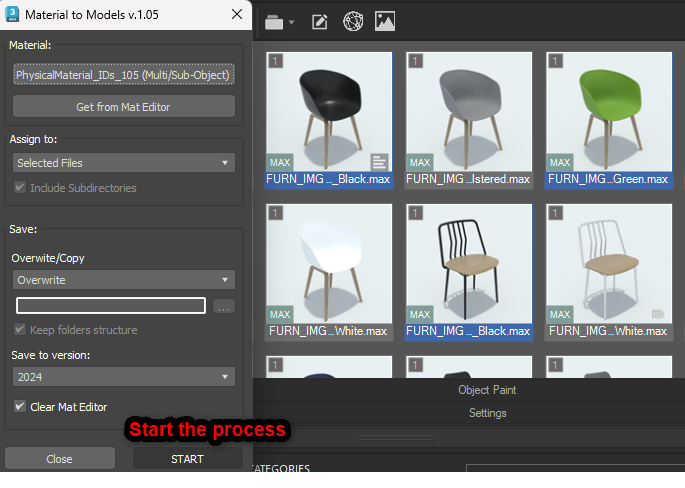
Please send me the following files: the scene before assigning the multimaterial and the material itself that you assign to the scene. Add a screenshot of your settings. Please also describe step by step all process. Or send a video.
P.S. The addon does not change the paths, but only assigns the material. So you see the path that is used by the assigned material.
- October 21, 2025 at 12:56 #46049Sergio Alonso ÁvilaParticipantPosts: 12Threads: 31Joined: Sep 2025
Good morning Oleksandr,
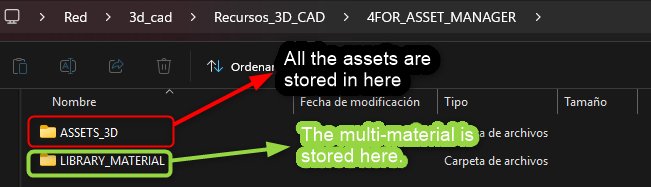
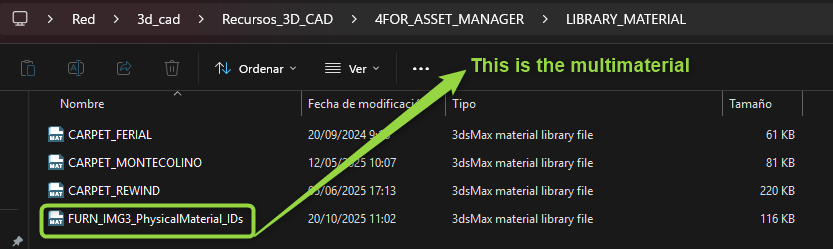
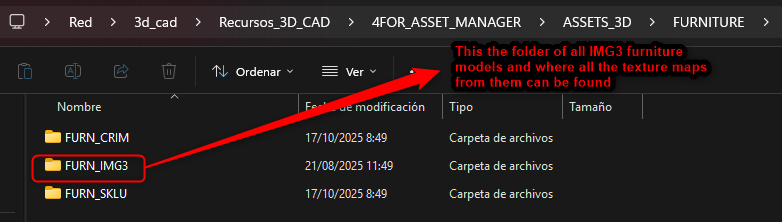
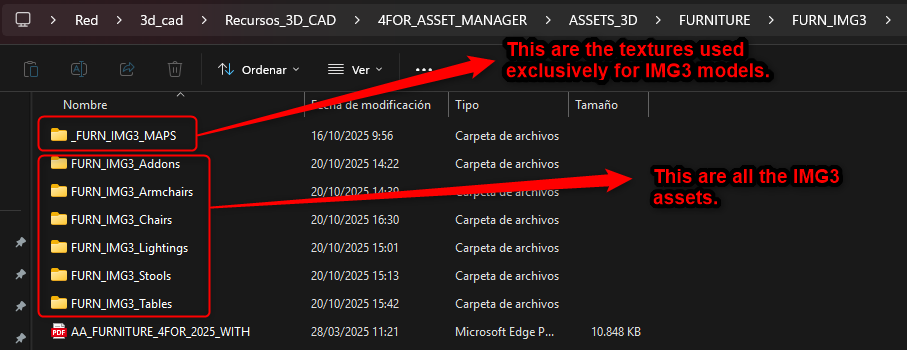
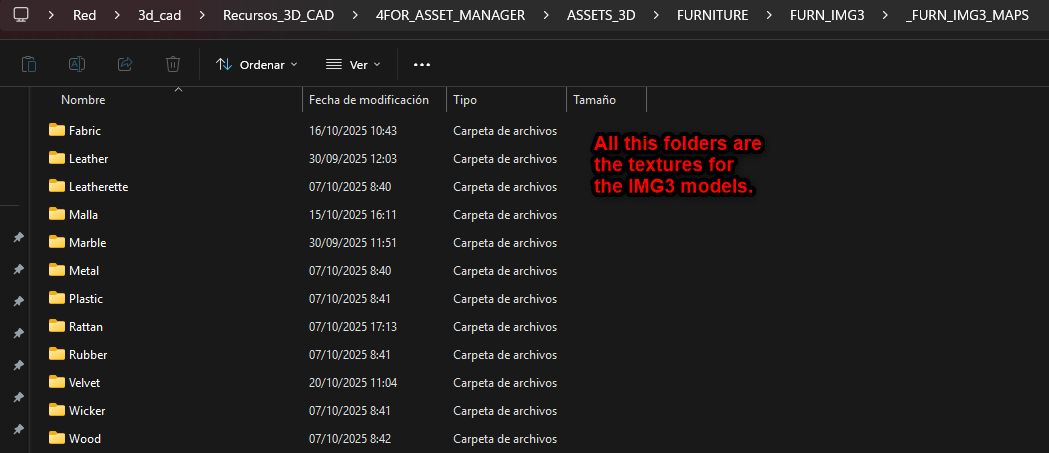
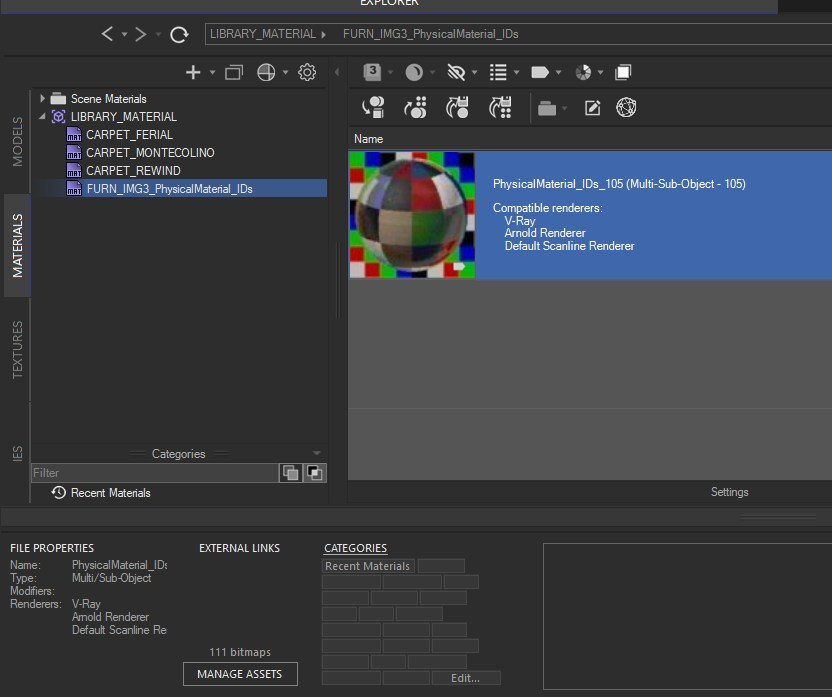
Let me explain , in first place the multimaterial is just assigned to all the models from the Furniture_IMG3 folder. It´s not assigned to any other scene or model, the rest of assets or scenes have their own textures maps in other folders.
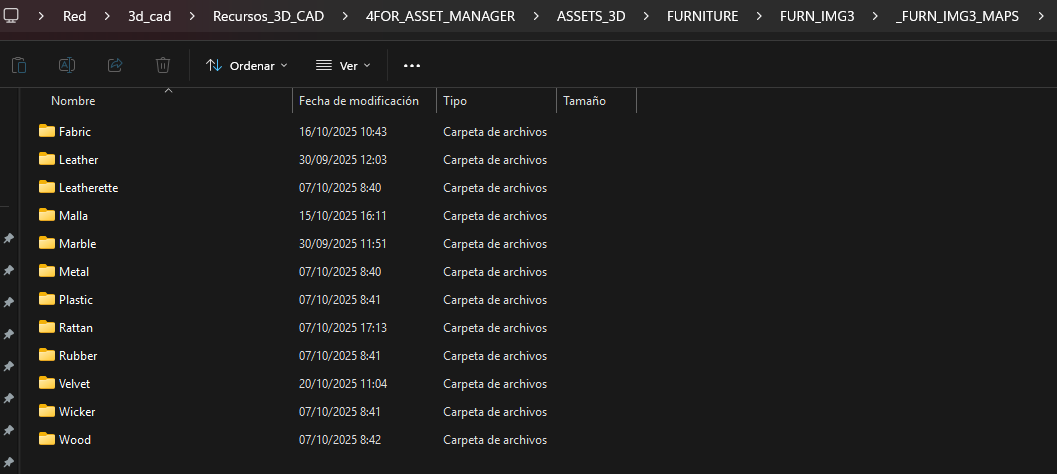
So this how it looks with the folders structure:

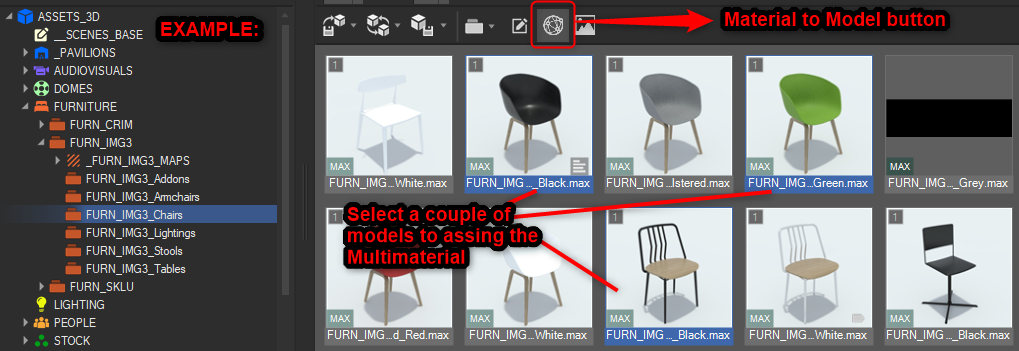
So what I can do is: send you a scene whit a couple of models that use the multimaterial, the multimaterial itself and I will explain to you how everything is routed and how I make the process.

Now I understand that The Material To Model addon doesn´t change the paths of the assets , it just assign the material to the selected models. But what I don´t understand is why this last folder is created in the maps\fabric route.
So could it be possible to assign the multimaterial and keep the paths of the assets from where they were supossed to be? Example:
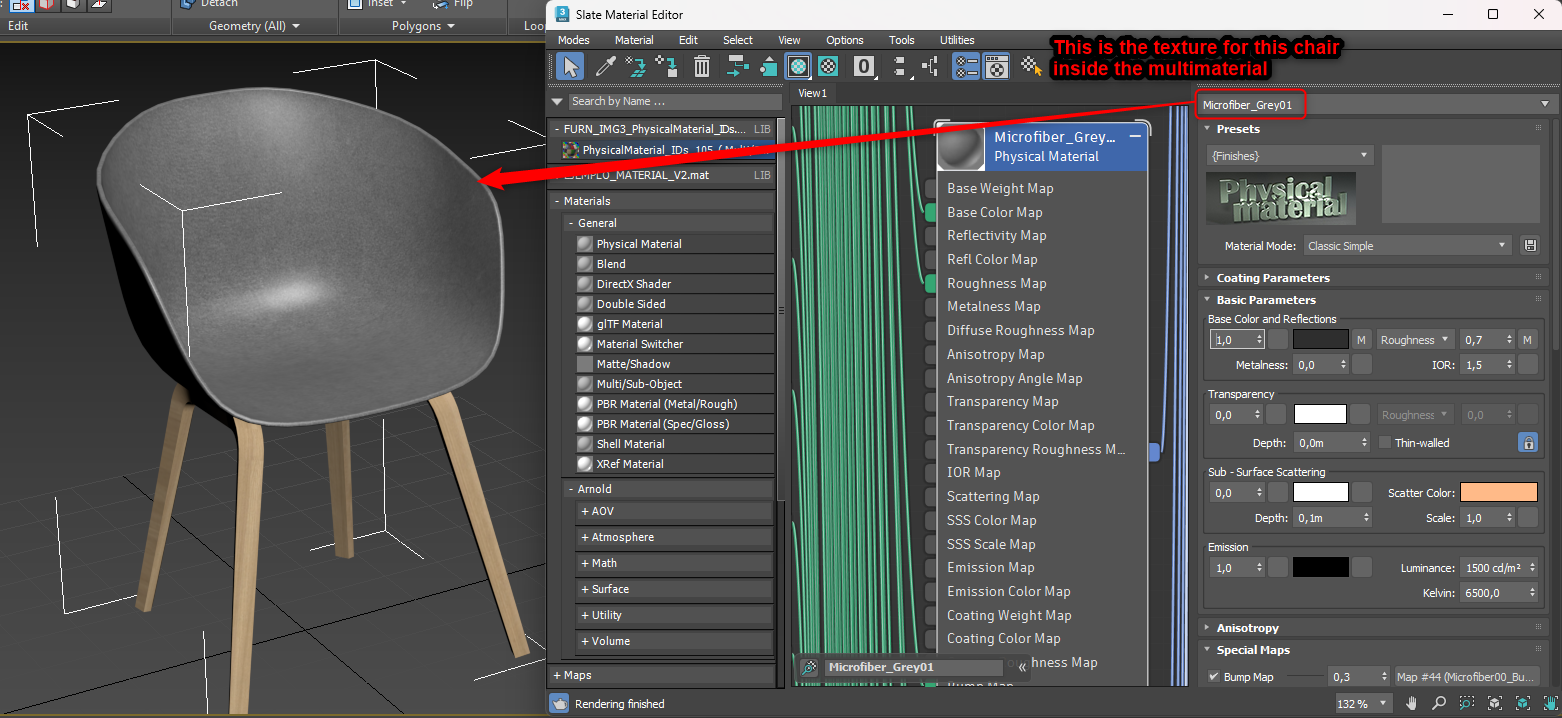
In this practical case , We got this chair, we assign the multimaterial to it.

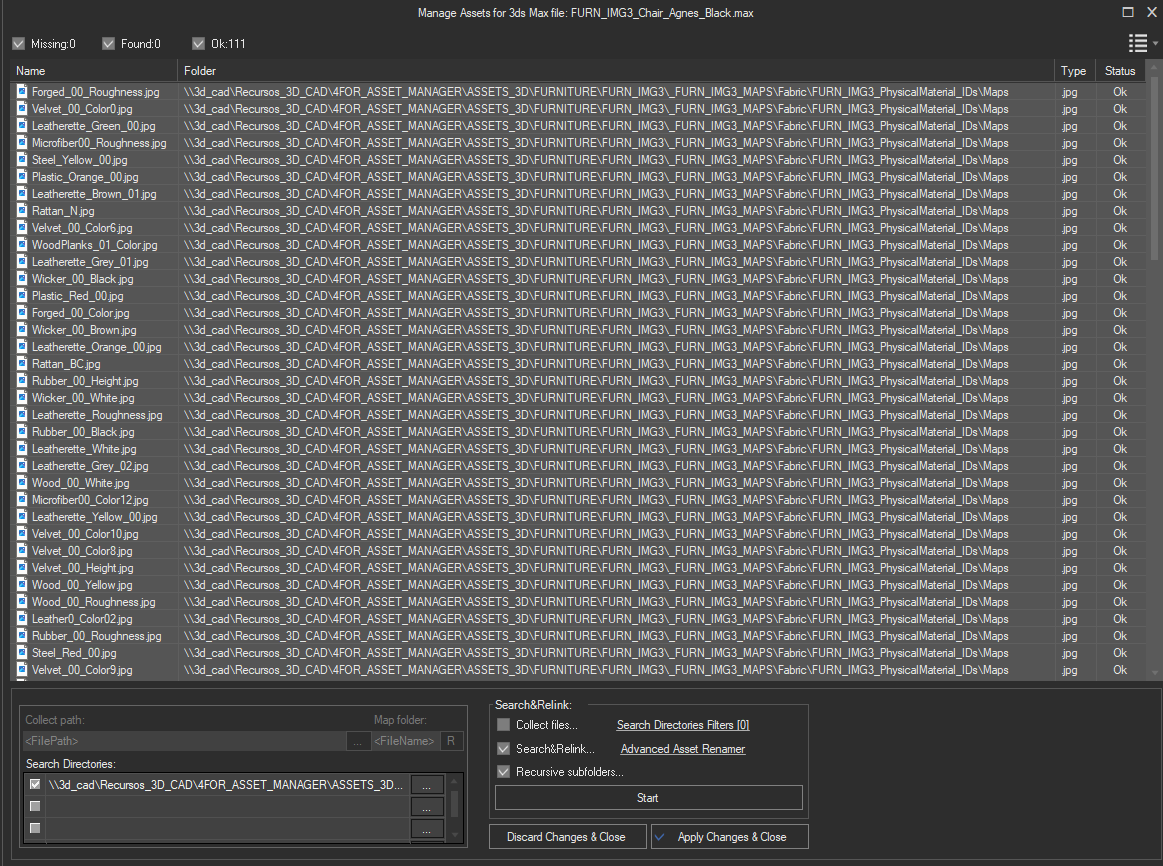
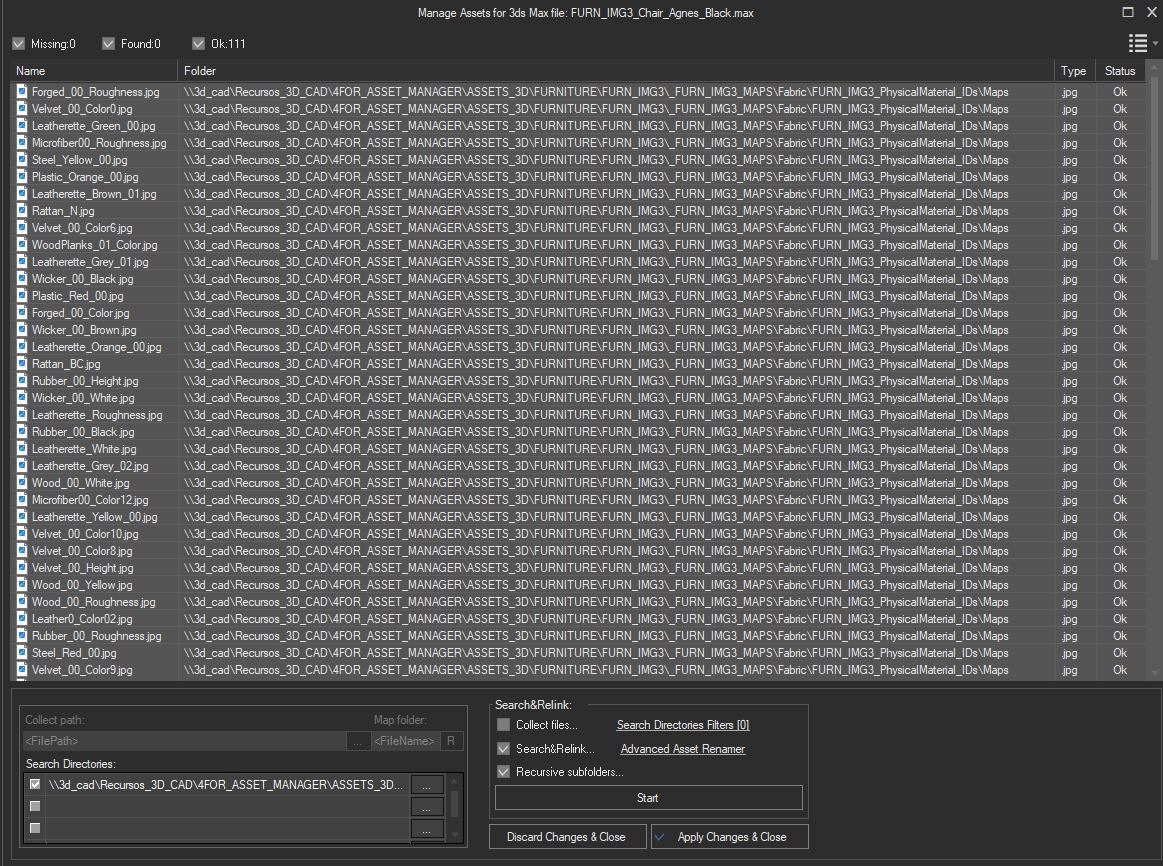
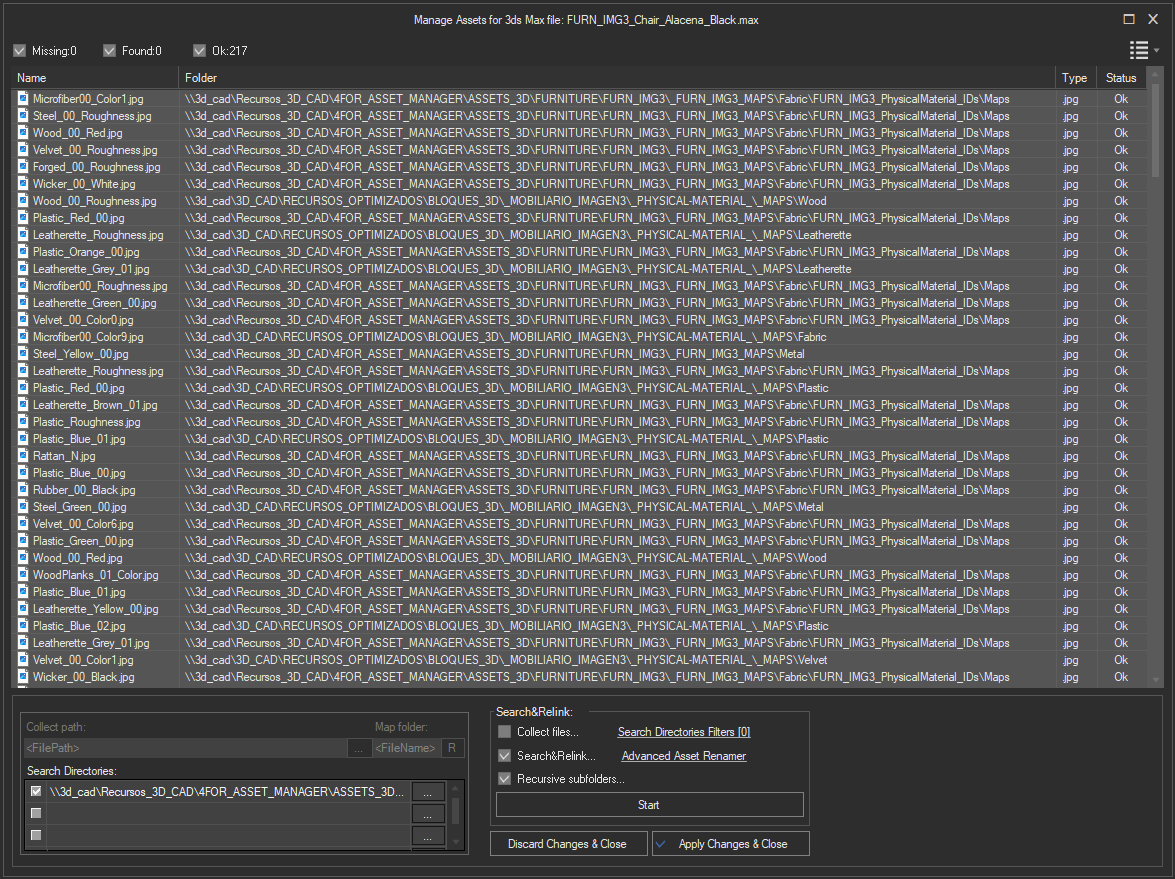
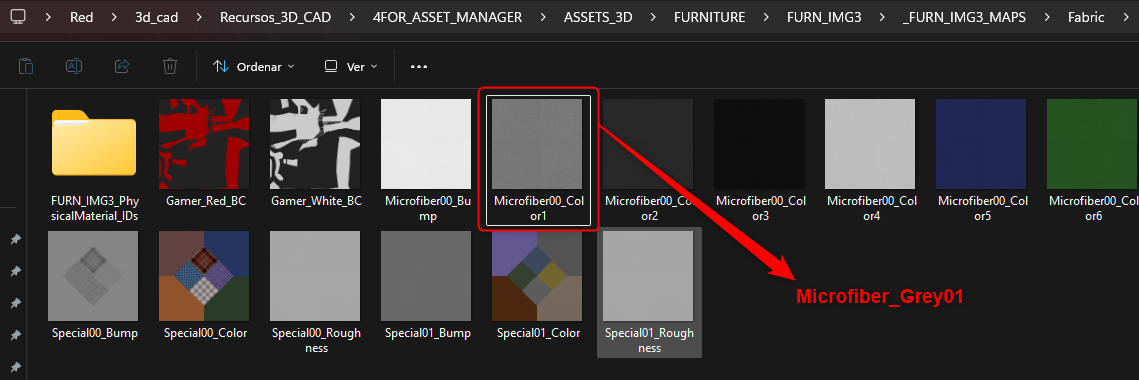
The routes of its textures must be this ones.
Instead it´s establish this path which shouldn´t be.
Because as I mentioned before all the textures of each model should be routed with their respective map in their respective folders not every texture map in a single folder. With all this explanation, which are the options that we can manage?
Big thanks as always.
- October 21, 2025 at 13:20 #46050Sergio Alonso ÁvilaParticipantPosts: 12Threads: 31Joined: Sep 2025
Hi again I made a mistake in the last image from the last post (the path one). I put the same image twice as the other path and that´s not correct. It should go like this:
Instead it´s establish this path which shouldn´t be.
- October 27, 2025 at 19:34 #46080Oleksandr KramerModeratorPosts: 269Threads: 1411Joined: Aug 2009
It appears the issue is being caused by third-party scripts.
Project Manager doesn’t create the folders like those you’ve shown during the process of assignment. I’ve also tested your files – everything should work normally, there are no issues with material assigning materials. All materials and textures update as they should.
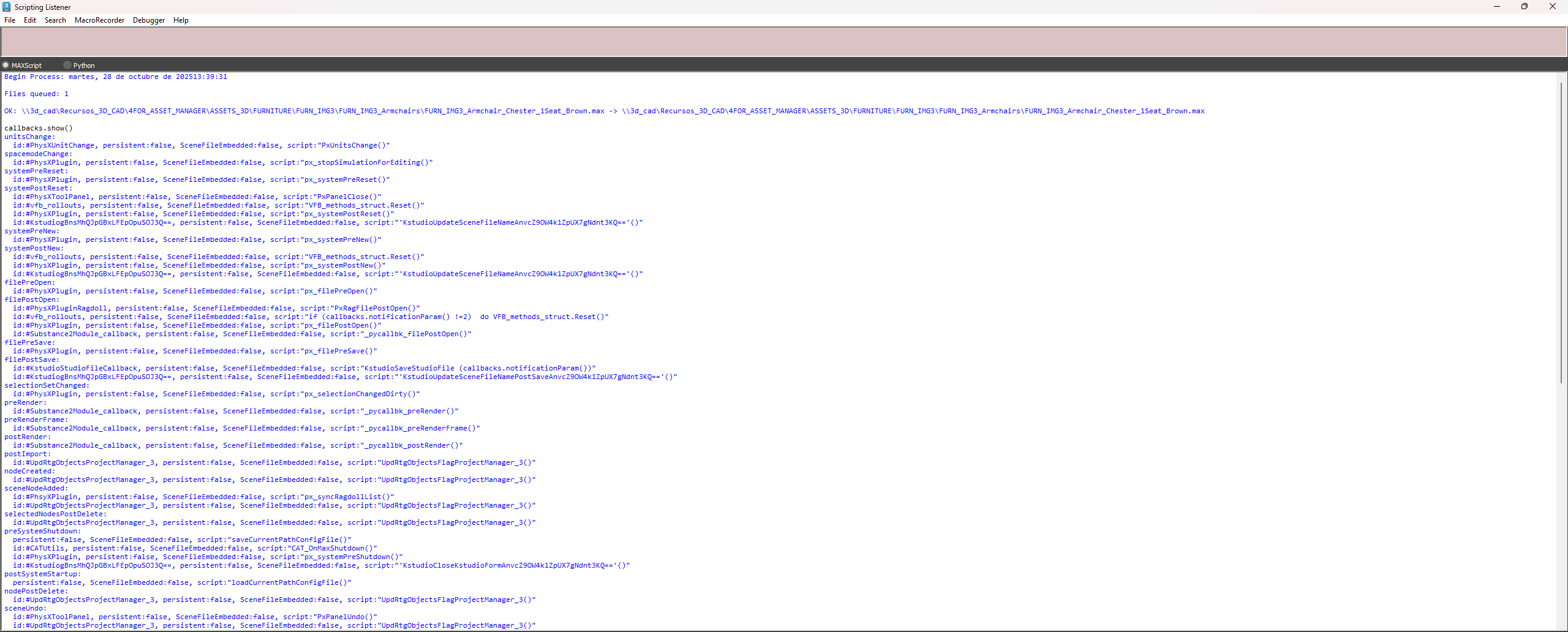
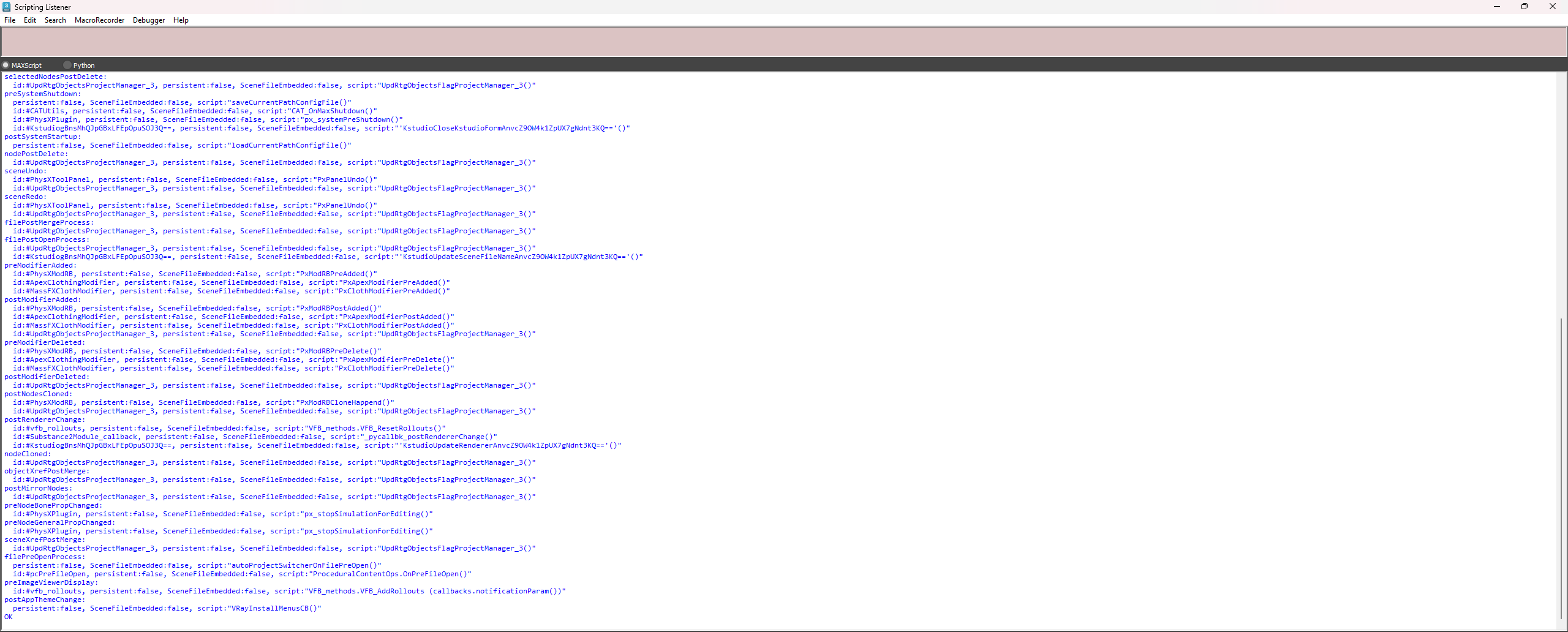
Please review which startup scripts you’re using. Try disabling them. Check which callbacks are currently running by using the
callbacks.show()command.This may help identify how exactly the old material remains in your scene and why textures are being copied even though no such command has been explicitly initiated anywhere.
- October 27, 2025 at 19:35 #46081Oleksandr KramerModeratorPosts: 269Threads: 1411Joined: Aug 2009
P.S. It’s also possible that you’ve missed one of the steps in describing the process.
If you copied the material to another library and enabled the “copy with textures” option, this could explain where that folder came from. This might clarify part of the issue.
What actually happens when you copy a material to a new material library – a subfolder is created next to that library containing the textures, and the paths are changed accordingly to point to this folder. Consequently, you see paths you weren’t expecting.
In this case, simply disable this option and copy those same materials again. The references will remain pointing to the original folder.
- October 28, 2025 at 14:57 #46085Sergio Alonso ÁvilaParticipantPosts: 12Threads: 31Joined: Sep 2025
Hi Oleksandr, thanks for the answers.
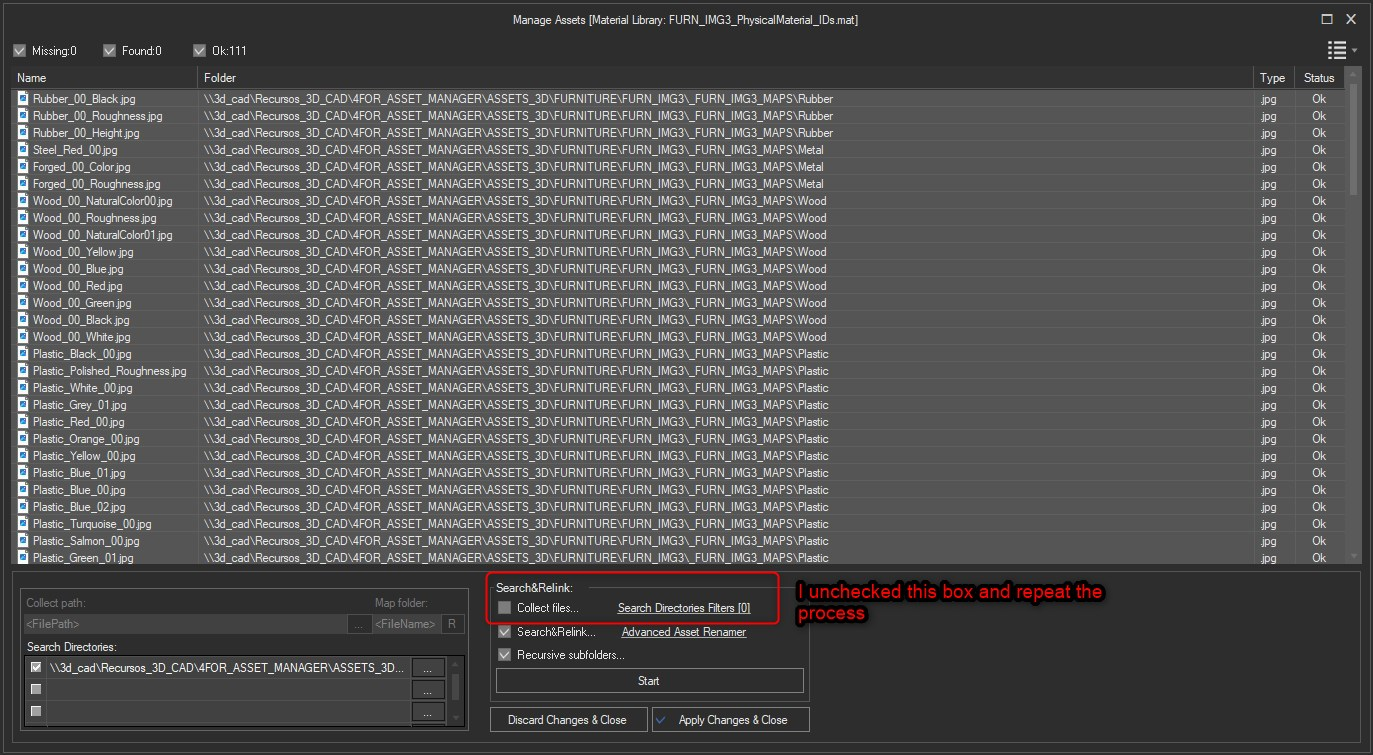
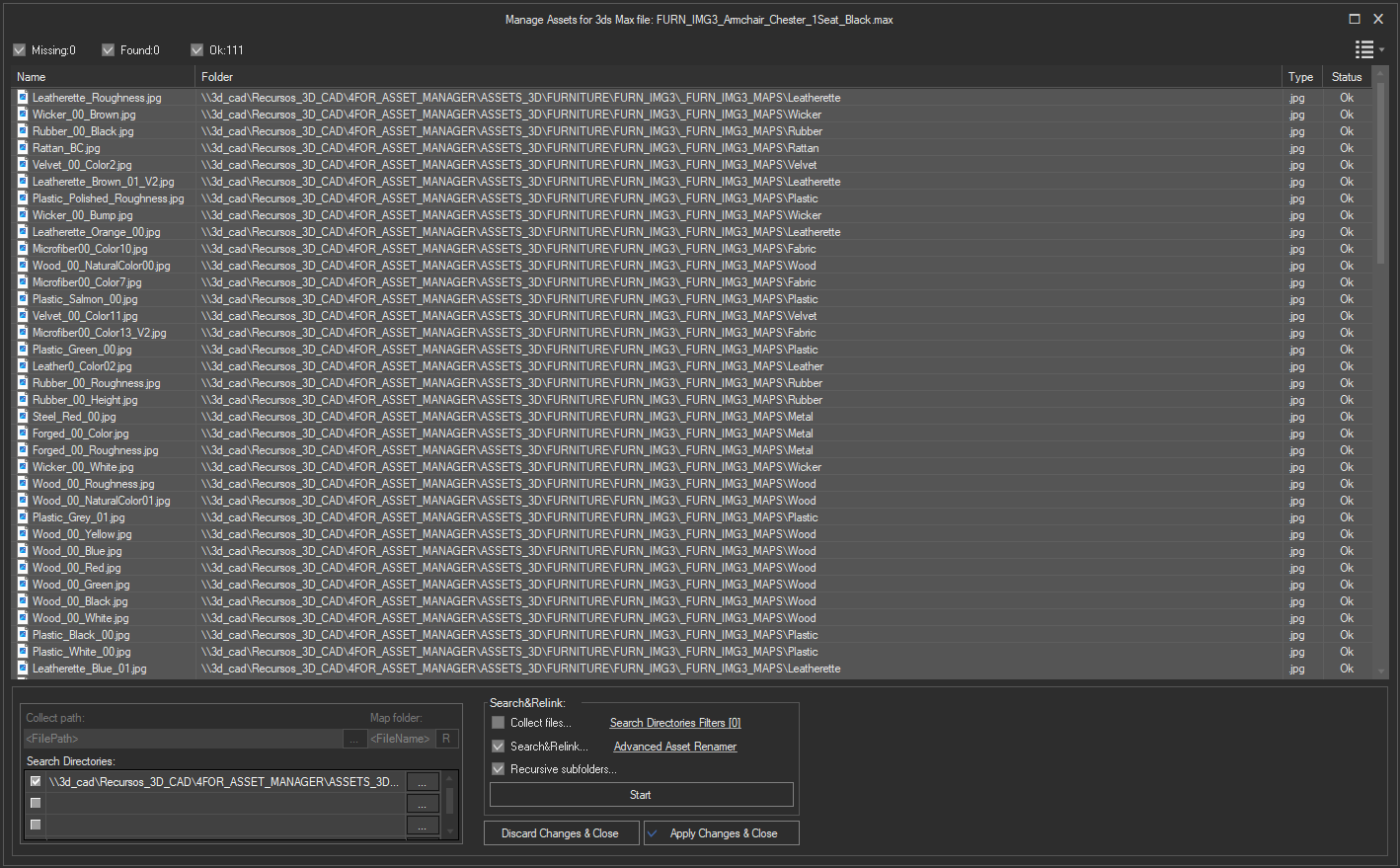
I think I must have failed in one of the steps of the process too. I uncheked the box from the Collect path section and repeat the process.


Now it looks like it´s working correctly and all the texture maps are already in their correct path .


This is what appears in the startup scripts . I don´t really know how to disable them but I don´t know either if this is making any diference now that it works.
As for the rest , apparently it´s fixed.
Thanks for the support and follow up.









You must be logged in to reply to this topic.