Translate
Tagged: Relocate, Tips&Tricks
- March 11, 2026 at 01:05 #46648
 Sergio Alonso ÁvilaParticipantPosts: 12Threads: 31Joined: Sep 2025
Hi Olkesandr,
We are currently moving all the project manager folders from a server to another. The structure of the folders remains the same but the location it´s the new server.
My question is: Is it possible to relink all the routes from the old folders and put the new route in them without changing anything else? I guess it´s possible but how can I manage this situation.
Big thanks and kind regards.
Plugin version: 3.43.10
3ds Max version: 3ds Max 2024
Renderer: Arnold - March 11, 2026 at 13:52 #46653Oleksandr KramerModeratorPosts: 269Threads: 1411Joined: Aug 2009
Hi Sergio,
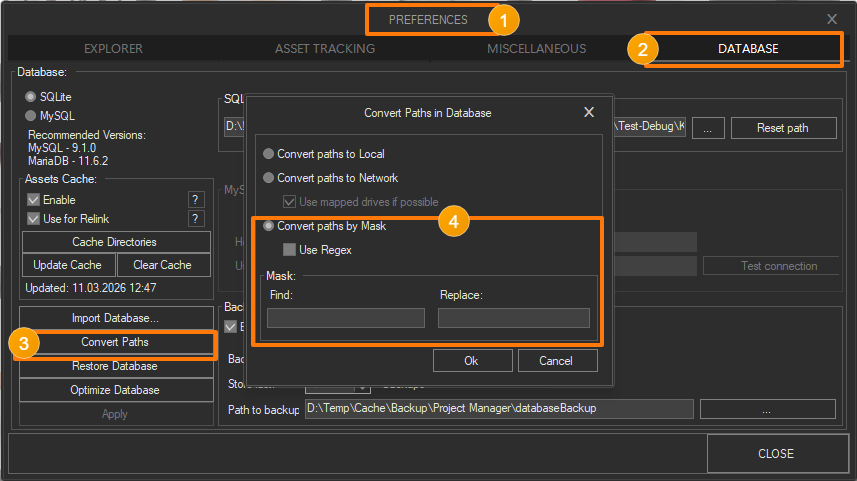
Project Manager has a built-in Find & Replace tool for updating paths in the database — it was designed exactly for situations like this.
Here’s how to do it:
Open Project Manager and go to Preferences → Database → Convert Paths
Use the Find & Replace function to replace the old server path (e.g. \\OldServer\assets\) with the new one (e.g. \\NewServer\assets\)
Apply the changes — all directory entries in the database will be updated at once
Since your folder structure remains the same, a single find & replace on the root server path should be sufficient to relink everything in one go.

- March 12, 2026 at 10:59 #46656Sergio Alonso ÁvilaParticipantPosts: 12Threads: 31Joined: Sep 2025
Good morning, It worked exactly how you said! All the routes from the folders were changed to the new Server ones without problem.
The only thing that didn´t change is the route from the textures of the assets which remains in the old server but we can change it directly from the Manage assets section and set the path manually.
Thank you so much for your help and best regards!
- March 12, 2026 at 14:37 #46658Oleksandr KramerModeratorPosts: 269Threads: 1411Joined: Aug 2009
Glad it worked! Regarding the texture paths — for a few files that’s fine to fix manually, but if you’re dealing with thousands of assets, there’s a much better tool for the job.
Batch Render & Relink (included with Project Manager) has the same Find & Replace functionality, and crucially, it supports Fast Mode — which makes processing large numbers of files significantly quicker.
I’d recommend using that for the textures.As for the future — I’d strongly suggest setting up a Mapped Drive on your network.
This is a standard Windows feature that lets you assign a drive letter (e.g. Z:) to a network folder (e.g. \\Server\assets\).
All applications, including 3ds Max and Project Manager, will then see it as a regular local drive.
If you ever migrate to another server, you simply update the mapped drive assignment in Windows — and no path changes in Project Manager or your scene files will be needed at all.


You must be logged in to reply to this topic.