Translate

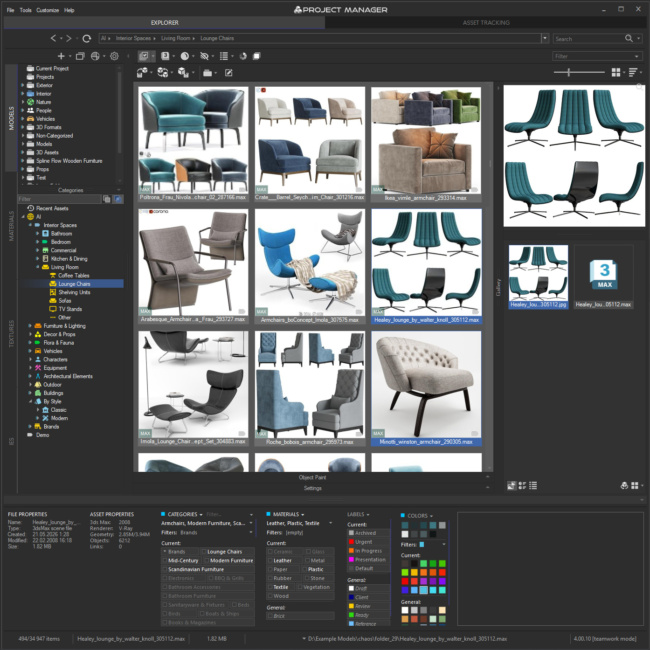
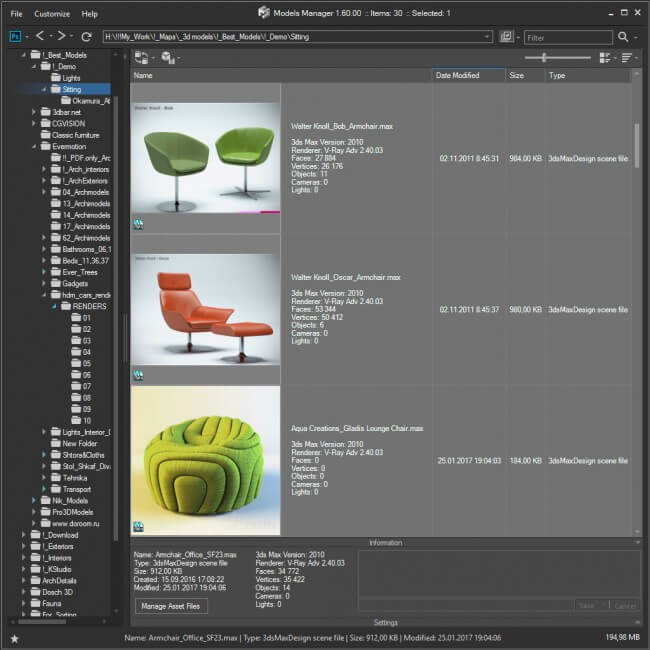
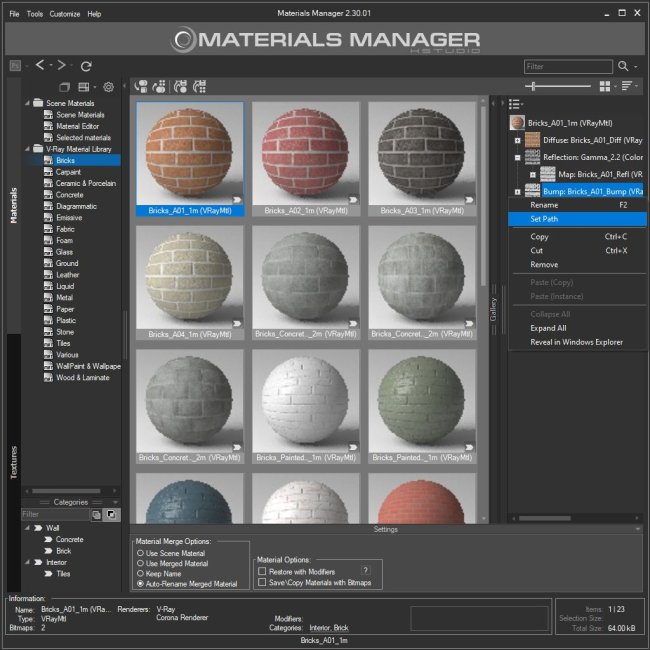
Previews for 3D assets are crucial as they provide visual references, allowing users to quickly identify and choose suitable assets like models, materials, IES files, and HDR/EXR/OSL files, without needing to individually open or render each one.
The ability to assign multiple previews to an asset allows users to view different angles or facets of a model, or link additional files like descriptions or proxy files, providing a comprehensive overview at a glance.
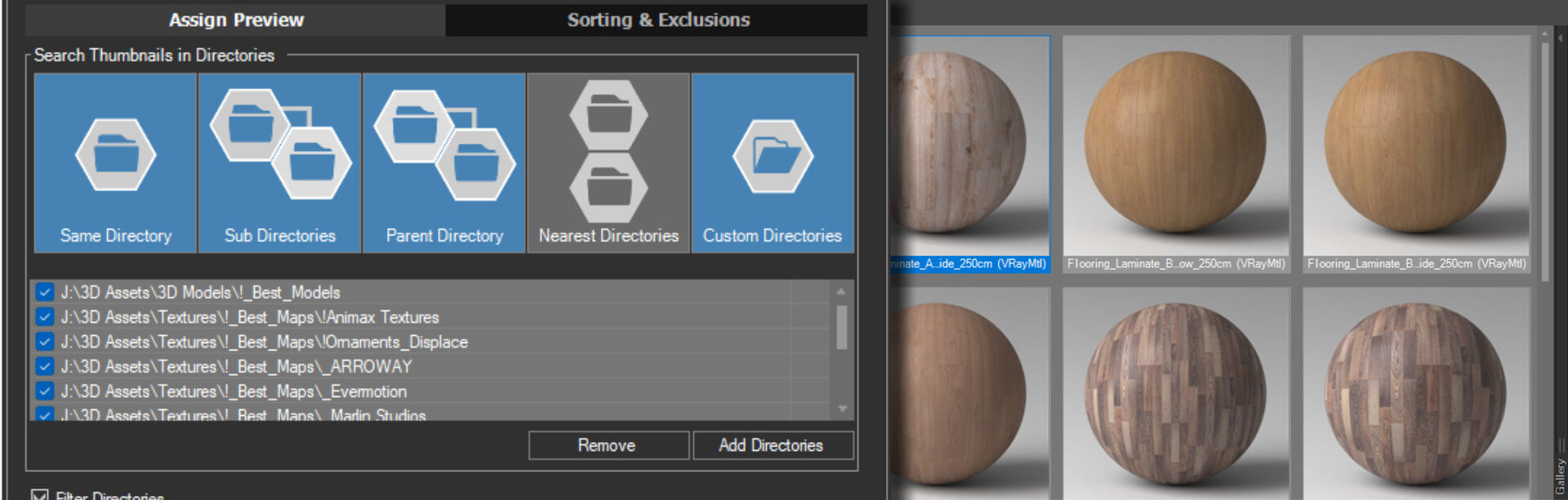
The Project Manager tool lets you assign previews to all asset types.
It automatically adds previews using images located near the models and materials.
If the image names don’t match the model/material names, you can manually assign previews by dragging and dropping from Windows Explorer or directly from Project Manager onto the related asset.
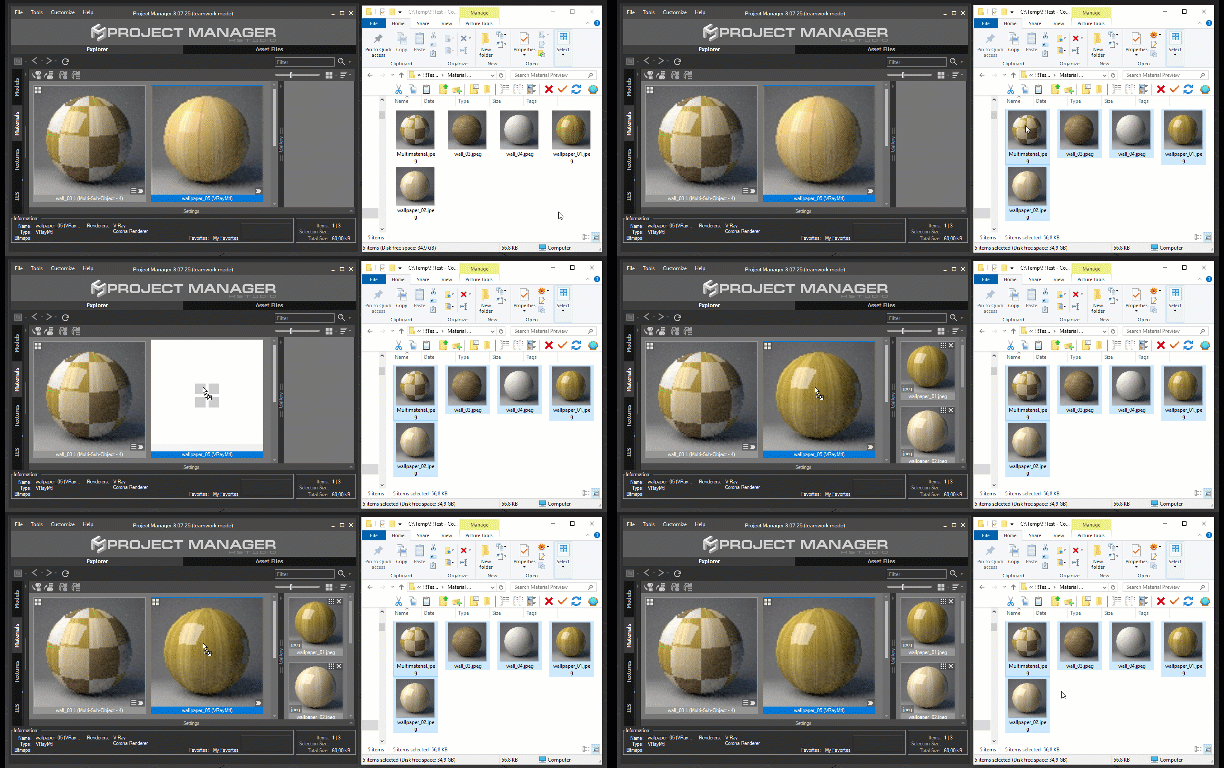
Assets can have several previews, like different views of a model or additional files linked to the model, such as a description document or a proxy file.
Previews can also be assigned to multiple files simultaneously by selecting the files or directories and using the Auto-Assign Preview utility from the right-click menu.
Also, files are added to the gallery automatically when you render a preview using the Project Manager or Batch Render tool.
Besides, when you create new proxies by drag and drop from the utility, the proxies, and associated material library are also linked to the model. So you can always find all linked attachments in the model`s gallery
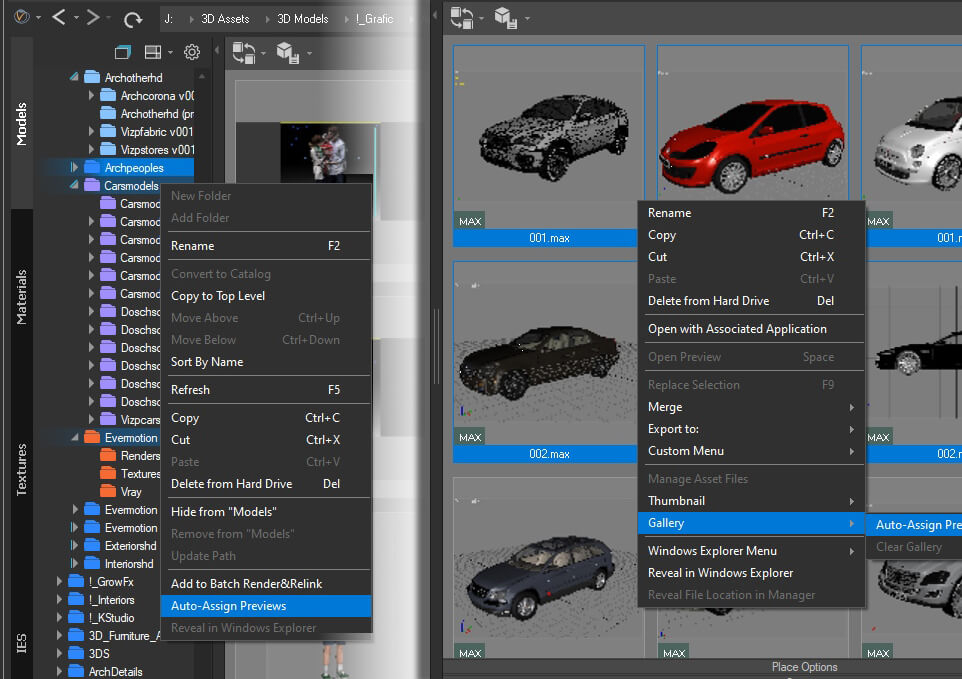
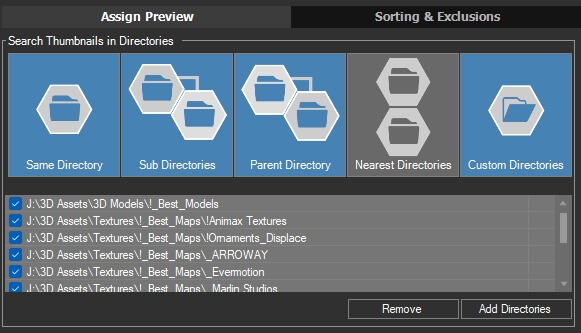
The utility can search for previews in asset folders, subfolders, or specified directories.
Filename matching options include using the same filename, adding a suffix to the preview filename, ignoring the suffix for material/model filenames, and a Fuzzy Search for loosely related filenames.
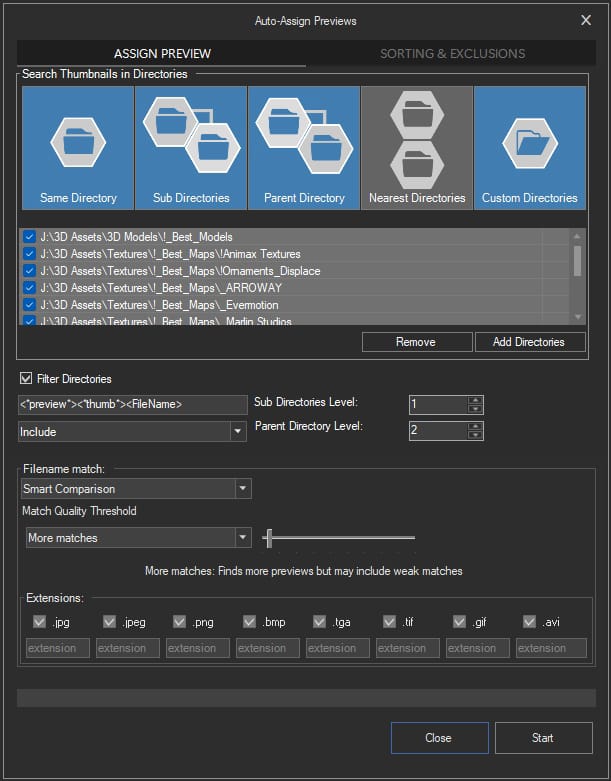
Settings
Search Directories
The utility can search for previews in asset folders, subfolders, or higher-level folders, or even if previews are located far from the main file, users can specify folders to search.
Filter Directories
Users can include or exclude folders using filters.
Here you can define masks by which folders will be included or excluded from the search.
You can also define the depth of the search in subfolders, or higher-level folders

Filename Match
For filename matching, users have several options:
Smart Comparison
Starting with version 3.42.26, Project Manager introduces a new Smart Comparison algorithm for Auto-Assign Preview
that dramatically simplifies the process of linking preview images to your models and materials.
This intelligent matching system automatically analyses filename similarities and offers four quality presets—from finding more matches to ensuring only the closest matches—giving you precise control over how previews are discovered and assigned to large asset libraries with minimal manual intervention.
Smart Comparison Settings
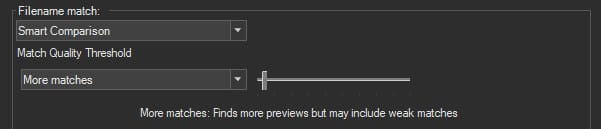
The Smart Comparison method uses an intelligent algorithm to match preview filenames with your asset names. The Match Quality Threshold slider provides fine-tuned control over how strict or lenient the matching should be, with four key presets to guide you:
More matches – Finds more previews but may include weak matches. Use this setting when your naming conventions are inconsistent or when you want to cast a wider net to discover potential previews.
Balanced – Recommended setting for most cases. This preset offers the best balance between finding legitimate matches and avoiding false positives, making it ideal for typical asset libraries.
Better matches – Stricter matching with fewer false positives. Choose this when you have well-organised naming conventions and want to ensure only strong matches are linked.
Best matches – Only very close or identical matches. This setting is perfect for libraries with strict naming standards where you need absolute confidence in every preview assignment.
The slider allows you to fine-tune the threshold between these presets, giving you precise control over the matching sensitivity to suit your specific asset library organisation.
The Smart Comparison method is now the recommended approach for all users, making the previous filename matching options largely obsolete for everyday use.
However, if you need more specialised control or want to understand the legacy matching methods, you can still find detailed information about them later in this article.
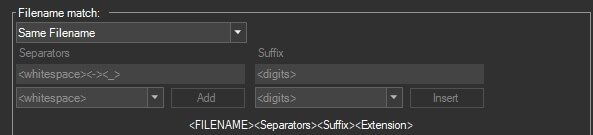
Same Filename – preview file name matches the asset file name.
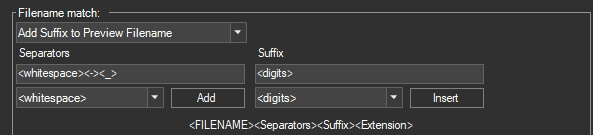
Add Suffix to Preview Filename – Links files where the model name and preview name are similar but with a suffix. Settings include separators and suffix options, and regex can be used for complex cases.
Example:
If your models, are called “plant.max”, and the preview has the name “plant_001.jpg“. Just choose this option and use the following settings.
Separators: <whitespace><-> <_>
Suffix: <digits> <letters>
Regex – A regular expression is a sequence of characters that specifies a match pattern in text. Usually such patterns are used by string-searching algorithms for “find” or “find and replace” operations on strings, or for input validation.
Wikipedia
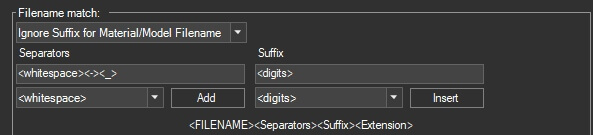
Ignore Suffix for Material/Model Filename – Useful when model|material names have suffixes like “_vray” or “_corona”, and the preview is named simply (e.g., “plant.jpg”). Settings include separators and suffix options, or specific suffixes like <vray> <corona>.
Example:
If your models, are called “plant_vray.max” or “plant_corona.max“, and the preview has the name “plant.jpg“. Just choose this option and use the following settings.
Separators: <whitespace><-> <_>
Suffix: <letters> or for the example above, you can use <vray> <corona>
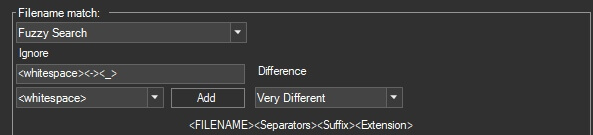
Fussy Search – For linking previews with very different filenames from the model. Users can specify characters or strings to ignore or use regex for complex matching.
Example:
A preview file called “B _ & _ B_Italia_1966–42_Chaise_longue_preview.jpg“
with files with names such as “bebitalia_1966_42_mr.max“, “bebitalia_1966_42_vray.max” and “bebitalia_1966_42.3ds“.
You can use the following settings.
Ignore:
<_mr><_vray><_preview><whitespace><-><_><&>
or
<regex:_mr|_vray|_preview|-|_|s|&>
Supported Preview Extensions
At the bottom of the utility, users can specify file types to be used as previews, with default types being JPG, PNG, BMP, TGA, TIF, GIF, and AVI.
You can disable some of these types or add new ones.

Additional Settings
Additional Settings
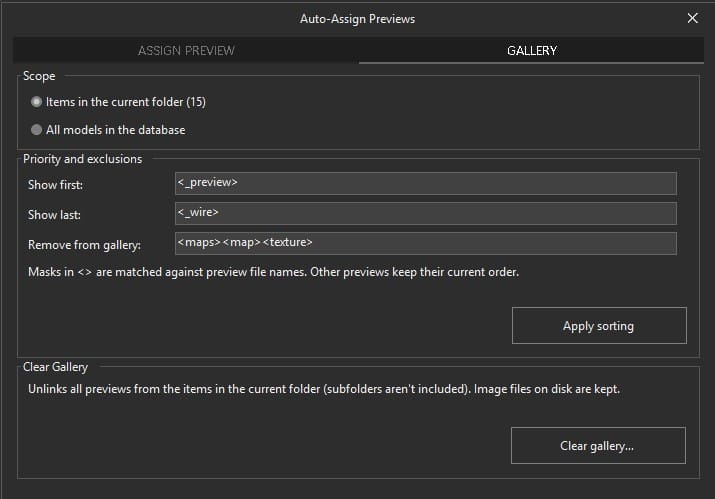
On the Gallery tab, you can re-order and clean up the previews linked to your assets.
Scope. First, choose what to process:
- Selected items — the selected files in the list, or all files in the current folder if nothing is selected. When the tool is started from the folder tree, it uses the selected folders and their subfolders.
- All … in the database — every asset of the active category: models, materials, IES files, or textures. Other categories aren’t affected.
Priority and exclusions. Masks in angle brackets are matched against preview file names:
- Show first — matching previews move to the top of the gallery. With the default settings, files containing _preview in the name come first.
- Show last — matching previews move to the bottom. With the default settings, files containing _wire go last.
- Remove from gallery — matching previews are unlinked from the asset.
Click Apply sorting to apply these rules. Other previews keep their current order.
The order of placement affects which image is used as the asset’s thumbnail
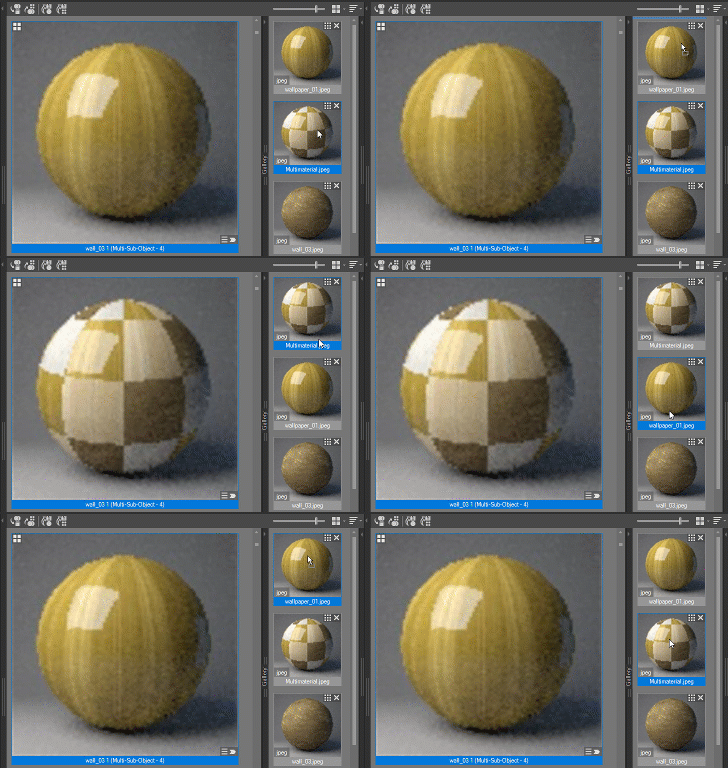
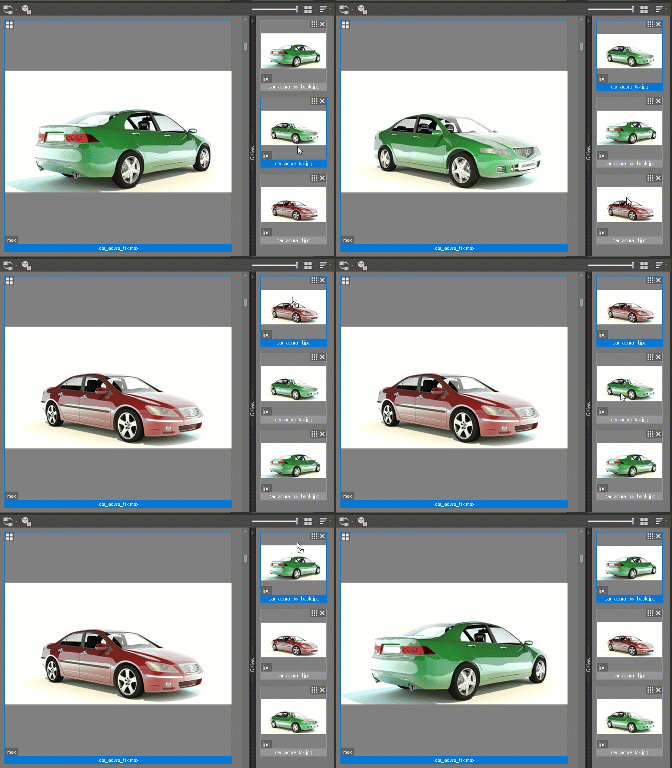
Clear gallery. To remove all preview links within the chosen scope, click Clear gallery…. You’ll be asked to confirm, because this can’t be undone.
You can also clear the gallery from the right-click menu over selected assets: Clear Gallery.
Both options only remove the links between assets and previews. Image files on the hard drive aren’t changed.
Thank you for reading, and feel free to ask questions or make suggestions.
Original price was: $60.00.$48.00Current price is: $48.00.Add to Cart