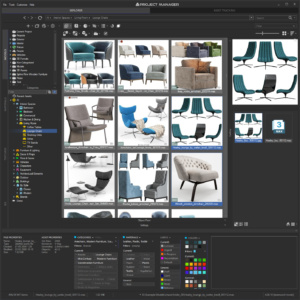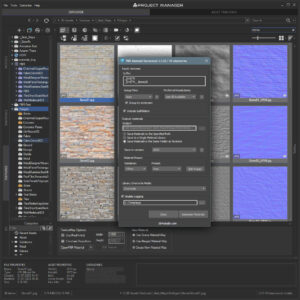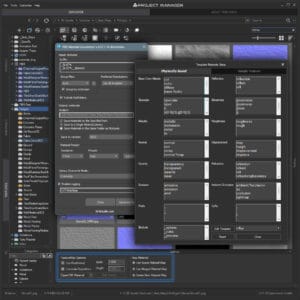
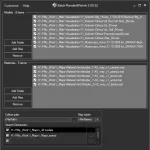
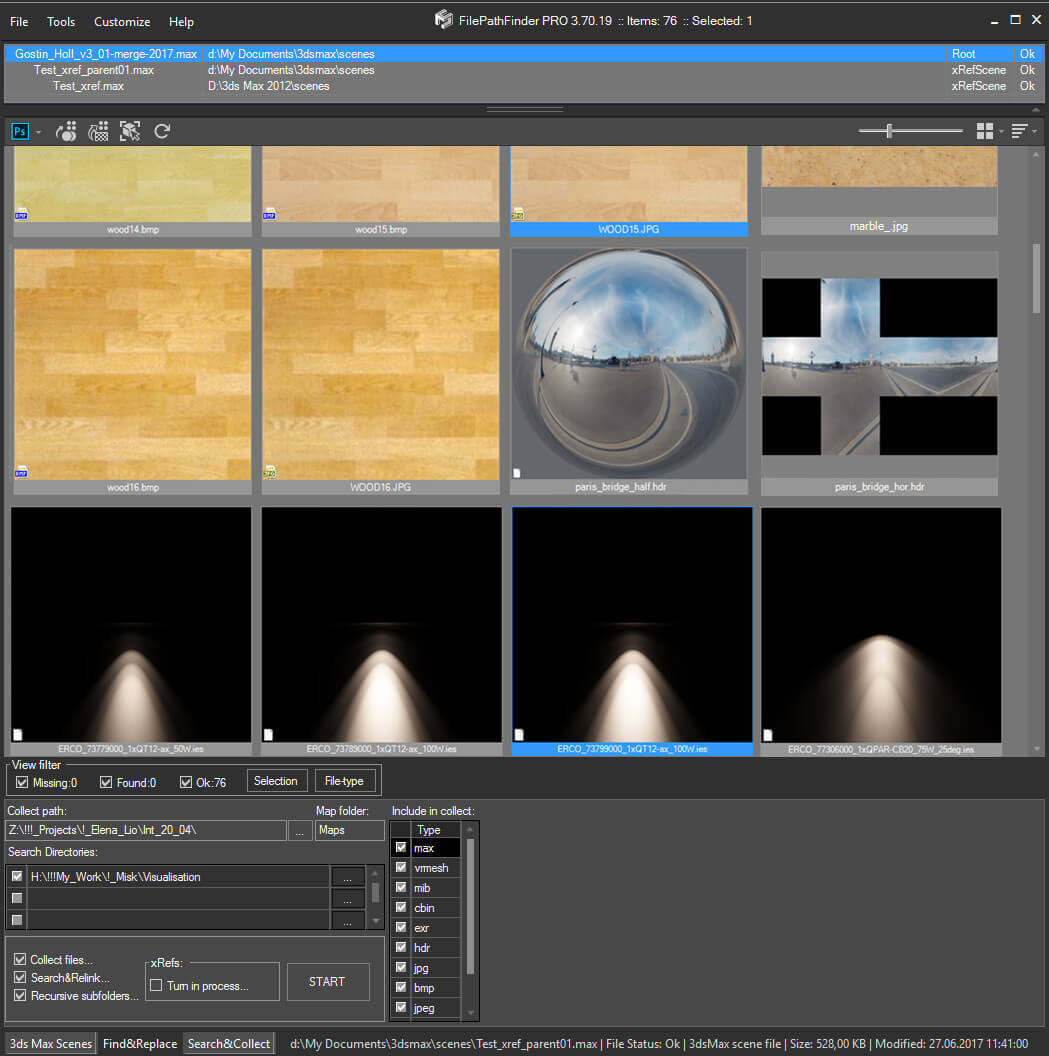
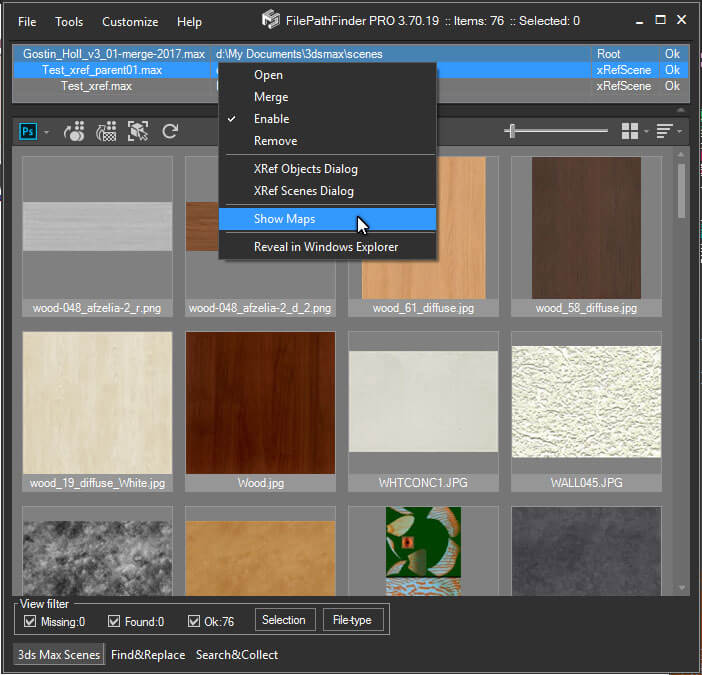
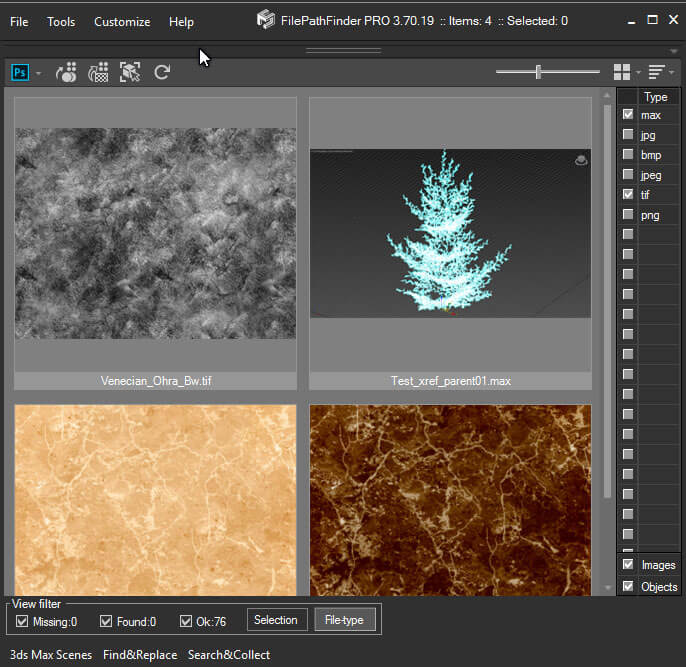
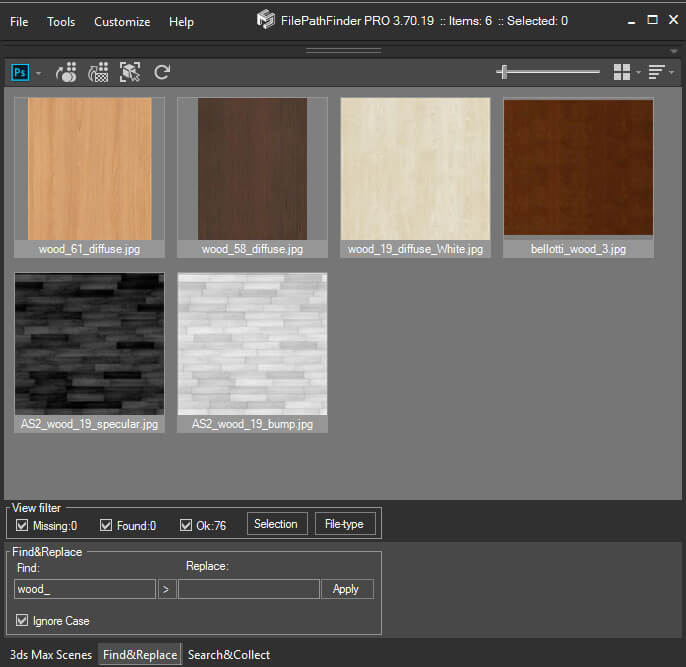
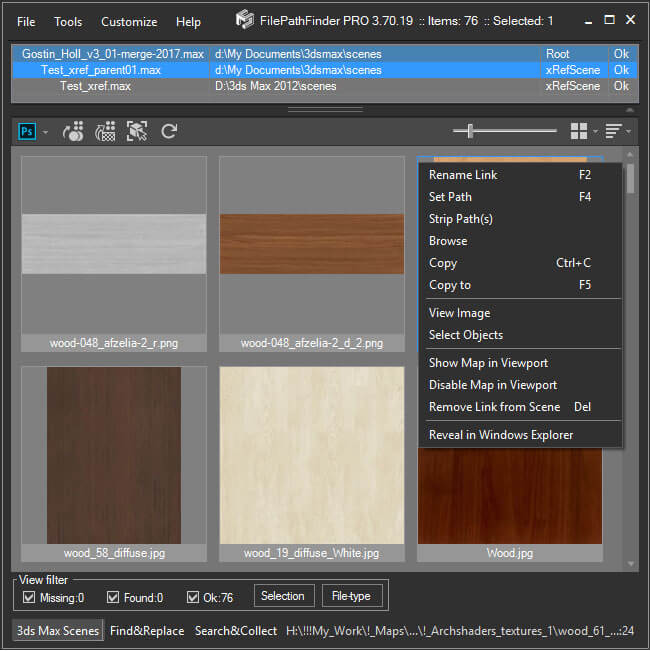
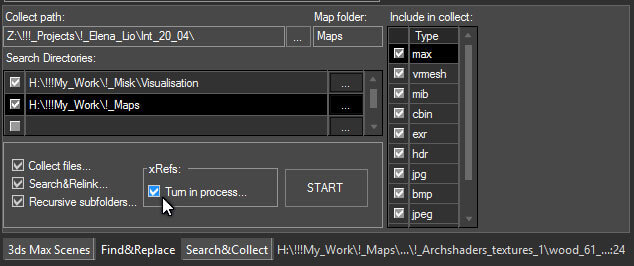
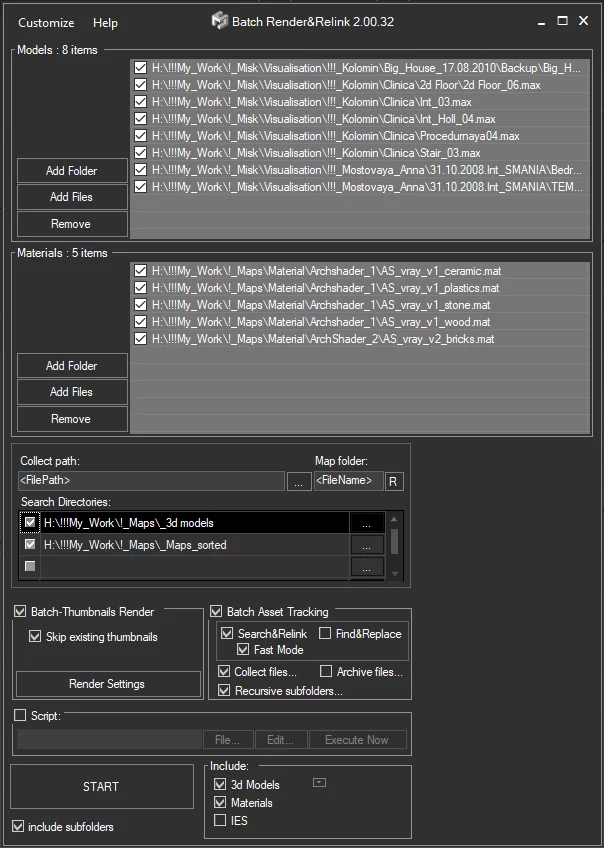
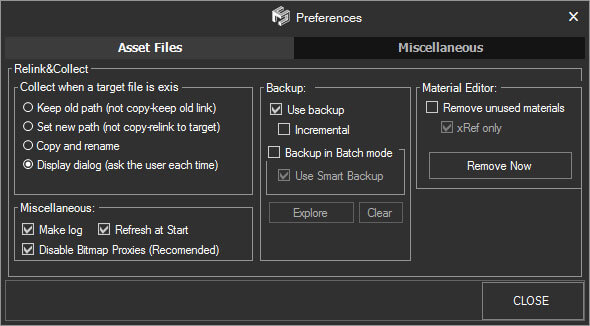
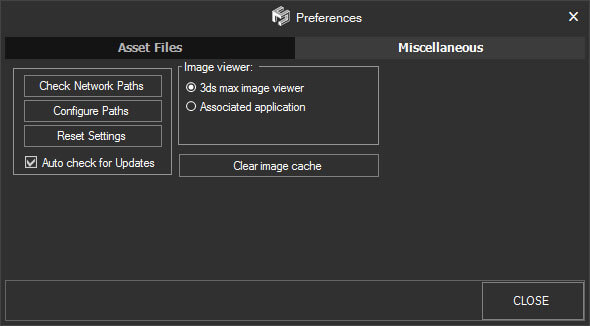

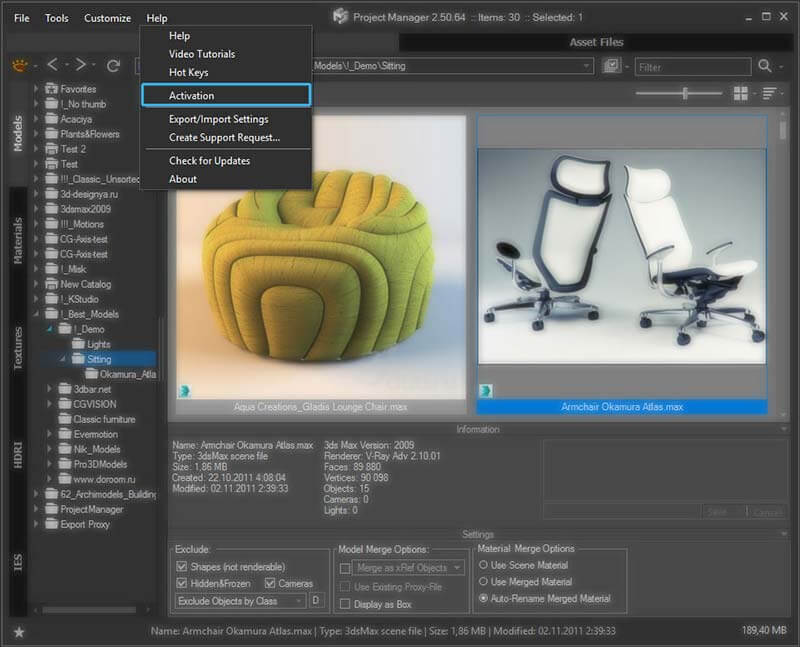
FilepathFinder it is a power tool for working with asset files in 3ds Max.
With FilepathFinder you can easy create or use existing materials, merge 3dmodels and Proxy into your scene.
Also with this tool your can easy find, collect and sort asset files.
FilePathFinder help you quick select objects in your scene or find desired materials and textures and placed they to Material Editor.

Single License for FilePathFinder Pro: 30$

Updated Jule 23 2010

FilepathFinder PRO v3.2.55

  • Fixes a bug at collection the files in version 3.2.53
  • Fixes the issues with collection the files without extensions
  • Adds the ability to check for Updates at Startup the utility


FilepathFinder PRO v3.2.53

  • Fixes a bug at frequent the opening/closing FilePathFinder


FilepathFinder PRO v3.2.50

  • Adds ability to auto fix Texture paths for new merged objects on fly (if possible and needed)
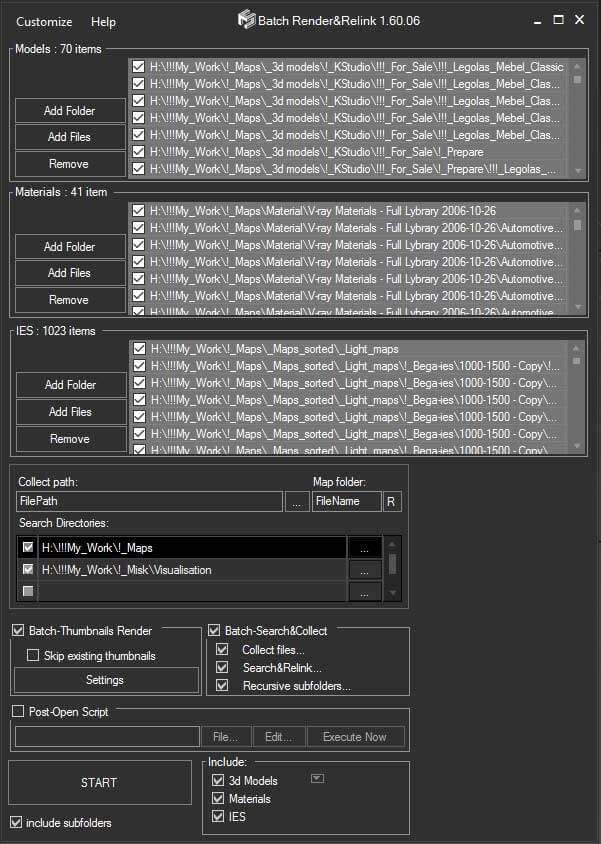
  • Adds “Post-Open Script” Section in Batch Mode
  • Adds hotkey for removing links from scene by Delete-key
  • Fixes some issues with Replacing Objects
  • Fixes some other minor issues

Update History


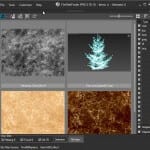
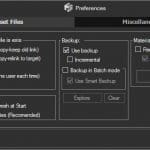
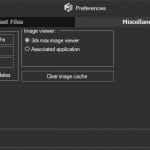
Interface

Working with Project


New methods of collecting – with drag&drop and clipboard

Main Features:

Preparing the Scene to Work

  • Adds the Bitmaps, 3d models, Proxy, IES, Material Libraries and other files to the project
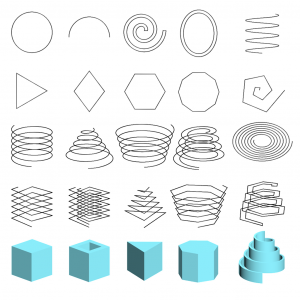
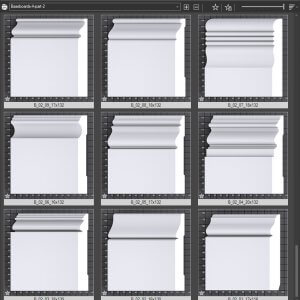
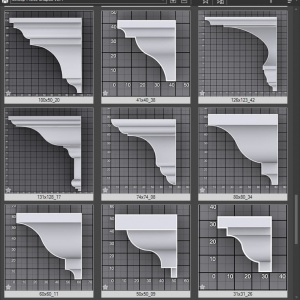
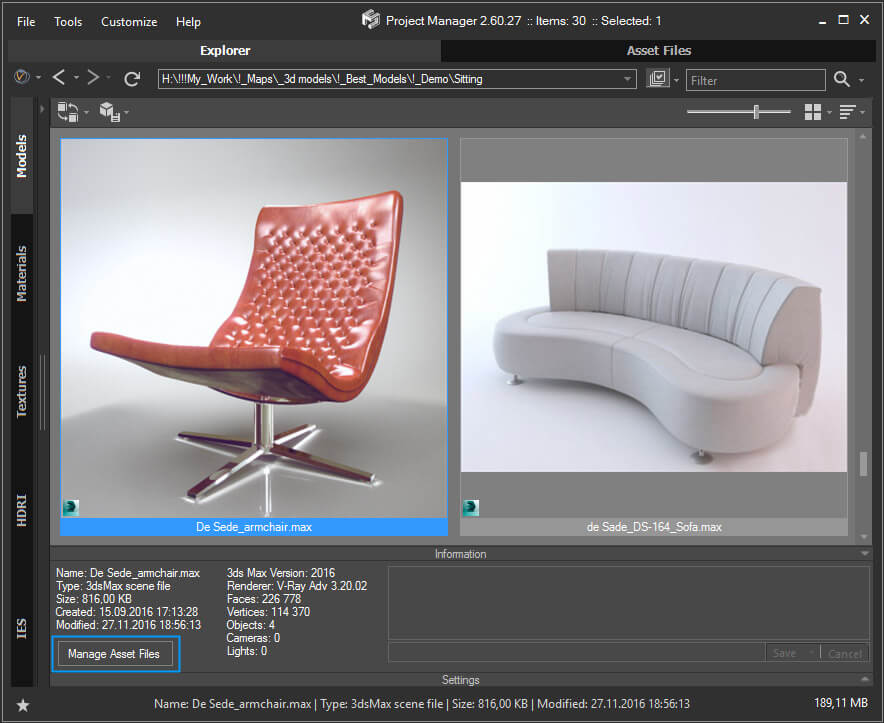
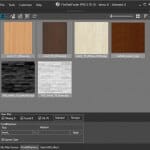
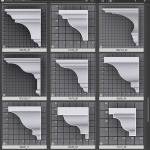
  • Displays thumbnails for Bitmaps, 3d models, Proxy, IES, Material Libraries and other file-types (include formats HDR, EXR, PSD and other)

Work with Objects

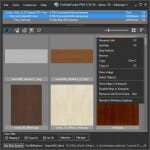
  • Convenient methods of Merging and Placing the objects into the scene
  • Replace the scene objects with other objects

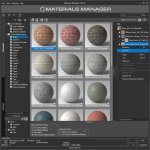
Work with Materials

  • Assign Materials by dragging Material Library files or Bitmap files onto the Objects and subObjects
  • Creating Multimaterial by dragging of several files into the Material Editor
  • User can specify of Texture size for new BitmapTextures (After and Before creating)
  • User can specify of Type for new Materials (eg. Vray material, Arch & Design material, Architectural material and etc.)
  • Support to Slate Material Editor

Select Objects, work with existing in scene Materials

  • Select the objects by their links to files
  • Displays in interactive mode a list of files linked to selected objects
  • Place Materials and BitmapTextures into the ME
  • Show\Hide bitmap in viewport
  • Open selected files in Editor

Work with Assets

  • Search for missing assets
  • Relinks external files
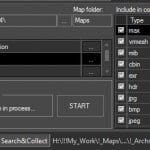
  • Collect external files
  • Sorting external files to folders by type of file
  • Ability to exclude external files from collecting by type of file
  • Rename the links by mask
  • Removing maps by links from scene
  • Collect Asset files via clipboard and drag&drop method
  • Work with xRef files in batch mode
  • “Batch Mode” for organize Asset files for your 3d Models and Materials Library

Misc Features

  • Various methods of display files in list: by type of files, linked to selected objects, by status, by mask of name
  • Independent from 3dsMax caching of thumbnails
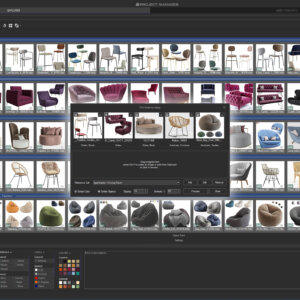
  • “Render Preview” utility for making preview thumbnails for 3ds Max scenes, Material Libraries and IES files
  • Collect the preview thumbnails with source files
  • Unostentatious and “Transparent” the demo-version
  • User-Friendly interface


If you have any questions or propositions you can leave comments.


Top


3ds max versions compatibility:

    3ds max 9SP1 32 bits and 64 bits
    3ds max 2008 32 bits and 64 bits
    3ds max 2009 32 bits and 64 bits
    3ds max 2010 32 bits and 64 bits
    3ds max 2011 32 bits and 64 bits

Note:Please use latest updates for your version of 3ds max Updates & Service Packs page

Demo-version Limits:

Demo version allows to work only with non-strikeout files.

Installation and generation of id-file:

Install.

  • Download archive with script.
  • Unpack archive on a hard disk
  • Start 3ds Max
  • Drag FilePathFinder.mzp into the viewport
  • Follow the instructions on screen.
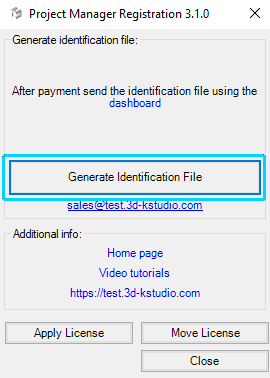
  • Generate the identification file
  • In order to finish the installation process restart 3dsMax.
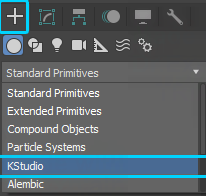
  • In menu Customize>> Customize User Interface>> Category>> Track choose the script and draw it to the Panel of Instruments.

Reception of License Key.
To generate a license file I need to get your identification file.

  • After Payment send identification file to e-mail: support@3d-kstudio.com.
  • License file will be sent to you within 48 hours.
  • Put License file to the folder with script FilePathFinder Pro or
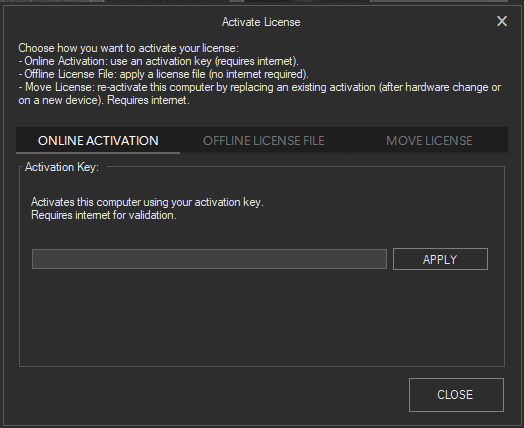
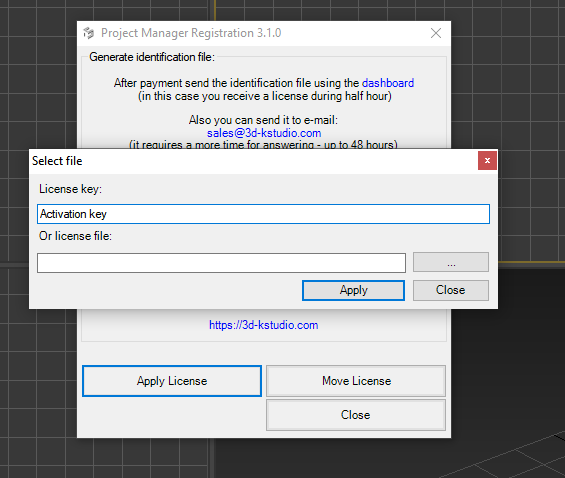
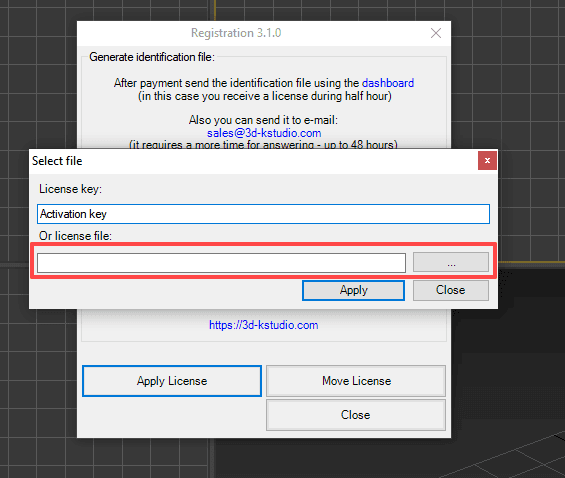
    run script FilePathFinder_Registration.mse and press button “Apply Key File”.
  • Choose license file.
  • Open your project and enjoy work!
  • :)

Video: How to install and generate id-file


Top


Posted in FilePathFinder and Scripts 4 months, 3 weeks ago at 03:45.

2 comments

2 Replies

  1. Christian Aug 21st 2009

    Hi!

    I’m quite interested in purchasing FilePathFinder PRO.
    Is it possible to open the script from the command line (dsmax.exe -mip -U MAXScript “script.msz”) to resolve all “#Found” links to real absolute/relative paths and save the max scene file?
    Can you describe the “automatic mode” actions and activation?
    Basically, I’d like this script to arrange valid links for 3ds Max to real paths without any action.

    Thanks for your time,

    Regards

  2. Alexander

    Hi Christian.
    Excellent idea!
    I will be necessarily realise such possibility at the next week.


Leave a Reply


  • RSS

  • 3d models Animation Beta version buy CG news Development Download FAQ FilePathFinder free PORTFOLIO renderfarm Script Services Update History virtual tour VrayMultiStageRender Work

    3d models (6)
    CG News in Pictures (13)
    Download (1)
    FAQ (6)
    FilePathFinder (10)
    PORTFOLIO (1)
    questions (2)
    Scripts (9)
    Site (1)
    Tips & Tricks (1)
    VrayMultiStageRender (2)
    Work (2)

    WP-Cumulus by Roy Tanck and Luke Morton requires Flash Player 9 or better.

  • CG News Archive

    May 2010 (7)
    March 2010 (6)
  • Random Posts