Unlike some other scripts of its kind,
FilePathFinder
Differentiates Real Missing files and files with not correct paths.
(Identified in the Asset Tracking as Found.)
No need to search for such files.
Path to the such files are fixed for a single click.
Main Features:
- Search for missing assets
- Relinks external files
- Collect external files
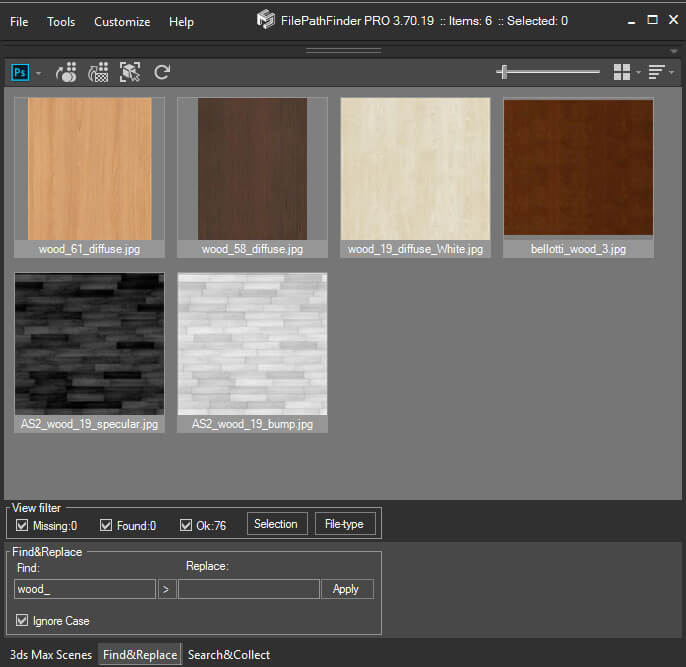
- Rename the links by mask.
- Possibility of sorting files to different folders depending on the filetype
- The option to different method of operating with file depending on it’s type:
copying files of certain type or relinking to the existing location
- Work with ALL types of external files
- Ability to collecting files included in IFL
- Support almost all plug-ins, working with external links.
See list of tested plugins and objects
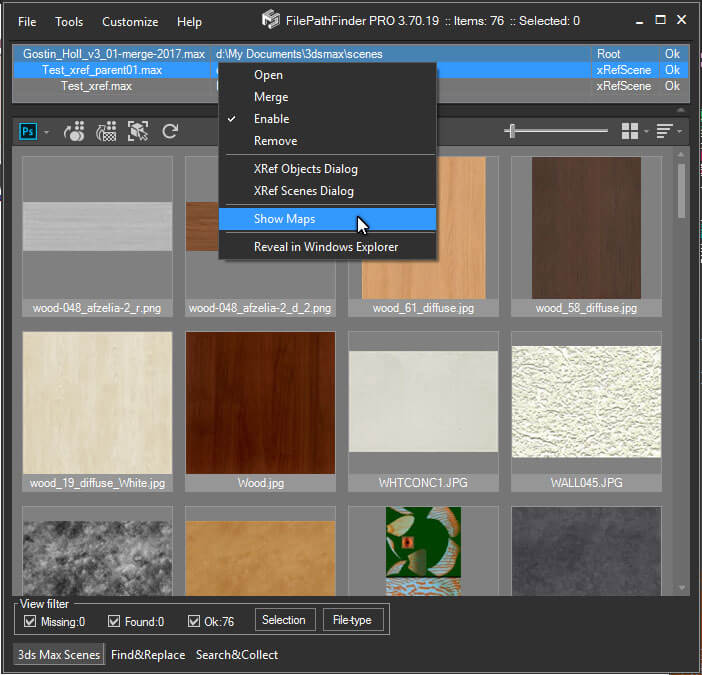
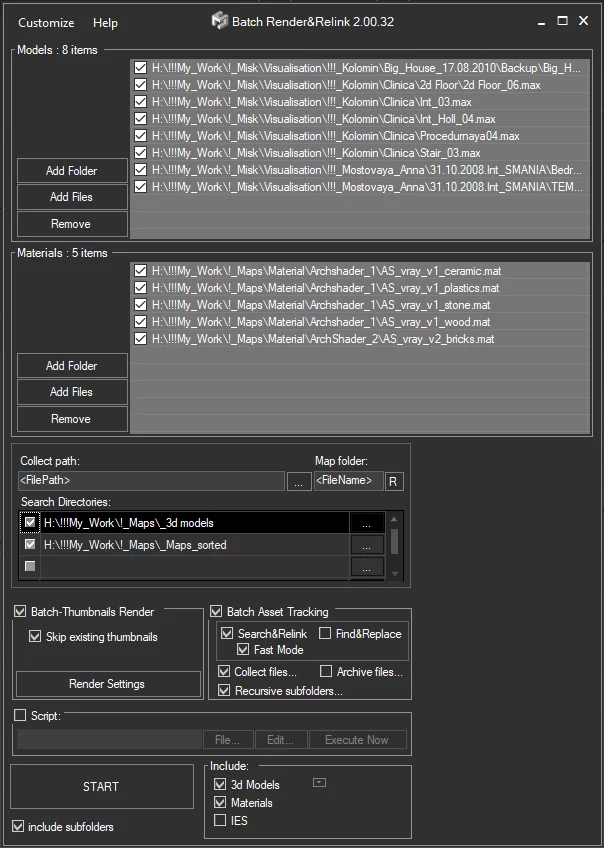
- Work with xRef files in batch mode
- Search External files in automatic mode in xRef scenes
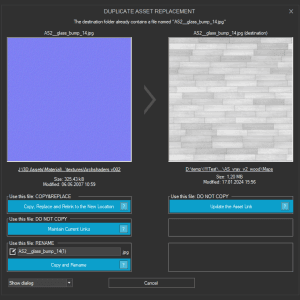
- The Dialog window “Confirm Replace” with advanced settings for different images with same names
- Auto Renaming for different images with same names when collecting
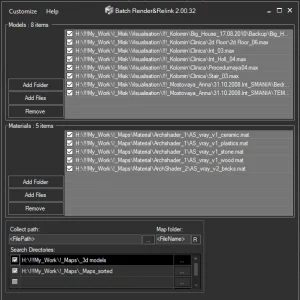
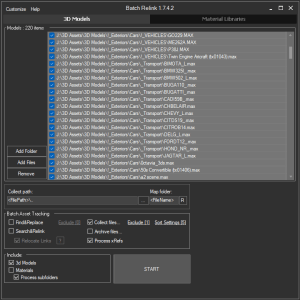
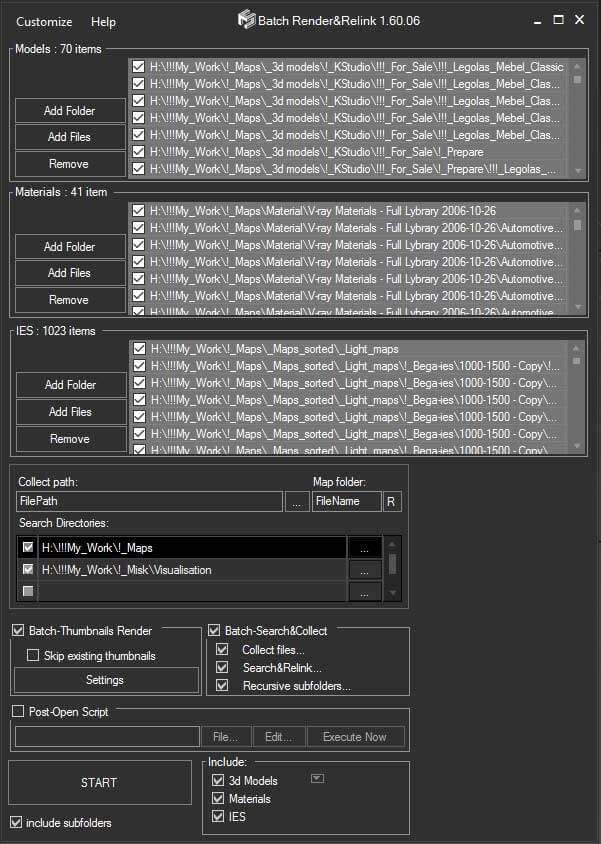
- “Batch Mode” for organize external files for your 3d Models Library
- Collect external files from many Max files with the “Batch Mode”
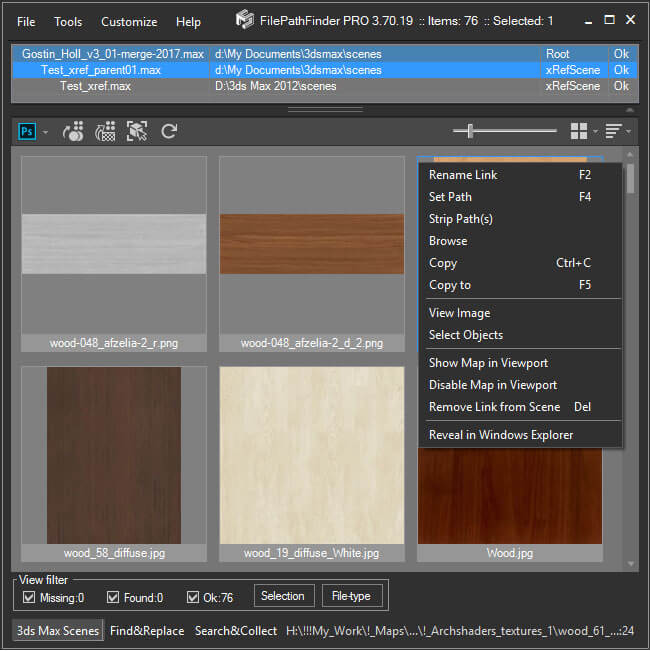
- Selections of objects dependent on external files
- Displays in interactive mode a list of selected objects associated from external files
- Open selected bitmaps in your Editor
- Supporting standard for most Windows programs hotkeys
See all hotkeys
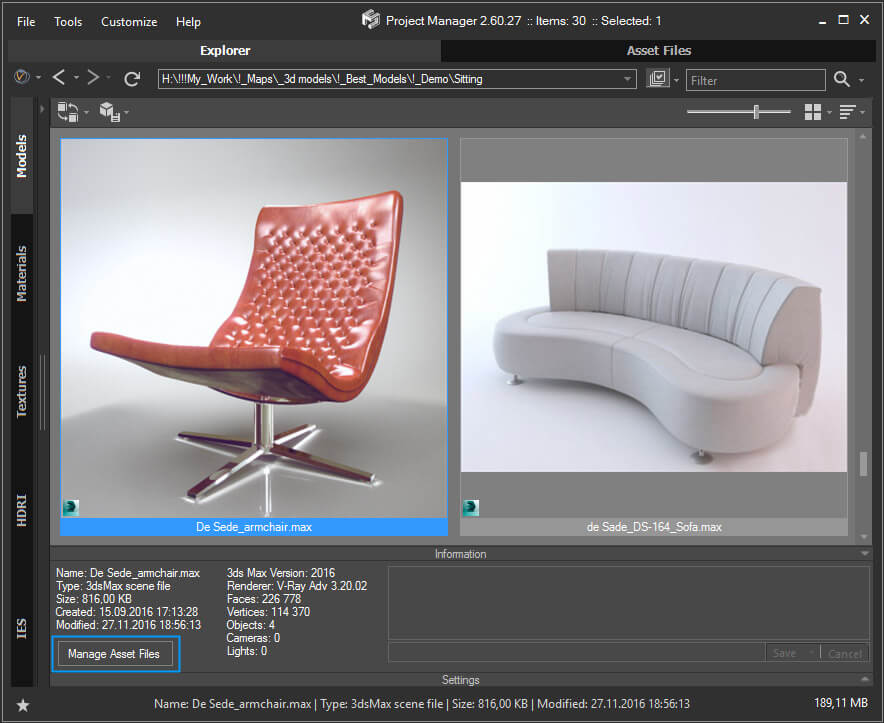
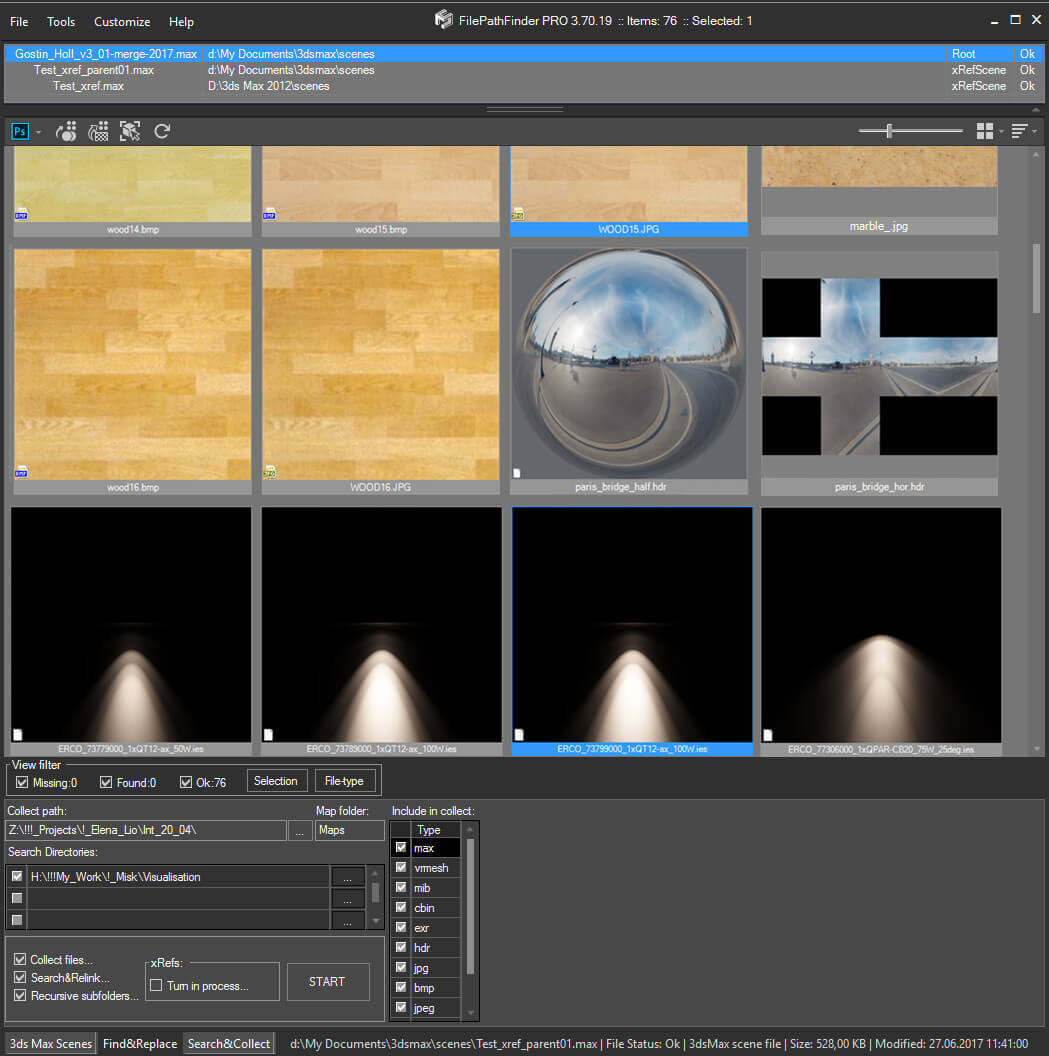
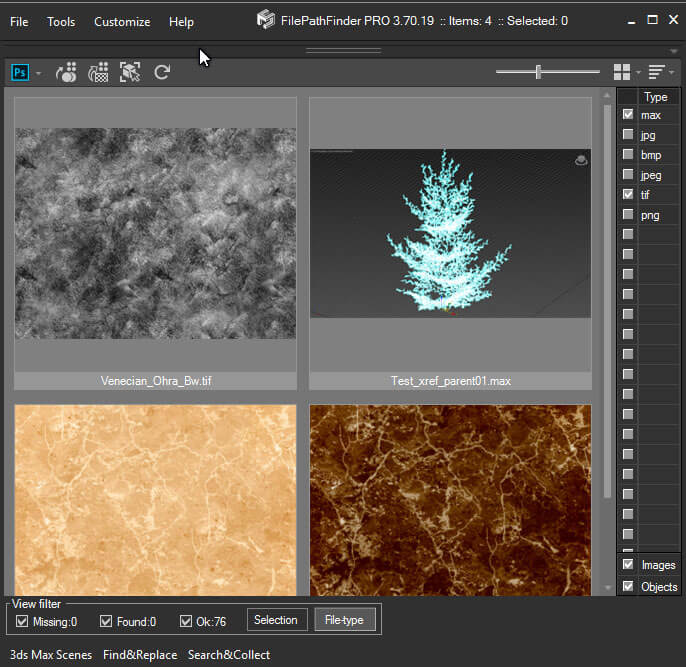
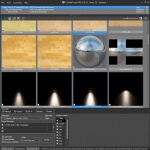
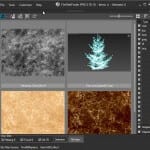
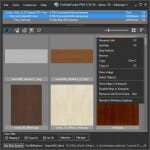
- Image Preview for bitmaps
- Show in viewport bitmap
- Collecting textures and materials which contain indicated files, into Material Editor
- Select objects by their connection with file
- Friendly interface
If you have any questions or propositions you can leave comments.

Next functions are provided for the operations with files:
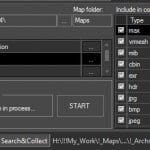
Searching on HDD for
Missing* external files.

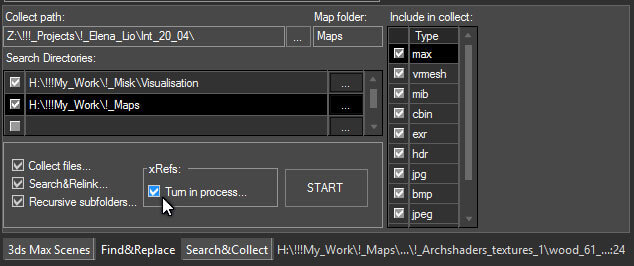
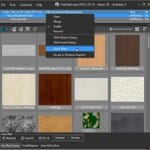
Collecting and sorting files to subfolders, depending on their type.
The option to fix the method of operating with file depending on it’s type:
copying files of certain type or relinking to the existing location.

Elaboration of xRef files in automatic mode.

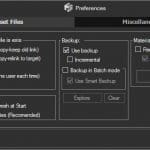
Preferences

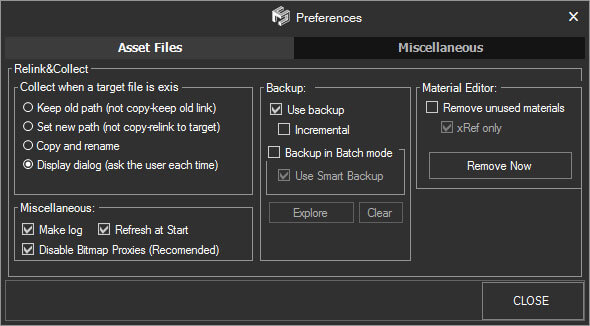
The option to set script’s operations when equal names of copied and existing files appear:
- Do not copy file (change path to the existing one Keep old path)
- Use the existing file in the folder (to change the link of the new file so, that it would use the existing file in the folder Set new path)
- Copy and rename file (AutoRename)
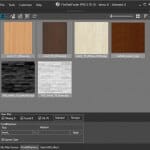
- Extend the dialog window with the reduced files’ images, information on size in pixels and bytes, date of creation and modification of each file.
The user will be given all the variations of actions, except for the user’s opportunity to rename, rewrite
or abort the script’s process manually Ask User)

When equal names of 3dsMax files appear, this menu will pop up, independently from script’s pre-settings.
Clearing Material Editor from the unused materials in manual or automatic modes while searching and collecting files.
The opportunity to create Backup for scenes.
Choosing objects by their connection with files; opening the groups which contain these objects, if needed.
Collecting textures, which contain indicated files, into Material Editor.
Quick and comfortable correction of files’ paths with the Found* status.
“File-Collector” menu

Renaming the links by mask (by part of file’s name)(Find&Replace)

Saving the settings for lights, which work with “les”, when paths have been reassigned.
Supporting standard for most Windows programs hotkeys: Ctrl+A (choose all), Ctrl+I (inversion), F2 (rename).
Sorting files in interface by name, path, type and status.
Carrying on the detailed log accordingly to files’ paths’ corrections (before or after the process of searching/collecting file)
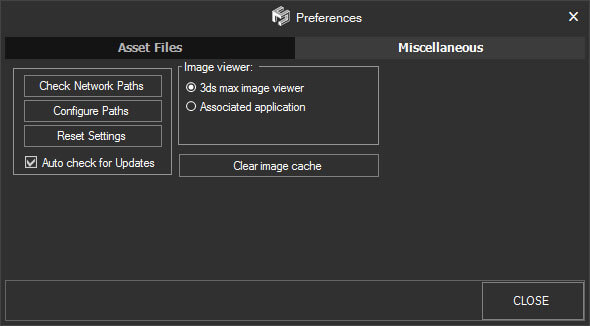
Searching and removing of incorrect paths in User path (Incorrect network paths may considerably slow down the process of working with files).
Hotkeys::