Translate



If you used Connecter and want to upgrade to Project Manager, use the built-in Import from Connecter tool to move your organization data (folders, tags) and asset metadata.
Since the organization tools are different, here is what to expect.
What is transferred
- Connecter repositories become folders in the Project Manager tree.
- Connecter tags (with their parent/child hierarchy) become nested nodes.
- Items (assets) are added with their paths and descriptions (the description becomes the comment of the asset).
- The item ↔ tag links are kept, so each asset appears in the same tags as before.
- Custom previews assigned to items in Connecter are linked to the matching assets by the original paths of the preview images.
- Search is rebuilt for the imported tree, so the new folders and tags are searchable right away.
The import keeps the original file paths. It does not copy or move your 3D asset files or preview images.
The import always goes into your local SQLite database, even if MySQL is the active database.
If MySQL is active, you are then asked whether to copy the imported data from SQLite to MySQL.
Which file do I need?
- Connecter Personal Workspace: the MainDatabase.dcdb file. To get it, open Connecter, go to Tools → Workspace backup and click Make backup now.
The backup is a ZIP file in the folder you chose for backups. Unzip it, and the database file is inside. - Connecter Suite (server version): a PostgreSQL dump (.sql) of your Workspace database.
If you have a paid Connecter Suite subscription, you do not have a local database file, so contact Connecter support and send this request:
A .sql dump is converted automatically during the import (“Converting database dump…”).
How to import
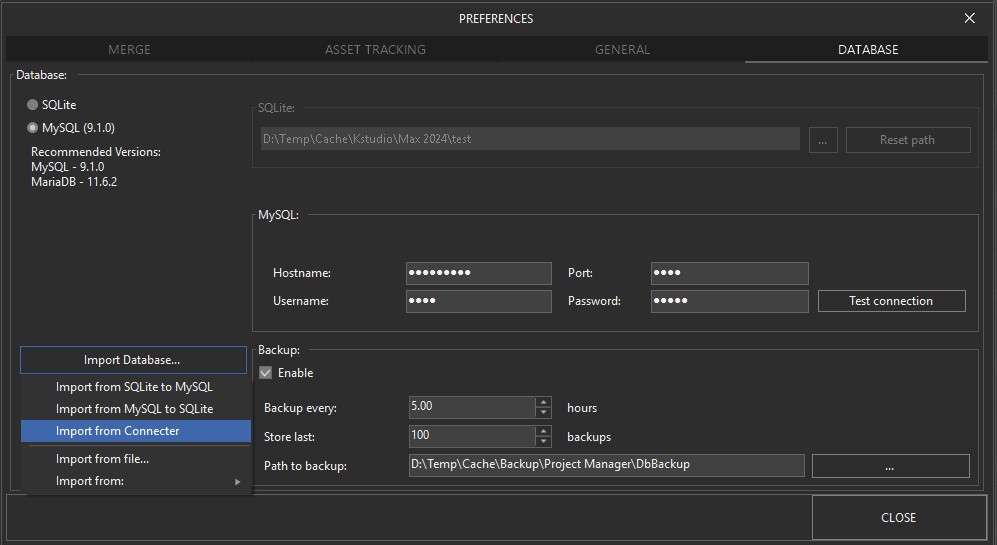
- Open Preferences → Database.
- Press Import Database… and choose Import from Connecter.
- Select your .dcdb file or the .sql dump.
- Choose what to do with your existing local library:
- Yes — Replace: Project Manager backs up your local database, then replaces its folders, tags, asset records and tag assignments with the imported data. To recover your previous library, use Restore Database.
- No — Add: Keep your existing library and add the Connecter data under the imported folders.
- Cancel: Close the prompt without importing.
- Wait for “Importing from Connecter…” to finish. Project Manager then shows “Import into the local SQLite database completed.”