Translate
-
×
 Project Manager 1 × Original price was: $60.00.$48.00Current price is: $48.00.

Great lighting makes a render. Image-Based Lighting (IBL) with an HDR image gives you realistic light, soft shadows and believable reflections all at once.
Setting it up by hand takes a lot of steps, though: create a dome light, open the Material Editor, add a bitmap, switch it to spherical mapping and plug it into the right slot.
And every renderer names these things differently.
With Project Manager you drag an HDR or EXR file into the viewport. That’s the whole setup.
Drop it, then choose
Drag an HDR or EXR from the Project Manager browser onto an empty part of the viewport. A small dialog asks how to use it:
- An Environment map. The HDR becomes the scene environment, already mapped spherically, so it appears in reflections and in the background.
- Dome Light. Project Manager creates the dome light for your current renderer and loads the HDR into it. The light appears where you dropped it, already selected.
- Cancel. Nothing changes.
Dropped it on an object instead?
That works too. You get Assign to Node (the HDR is applied to the object like any other texture) or Dome Light. You never have to look for an empty spot in the viewport.
Your renderer is handled for you
No need to remember which light type your renderer uses or where its HDR slot is. Project Manager checks the active renderer and builds the right light:
| Renderer | What Project Manager creates |
|---|---|
| V-Ray | V-Ray Light, Dome type, with the HDR in its texture slot |
| Redshift | Redshift Dome Light |
| Octane | Octane Daylight in Texture mode |
| Final Render | Spherical area light with the HDR as projector map |
| FStorm | Spherical FStorm Light in texture mode |
| Arnold | Arnold Light with Sky Dome shape |
Working in Corona or another renderer without a dome light type? Then you don’t even get a question: the HDR goes straight into the Environment map.
Try ten skies in a minute
Finding the right mood means trying options. Drag another HDR straight onto your dome light in the viewport and choose Assign to Dome Light.
Project Manager swaps the map and keeps the light and all its settings.
With interactive rendering running, you can compare one sky after another without rebuilding anything.
Prefer the Modify panel? Select the dome light and drop the HDR onto the Command Panel, with the same result. HDR files can also go straight into map slots in Render Setup and the Environment and Effects dialog.
Use the HDRI map you prefer
By default the HDRI map type follows your renderer.
Prefer V-Ray HDRI, the OSL HDRI map or a specific renderer’s bitmap? Set it once in Preferences > HDRI map class, and every drop uses it.
Find the right HDRI faster
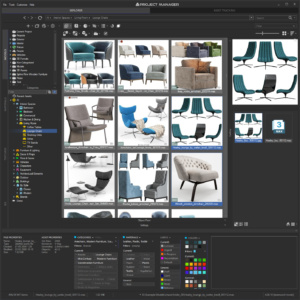
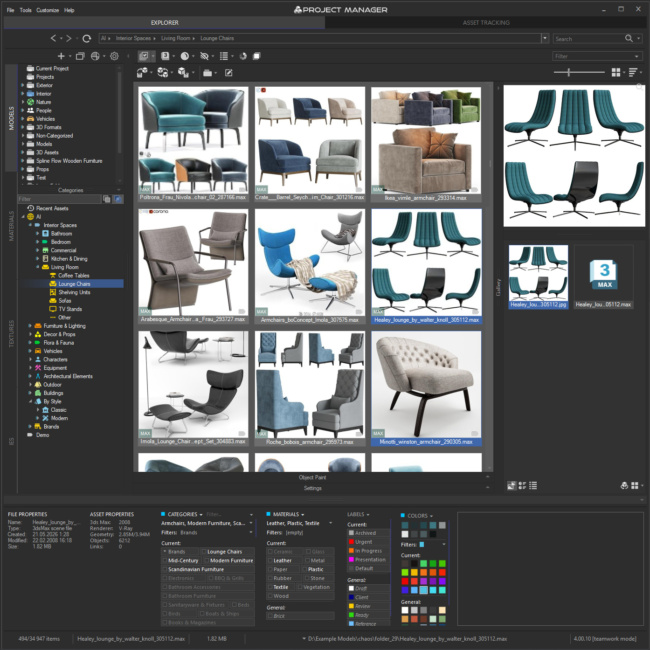
Project Manager shows your HDR collection as thumbnails, not file names. Select one, and the Information panel shows its resolution and bit depth.
A 2K HDR is enough for look development. Switch to a high-res version for the final render.
No digging through slots and rollouts. Drag, drop, and light your scene.
Quick answers
Why don't I see the Dome Light option?
Your active renderer doesn’t have a dome light type that Project Manager supports (for example Scanline).
In that case there is no dialog: the HDR goes straight into the Environment map.
Can I replace the HDR in an existing dome light?
Yes, two ways.
Drag a new HDR straight onto the dome light in the viewport and choose Assign to Dome Light.
Or select the light, open the Modify panel and drop the HDR onto the Command Panel. Either way the map is replaced and all light settings stay as they were.
Which map type is used for the HDR?
By default, the one that suits your renderer.
To use V-Ray HDRI, the OSL HDRI map or a specific renderer’s bitmap instead, set it in Preferences > HDRI map class.
Do I have to set spherical mapping myself?
No. Project Manager switches the map to spherical (environment) mapping automatically, for both the Environment map and the dome light.
Original price was: $60.00.$48.00Current price is: $48.00.Add to Cart
Related to "Image-Based Lighting with HDR in Project Manager: Light Your Scene in One Drag"
SUBSCRIBE TO OUR NEWSLETTERS