Рейтинг@Mail.ru

VrayMultiStageRender Update History

October 14, 2009

 
VrayMultiStageRender v2.1.12

  • Fixes a bug for 3ds max 2012 with copying of settings from source cameras to VrayCam.

VrayMultiStageRender v2.1.11

  • Adds ability to setup subnet mask for rendering through BackBurner.
  • Update the EffectChannel.

VrayMultiStageRender v2.0.78

  • Fixes issues with inheritance White Balance from source cameras.
  • Fixes issues with starting render when “Time Output” is set to “Frames”.

VrayMultiStageRender v2.0.75

  • Adds ability to auto-convert on the fly Vrimg files to EXR after each frame rendering (supported with network and local rendering)
    It is possible to convert the files into one EXR file with all channels or Render Elements into the separate EXR files.

Read more

VrayMultiStageRender

October 13, 2009


Single License for VrayMultiStageRender 15$

Updated March 12 2012
Current version 2.1.11


This is a utility for rendering animations and static scenes
in 2 stages from an animated camera.
The first Stage calculates
the LightCache in Fly-through mode
and the Irradiance Map in incremental add to current map mode
for the entire scene.
The second Stage is the final rendering.
This approach allows all frames to receive
the same high-quality Irradiance map in less time.
For more information see topic
Rendering a walk-through animation from Vray tutorial.


Main Features:

  • Rendering in two stages for to obtain better results in less time.
  • Support for network rendering (BackBurner, Vray Distribute Render, Duma)
  • Ability to exclude from the Global Illumination rendering VrayFur, RPC, some lights and Displace.
  • Automatic creation of animated camera VrayCam.
  • Create subfolders for RenderOutput, RenderElements and irradiance map.
  • Automatized naming LightCache, Irradiance map, RenderOutput and RenderElements.

Software environment requirements:

The script operates in next 3dsMax versions: 9Sp2, 2008, 2009, 2010, 2011, 2012, 2013. (32 and 64 bits)

Other Software Required: VRay


Installation and generation of id-file:

Install.

  • Download archive with script.
  • Unpack archive on a hard disk
  • Start 3ds Max
  • In Maxscript menu choose «Run Script»
  • Choose VrayMultiStageRender.mzp for installation.
  • Follow the instructions on screen.
  • Generate the identification file
  • In menu Customize>> Customize User Interface>> Category>> Track choose the script and draw it to the Panel of Instruments.

Reception of License Key.
To generate a license file I need to get your identification file.

  • After Payment send identification file to e-mail: support@3d-kstudio.com.
  • License file will be sent to you within 48 hours.
  • Put License file to the folder with script VrayMultiStageRender or
    run script VrayMultiStageRender_Registration.mse and press button “Apply Key File”.
  • Choose license file.
  • Open your project and enjoy work! :)


Demo version limits:

  • Maximum rendered image size 640×480
  • Not supported for Render Elements
  • Not supported for Network rendering
  • Not supported for Vray Distributed rendering


Disable displacement in Vray Materials

September 30, 2009

Анатолий:
В общем идея скрипта заключается в том,
чтобы скрипт обрабатывал все материалы в сцене и
отключал на них displacement
и устанавливал указанную maxDepth и subdivs))
A:
То что выделено устанавливайте по вкусу.
————————————————————-
In general, the idea of the script to handle all materials in the scene and
disables to them displacement
and install the specified maxDepth and subdivs.
 
VrayMatArray = getclassInstances VrayMtl
for i in 1 to 24 where classof MeditMaterials[i] == VrayMtl and findItem VrayMatArray MeditMaterials[i] == 0 do append VrayMatArray MeditMaterials[i]
for m in VrayMatArray do
(

    m.texmap_displacement_on = off

    m.reflection_subdivs = 20
    m.refraction_subdivs = 20

    m.reflection_maxDepth = 10
    m.refraction_maxDepth = 10

    m.reflection_useInterpolation = off
    m.refraction_useInterpolation = off

)–end

Для того чтобы узнать все свойства материала Vray используйте команду
show (VrayMtl()) или getPropNames VrayMtl
—————————————————————————————————-
To learn all the material properties Vray use the command
show (VrayMtl ()) or getPropNames VrayMtl

Resolve rendering issues with FixUtilities script.

September 24, 2009
rus | eng

Quite often, my colleagues were have the problem of hang or crash when rendering from 3dsMax with Vray.
Almost always solve the problem is fairly simple.
First, if you work with 3d graphics, work on 64 bit system simply required.

Why?
Because, unlike 32-bit system, the 64 bit OS works with virtually unlimited memory.
(32-bit works with a maximum of 1.6 gigabytes of memory)
Using Vista is not recommended.
Use the WinXP 64 bit or Server 2003 64 bit.
With 64 bit OS use the 3ds Max 64 bit.


If the scene continues to crash then continue.

Usually the cause of crash is one (or then all) of the following errors:

    1. Objects without UVW-mapping .
    2. Objects without material.
    3. Objects with no Vray materials.
    4. Geometry without polygons.
    5. Objects with an incorrect geometry.
    6. Scene is to far away from origin.

By the way, most problems can see in the Vray log.


First step – merge your scene into a new file.
If necessary move all objects closer to the center of coordinates.

To ensure that select all objects, even if they are hidden, press F11
and in the window
Enter a string
select $ *
select the line and press SHIFT + ENTER.
All objects will be selected.
Move all objects closer to the center of coordinates.


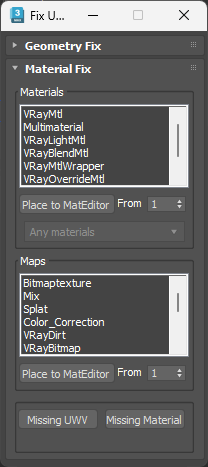
Run script FixUtilities

    1. Select the objects without UVW-mapping using the button “Missing UVW”
    Assign UVW-mapping modifier on them all.
    2. Select the objects without materials using the button “Missing Material”
    Assign Vray material on them all.
    3.Find in the list of materials not Vray materials and
    replace them with the Vray material.
    4. Select all Geometry without polygons with button “Select empty objects” and
    delete them.
    5. Close FixUtilities and render your the scene!

Решение проблем при рендеринге с помощью скрипта FixUtilities.

August 25, 2009
rus | eng

Достаточно часто мои коллеги, работающие с Vray сталкиваются
с проблемой зависания или “вылета” из 3dsMax при рендеринге.
Практически всегда решить проблему оказывается достаточно просто.
Во первых, почему-то многие до сих пор боятся ставить 64х битную систему.
Ну уж будьте так добры, если вы работаете с графикой, а тем более 3d,
то работа в 64 битной системе просто обязательна.
Зачем?
Просто потому что в отличие от 32 битной системы, 64х битная
работает практически с неограниченным объемом памяти.
(32 бита работает максимум с 1,6 гигабайт памяти, больше – вылет!)
Вы поставили Vista 64 бит?
Замечательно!
Сносите и не сомневайтесь – ставьте WINXP 64 bit.
Ближайшее время появится новая система Windows 7 – если желаете, экспериментируйте с ней.
Поставьте на свежеустановленную 64х битную систему 64х битную же версию 3dsMax.
Рендеринг пошел?
Замечательно!


А если все таки сцена продолжает вылетать, то продолжим.
Как правило причиной этого оказывается одна (или все вместе) из следующих ошибок:

    1. Отсутствие UVW-mapping на объектах.
    2. Объекты без материалов.
    3. Объекты с не Vray materials.
    4. Объекты – пустышки.
    5. Объекты с некорректной геометрией.
    6. Значительная удаленность сцены от начала координат.

Кстати большинство проблем можно высмотреть в окне Vray log.


Конечно же лучше изначально, при создании сцены, соблюдать все правила и корректно моделировать, мапить и т.д.
Но уж если вы все-таки столкнулись с проблемой, то нужно ее решать.

Для начала сделаем merge сцены в новый файл.
Перенесем при необходимости объекты поближе к началу координат.
Чтобы гарантированно выделить все объекты, даже если они спрятаны, нажмем F11 и в появившемся окне
введем строку
select $*
выделим строчку и нажмем SHIFT + ENTER.
Вуаля – все объекты выделены!
Итак переносим все объекты поближе к центру координат.


Запускаем скрипт FixUtilities.

    1. Выделяем объекты без UVW-mapping с помощью кнопки “Missing UVW”
    Аккуратненько мапим их.
    2. Выделяем объекты без материалов с помощью кнопки “Missing Material”
    Материм их. Vray material, конечно же.
    3.Высматриваем в списке используемых в сцене материалов инородные материалы и заменяем их на Vray material.
    4. Проверяем наличие в сцене объектов-пустышек с помощью кнопки “Select empty objects”
    5. Закрываем FixUtilities и рендерим сцену!

Иногда все-таки так случается, что даже после всех наших стараний сцена отказывается считаться.
Прячем поэтапно часть объектов и пытаемся считать без них.
Крайняя мера.
Надеюсь до нее не доходит.
Всем быстрых рендеров!


BUY FilePathFinder (Light-version)

August 12, 2009

FilePathFinder Light Single License – 9$ USA.

BUY FilePathFinder PRO

August 12, 2009

The price is reduced!
Current price $ 25

Available considerable discount at purchase more than one version the FilePathFinder Pro

List of tested with FilePathFinder plugins and objects.

August 12, 2009

Used FilePathFinder algorithm allows to work even with the plugins
that the developer never even heard.
A list of tested with FilePathFinder Objects, Materials, Modifiers, Atmospheric Effects, Lights.

Page 2 from 2 1 2